Show Vault Spaces for the correct workspace
Switch the mobile Vault to the workspace attached to an expected encrypted Space, distinguish My Spaces from Shared with me, and refresh the account-scoped list safely.
Last reviewed
The mobile Vault uses the workspace shown in its header to filter My Spaces. A Space attached to another workspace does not appear in that section until you switch workspace context. Spaces shared by someone else appear separately under Shared with me.

Before you start
- Confirm which Dosya account owns or receives the expected Space.
- Identify the regular Dosya workspace associated with that Space.
- Keep the Vault passphrase and offline recovery key private. A workspace switch does not require either value again while Vault remains unlocked.
- Do not create a replacement Space merely because the expected one is missing from the current workspace view.
Steps: switch Vault workspace scope
- Open the Vault tab and unlock it normally.
- Read the workspace name in the header above the Vault content.
- Tap the workspace header to open Your workspaces.
- Choose the workspace associated with the missing Space. Wait for the workspace-switch transition to finish.
- Return to My Spaces and look for the expected name.
- If it was created or renamed on another device, allow the discovered placeholder name a moment to update from the encrypted Space metadata.
- Check Shared with me when another person shared the Space. Shared Spaces are listed separately from the active-workspace My Spaces filter.
- Open the Space and verify one expected folder or harmless file.
Expected result
My Spaces shows the Spaces attached to the selected workspace, and opening the expected Space displays its own decrypted contents. A shared Space remains under Shared with me regardless of which workspace is active.
Limits and important details
- The known Space list is stored per signed-in account on the phone. Switching to another Dosya account changes the available Vault identity and list.
- Legacy Spaces without a stored global-workspace association can appear across workspace contexts.
- Creating New Space attaches it to the workspace active at creation time. Verify the header before creating one.
- Workspace switching changes the list filter; it does not decrypt, copy, rename, or move encrypted files.
Troubleshooting
The correct workspace shows no Spaces. Confirm the Dosya account, unlock Vault, and allow the initial discovery request to finish. Use Retry if the identity check or Space check reports an error.
A Space has a placeholder name. Leave the unlocked list open briefly. Dosya resolves names from encrypted Space metadata in the background.
The Space is shared, not owned. Look under Shared with me. It is intentionally separated from My Spaces.
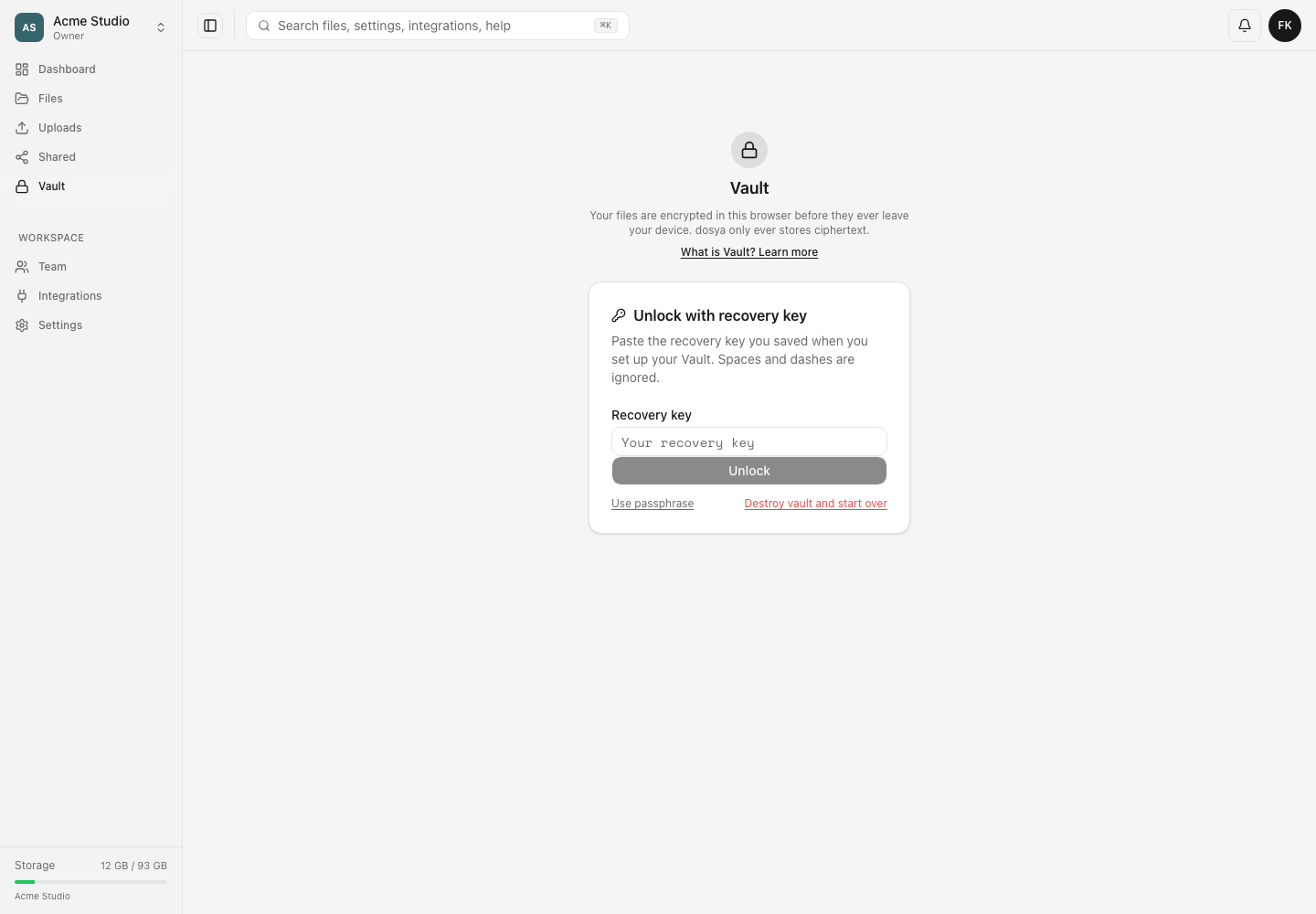
Vault asks for recovery information. Complete the normal unlock or recovery flow first. Support cannot reconstruct a lost passphrase or recovery key.
Related guides
Was this helpful?
Loading helpfulness results…
Voting saves a necessary ballot cookie for up to 180 days so you can change your answer.
Questions and replies
Ask about the steps in this guide. Questions are reviewed before publication.
Keep account details, credentials and private files out of public questions. Use private support for those.
Loading questions…
Sign in to your Dosya account to ask a question.