Recover access to Dosya Vault
Unlock Vault with the recovery key when the passphrase is unavailable, and understand the permanent consequences of destroying a Vault identity.
Last reviewed
Use the recovery key when you cannot enter the Vault passphrase. It restores access to the encrypted identity; destroying the Vault is a separate last-resort action that makes every file encrypted under the old identity unreadable.
Before you start
- Look for the recovery key in the password manager or offline record chosen during setup.
- Work privately. Do not paste the key into chat, email, support tickets or a screen recording.
- Keep any still-unlocked Vault session open on another trusted device until recovery succeeds.
- Treat Destroy vault and start over as permanent data loss, not a normal password reset.
Steps: unlock with the recovery key
- Sign in to Dosya and open Vault.
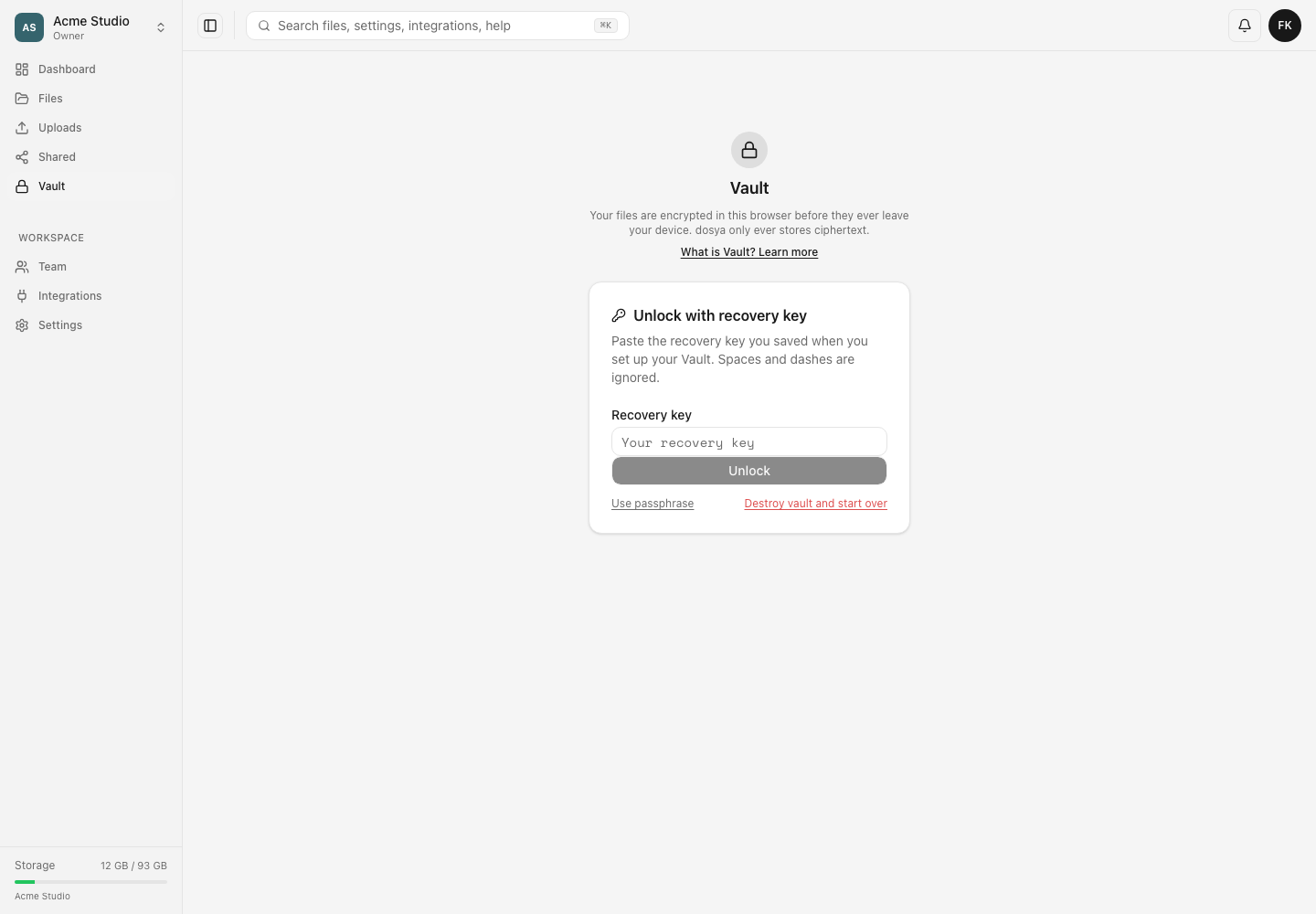
- On the unlock screen, select Use recovery key.
- Paste or type the complete recovery key. The field accepts the key with spaces or dashes removed or included.
- Select Unlock.
- Open the required Spaces and confirm that important files can be downloaded and opened.
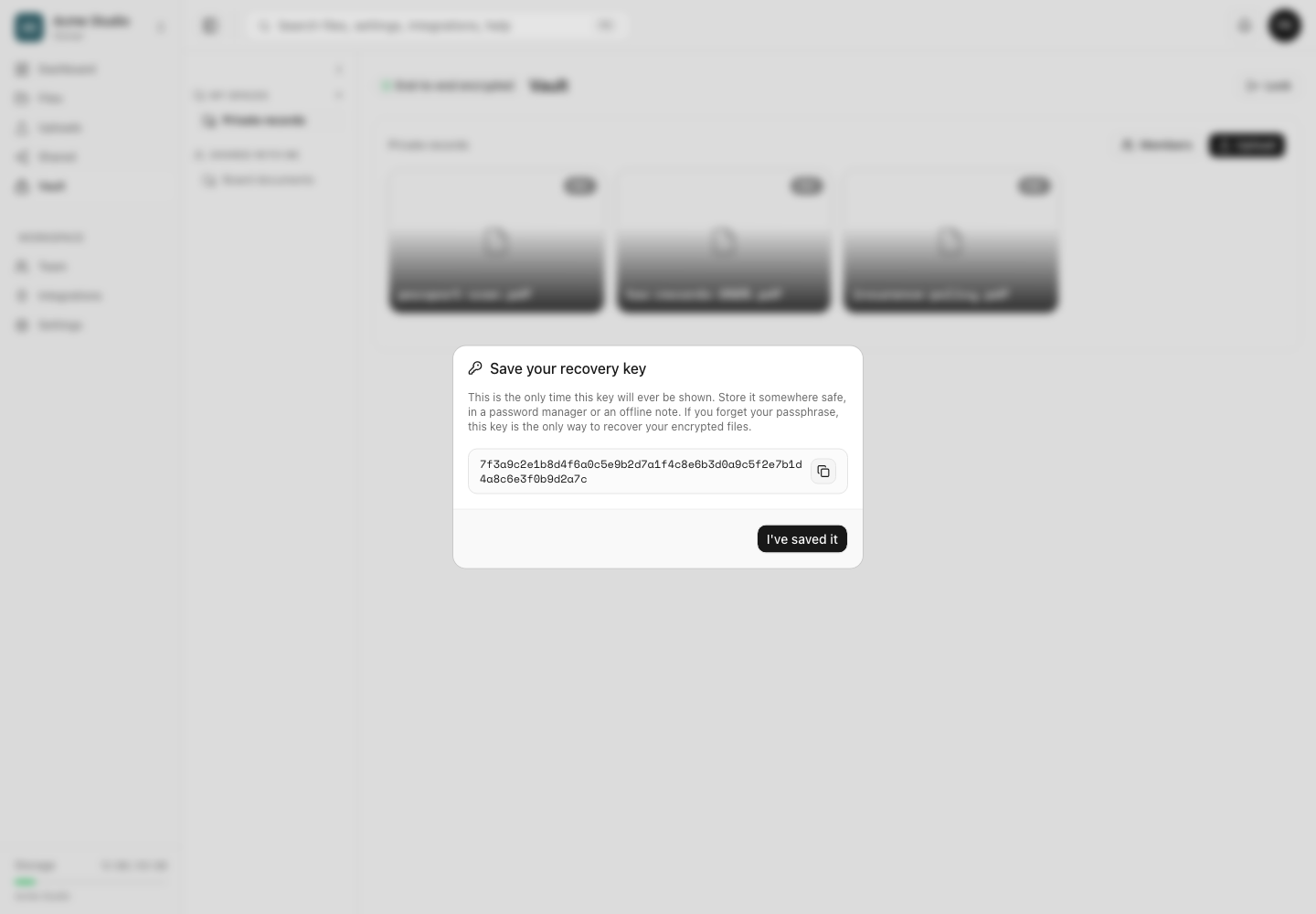
- Follow the available security controls to establish access you can retain. Keep the recovery key secured until you have verified the new access path.
Expected result
A valid recovery key unlocks the existing Vault identity and its encrypted Spaces in the browser. Confirm recovery by opening or downloading a known file, rather than relying only on the unlocked screen.
Steps: start over only when the encrypted data can be lost
- Exhaust searches for the Vault passphrase, recovery key and any trusted device with an active unlocked session.
- Read the destructive warning in full.
- If every old Vault file can be abandoned, select Destroy vault and start over.
- Confirm with the requested account password and two-factor authentication when enabled.
- Create a new encrypted identity and save its new recovery key.
Limits and irreversible consequences
- Dosya cannot reset the Vault passphrase or generate the old recovery key.
- If both are lost, the old encrypted files cannot be recovered by Dosya support.
- Destroying the Vault identity does not decrypt or migrate old files. It makes all files encrypted for that identity permanently unreadable.
- Your account password and account password-reset email do not decrypt Vault data.
- Removing spaces or dashes can help normalize a copied key, but missing or changed key characters cannot be reconstructed.
Troubleshooting
The recovery key is rejected. Copy it again from the original secure record. Remove surrounding whitespace, check the first and last characters, and avoid using a key from a different account or identity.
You still have an unlocked session elsewhere. Keep it open. Download essential files from that trusted session before changing or destroying anything.
Two-factor authentication blocks the destructive reset. Recover account-level two-factor access first. This does not recover the Vault passphrase, but it may be required to authorize identity destruction.
Both passphrase and recovery key are gone. Search backups and password-manager history before using the destructive option. Support cannot bypass the encryption or restore the old files afterward.
Related guides
Was this helpful?
Loading helpfulness results…
Voting saves a necessary ballot cookie for up to 180 days so you can change your answer.
Questions and replies
Ask about the steps in this guide. Questions are reviewed before publication.
Keep account details, credentials and private files out of public questions. Use private support for those.
Loading questions…
Sign in to your Dosya account to ask a question.