Troubleshoot a Vault that will not unlock
Diagnose encryption-status, passphrase and recovery-key failures without exposing secrets or destroying an encrypted Vault by mistake.
Last reviewed
A Vault unlock failure usually belongs to one of three stages: Dosya cannot check whether the encrypted identity exists, the Vault passphrase is rejected, or the recovery key is rejected. Identify the stage before changing anything.
Before you start
- Keep any trusted device with an already-unlocked Vault session open.
- Do not send a passphrase or recovery key to support or paste it into any page other than the Vault unlock form.
- Check keyboard layout, Caps Lock and password-manager selection.
- Treat Destroy vault and start over as permanent data loss.
- If service status or connectivity is uncertain, resolve that before testing secrets repeatedly.
Steps: identify and fix the failure
- Open Vault and read the card title and error exactly.
- If it says Couldn’t check encryption status, select Retry after checking the connection. Do not create a new identity; the app has not established whether the existing one is present.
- If it says Unlock Vault, enter the dedicated Vault passphrase. Your Dosya account password is a different credential.
- If the passphrase is rejected, type it manually once after confirming keyboard layout and autofill. The app intentionally gives a generic failure instead of revealing details about the encrypted identity.
- If the passphrase is unavailable, select Use recovery key and paste the complete key saved during setup. Spaces and dashes are ignored.
- After recovery-key unlock, open or download a known file to confirm that the correct encrypted identity opened.
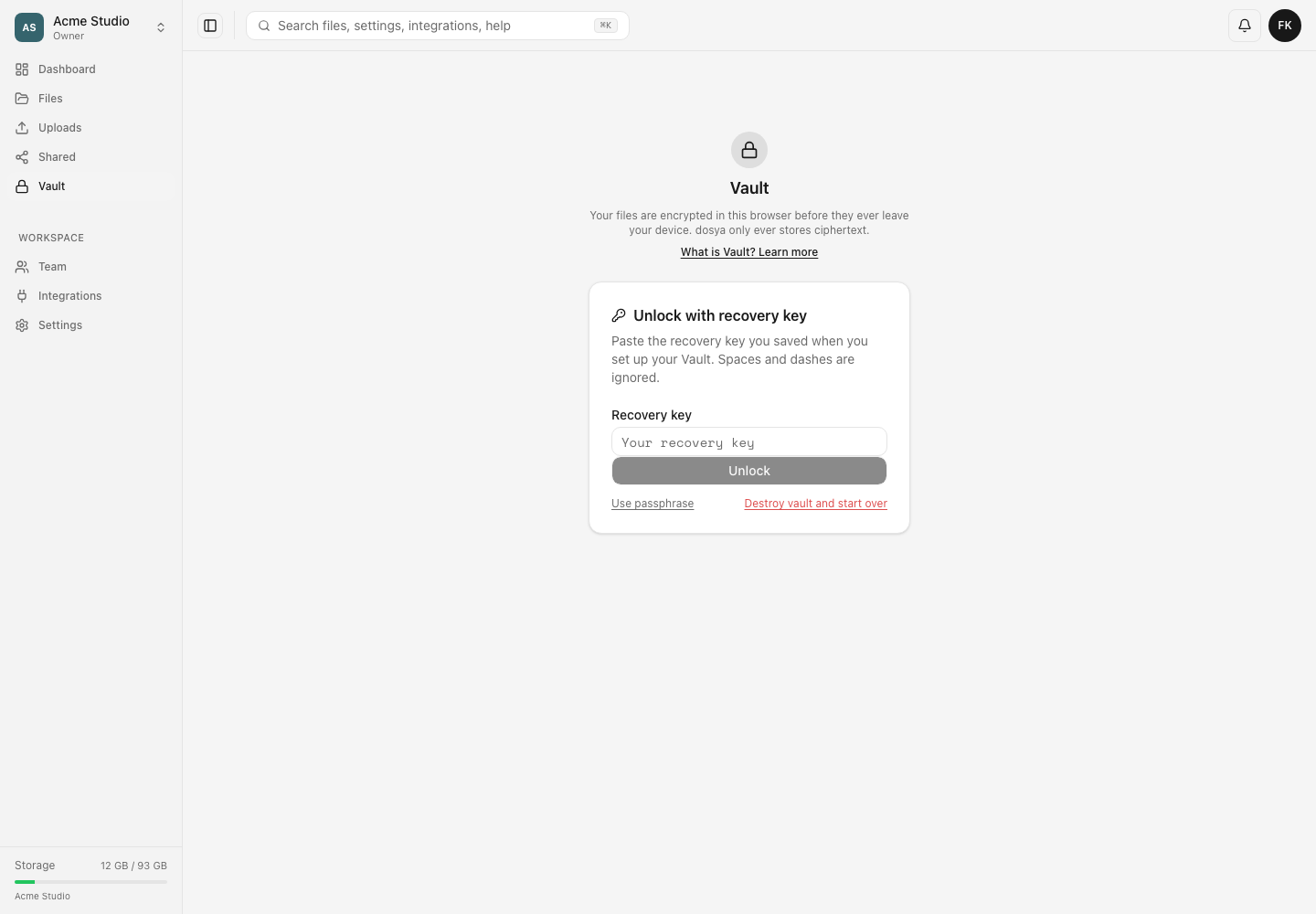
Expected result
A successful passphrase or recovery-key attempt opens the existing encrypted Spaces. A successful encryption-status retry shows the correct setup or unlock screen without overwriting an existing identity.
Limits and irreversible actions
- Dosya cannot reset the Vault passphrase or reconstruct a missing recovery key.
- The account password-reset flow does not decrypt Vault data.
- If the current build reports that recovery-key unlock is unavailable, update to the current version and retry; do not destroy the Vault to bypass a client-version problem.
- Destroying the Vault identity makes every file encrypted under it permanently unreadable to you and everyone with whom a Space was shared.
- Destructive reset requires the account password and, when enabled, a two-factor code. These checks authorize destruction; they do not decrypt old data.
Troubleshooting specific messages
Couldn’t check encryption status. This is an identity-status or connection check, not evidence that no identity exists. Select Retry after connectivity recovers.
Incorrect passphrase or no identity found. Confirm the dedicated Vault passphrase, keyboard layout and account. If it remains unavailable, use the recovery key.
That recovery key did not unlock your Vault. Copy it again from the original secure record, remove surrounding whitespace and check its beginning and end. Make sure it belongs to this account’s Vault identity.
Recovery key unlock is not available in this version yet. Update or reload the current client and retry later. Preserve encrypted data; do not use destructive reset simply because this client path is unavailable.
You still have another unlocked device. Keep it online and download essential files before taking any destructive action.
Both credentials are lost. Search password-manager history, offline records and trusted devices. If none remains, support cannot bypass the encryption. Start over only when every old encrypted file can be abandoned.
Related guides
Was this helpful?
Loading helpfulness results…
Voting saves a necessary ballot cookie for up to 180 days so you can change your answer.
Questions and replies
Ask about the steps in this guide. Questions are reviewed before publication.
Keep account details, credentials and private files out of public questions. Use private support for those.
Loading questions…
Sign in to your Dosya account to ask a question.