Sort files by name, size or date
Sort Files with six toolbar presets or a visible table column, understand first-click direction, and verify ordering without changing stored files.
Last reviewed
Sorting changes the order returned for the active standard Files view; it does not rename, move, or rewrite stored items. Standard folder, Deleted, and group views offer six toolbar presets, while list view can sort by any visible supported column. The photo Library uses its own sort state and choices.

Available preset labels. Outside the photo Library, the toolbar supports Newest, Oldest, Name A–Z, Name Z–A, Largest, and Smallest. The default is newest-created first.
Steps
- Open Files and enter the standard folder, Deleted view, or group you want to order. Apply search first if the sort should cover only matching results.
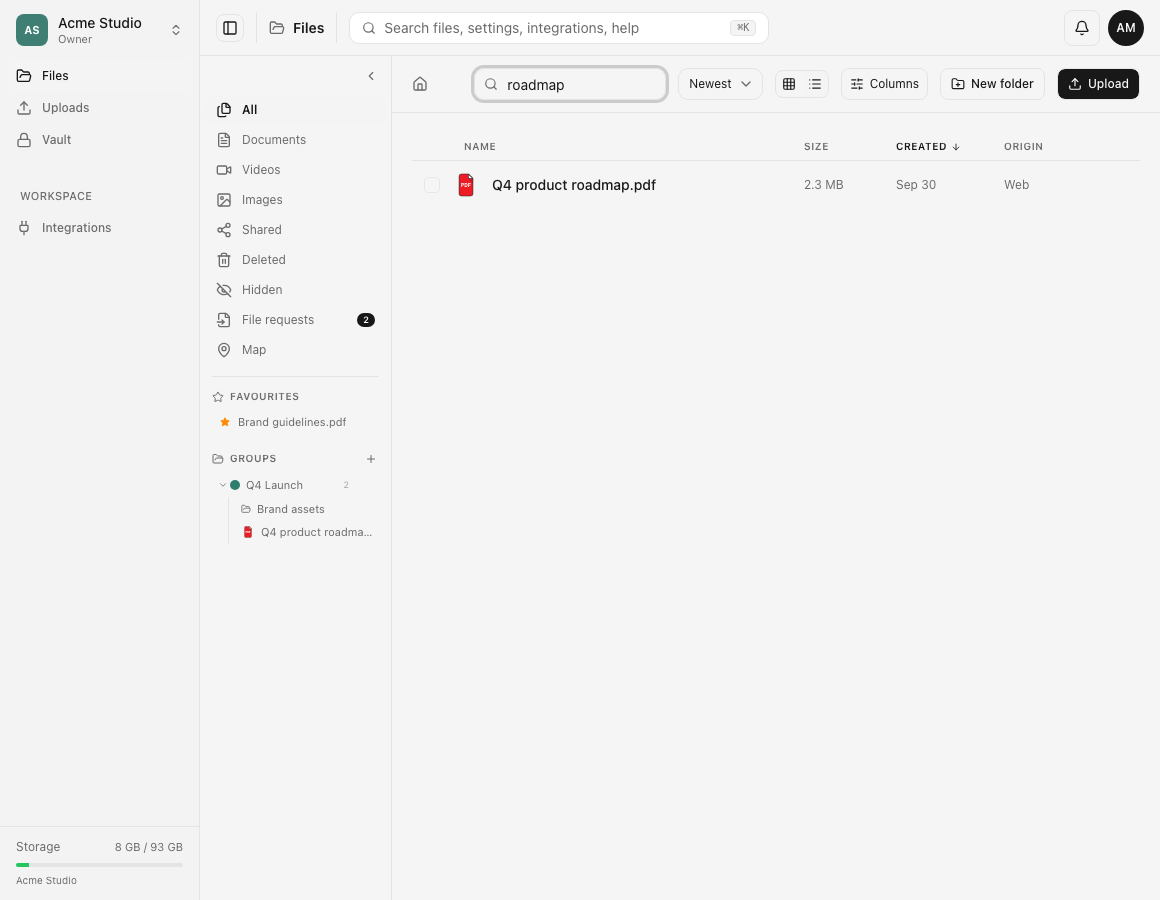
- Open the sort menu beside the search box and choose one of its six presets. The choice lives only in the current page state: refreshing the page or sharing its URL returns the standard view to Newest.
- For another field, switch to list view, choose Columns, and enable the column. Supported headers include Type, Extension, Version, Uploader, Region, Origin, Shares, and Comments.
- Select a column header once. Text fields begin ascending; sizes, dates, version numbers, shares, and comment counts begin descending.
- Select the same header again to reverse it. The arrow beside the active header shows the current direction, and the toolbar displays a synthetic label such as Uploader ↑.
- Check the first and last rows, comparing folders and files within their own sections because folders remain pinned above files.
Special date labels. In Deleted items, the normal Modified column is presented as Deleted and uses deletion time. Photo libraries use Date taken based on captured time, then source-created time, then upload time. The Library layout has separate sort choices and loading state, so the six standard presets above do not describe it.
Expected result
The active arrow or sort label states the chosen field and direction, and rows within each folder/file section follow that order. No file metadata or bytes change merely because the list was sorted.
Related guides
Was this helpful?
Loading helpfulness results…
Voting saves a necessary ballot cookie for up to 180 days so you can change your answer.
Questions and replies
Ask about the steps in this guide. Questions are reviewed before publication.
Keep account details, credentials and private files out of public questions. Use private support for those.
Loading questions…
Sign in to your Dosya account to ask a question.