Searching for files in the correct workspace
Use the Files-page search to match file and folder names in the active workspace and current view, then clear or adjust filters when an item is missing.
Last reviewed
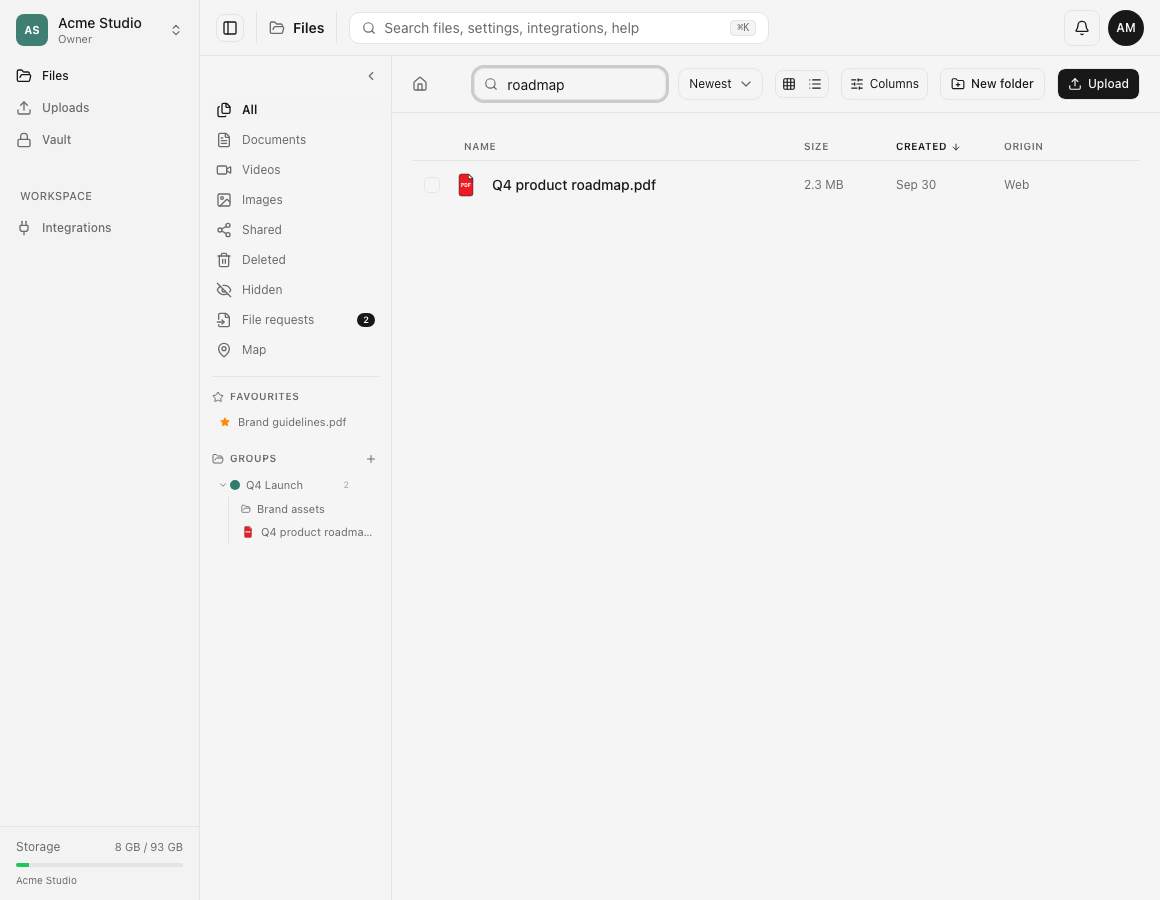
Open Files in the workspace that should contain the item, then use the smaller Search files… field in the Files toolbar. It matches file and folder names in the current Files view. It does not search file contents or combine every workspace into one result list.
The larger field in the application header can search broader app destinations such as settings, integrations and help. Use the Files-toolbar field when you want to narrow the file list shown on the page.
Before you start
- Confirm the workspace name in the upper-left switcher.
- Check the current folder breadcrumb and sidebar selection. A folder, type filter or group changes the view that the Files search narrows.
- Start with a distinctive part of the filename, not a guessed full path.
- Remember that another member can have access to an item you cannot see. Search results follow your role, hidden-item and folder-lock rules.
- If the item may have been deleted, search the appropriate Deleted view only when your role can access it.
Steps: search the current Files view
- Open Files.
- Select the correct workspace.
- If you want to search the workspace root, choose the home icon and All. If you want only one folder, type or group, open that view first.
- Enter part of the file or folder name in Search files…. Dosya waits briefly while you type, then starts from the first page of matching results.
- Review the remaining rows and compare the name, type, size, date and origin columns when available.
- Open the result to verify it is the intended item.
- Clear the search field to restore the current folder or filtered view.
Steps: widen a search that finds nothing
- Clear the search field.
- Choose the home icon to return to the current workspace root.
- Choose All if Documents, Videos, Images, Shared, Hidden, Deleted or a group is selected.
- Search a shorter, distinctive part of the name. Matching is case-normalized, so capitalization should not be the deciding factor.
- Check likely folders by browsing into them and repeating the search when the item is not at the root.
- Switch workspaces only when the item belongs to another workspace, then repeat the search there.
- If another member can see the item but you cannot, ask a workspace owner to review your role, folder confinement, hidden-item rules and folder lock.
Expected result
The Files list updates to show files and folders whose names match the query inside the active view. Clearing the query restores that view without changing the selected workspace.
A result opens the existing item. Search does not create a copy, move the item or change its permissions.
Search limits and visibility
- Search uses the active workspace. It does not return results from another workspace until you switch to it.
- A current folder limits the listing to that folder. Return home or browse to another folder when the item lives elsewhere.
- Type filters, groups, Deleted and Hidden views keep their own scope while a name query is present.
- The query matches stored file and folder names. This guide does not claim full-text search inside PDFs, documents, archives, images or media metadata.
- Hidden or inaccessible items remain subject to their visibility rules. Search is not a way around a role, folder confinement or lock.
- Literal
%and_characters are treated as filename characters rather than search wildcards. - Search resets the listing to page one when the query changes, preventing an old page number from hiding the first matches.
Troubleshooting
No files match your search. Clear the field, choose home and All, then search a shorter part of the name. Check whether you were inside a folder, group or type filter.
A file appears in one workspace but not another. Workspace contents are separate. Switch to the workspace that owns the file; switching context does not move it.
A colleague finds the file but you cannot. Compare the exact workspace and folder first. Then ask an owner to review access, hidden-item policy, folder lock and any confined-folder role.
The search finds the filename but not words inside the document. The Files search documented here matches names. Open a supported preview and use its in-file controls, or download and search with an appropriate local application.
The result list looks too narrow. Clear the active Documents, Videos, Images, Shared, Hidden, Deleted or group view before searching again.
A renamed file no longer matches the old query. Search the new stored name. Rename changes what the name search indexes and displays.
Frequently asked questions
Can I search files in another workspace?
Yes, after switching to that workspace. The Files page searches one active workspace context at a time.
Does Files search inside documents?
The workflow documented here matches file and folder names. It does not claim full-text indexing of document contents.
Why is a file missing even though I know its name?
The usual causes are the wrong workspace, a different folder, an active filter or group, Deleted/Hidden state, or access restrictions. Widen the view in that order before escalating.
Related guides
Was this helpful?
Loading helpfulness results…
Voting saves a necessary ballot cookie for up to 180 days so you can change your answer.
Questions and replies
Ask about the steps in this guide. Questions are reviewed before publication.
Keep account details, credentials and private files out of public questions. Use private support for those.
Loading questions…
Sign in to your Dosya account to ask a question.