Organizing files with folders, favourites and groups
Use folders for file location, favourites for quick access and personal groups to collect related files and folders without moving them.
Last reviewed
Open Files in the intended workspace, then choose the organizer that matches the job. A folder determines where an item lives. A favourite gives you a quick link to a file. A group collects related files and folders from different locations without moving or copying them.
Before you start
- Confirm the active workspace in the upper-left workspace switcher. Folders, favourites and groups shown on the page belong to that workspace context.
- Use non-confidential sample items while learning the controls.
- Make sure your role can create folders if you need a new location. The available actions follow your workspace permissions.
- Decide whether you need to change storage location or only create a shortcut. Use a folder for location; use a favourite or group for quick access.
- Keep names short and distinct enough to recognize in the sidebar.
Choose the right organizer
| Organizer | What it changes | Best use |
|---|---|---|
| Folder | The item’s location in the workspace hierarchy | Project structure, ownership boundaries and predictable paths |
| Favourite | Adds a file shortcut under Favourites for your account | A file you open often |
| Group | Adds a file or folder to your personal collection without changing its location | A task or project that spans several folders |
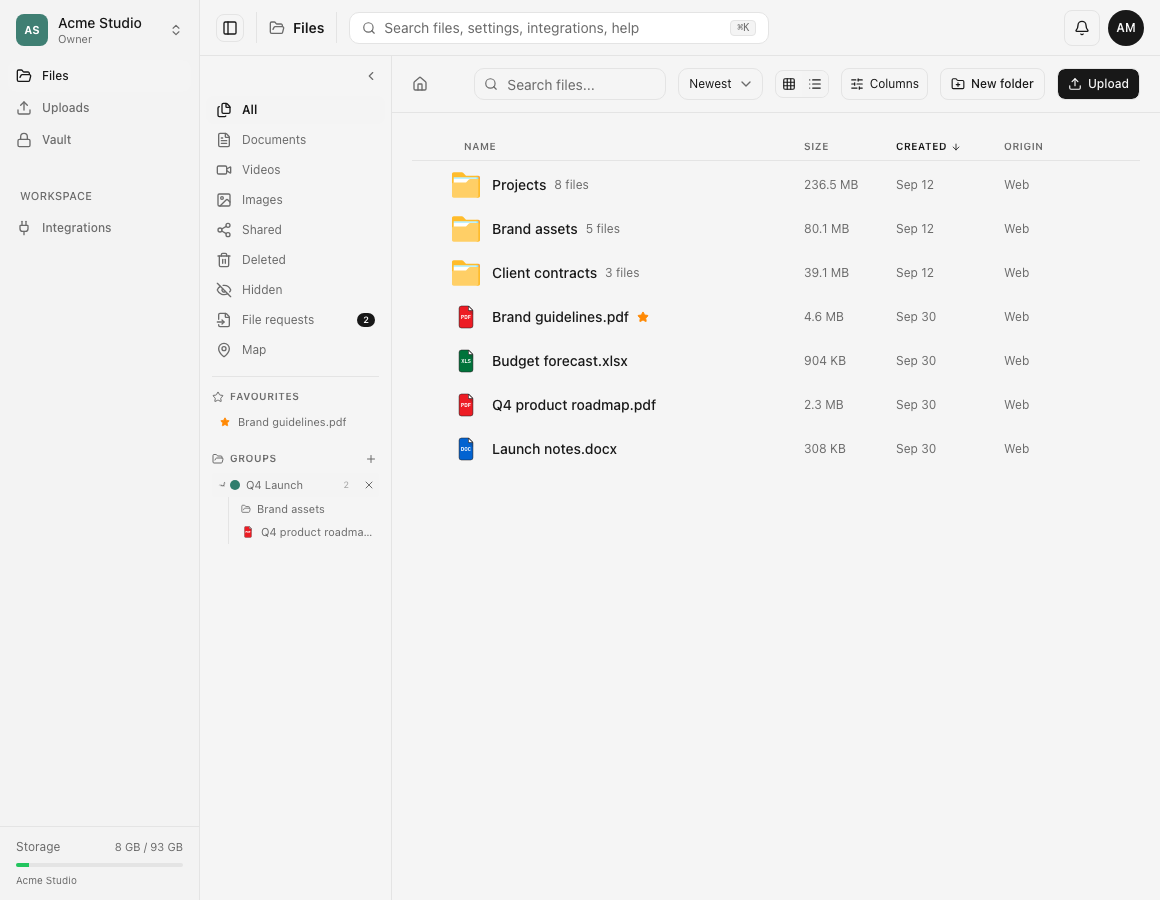
Steps: create a folder
- Browse to the location that should contain the new folder. Use the home icon to return to the workspace root.
- Choose New folder.
- Enter a folder name. The creation field can also accept a path such as
Projects/Q4/Designswhen you need nested folders. - Choose Create and wait for the folder to appear.
- Move existing items into it or upload new items while that folder is open.
A folder changes the real path of items placed inside it. Moving an item later is a separate action.
Steps: add or remove a favourite
- Find the file in Files.
- Right-click its row or open its three-dot menu.
- Choose Add to favourites.
- Confirm that the file appears under Favourites in the Files sidebar and has a star beside its name.
- Select the favourite to open the file quickly.
- To remove the shortcut, open the file menu and choose Remove favourite, or use the remove control beside the sidebar entry.
Removing a favourite does not delete, move or rename the file. The current web Files menu offers favourites for files; use a group when you need a shortcut to a folder.
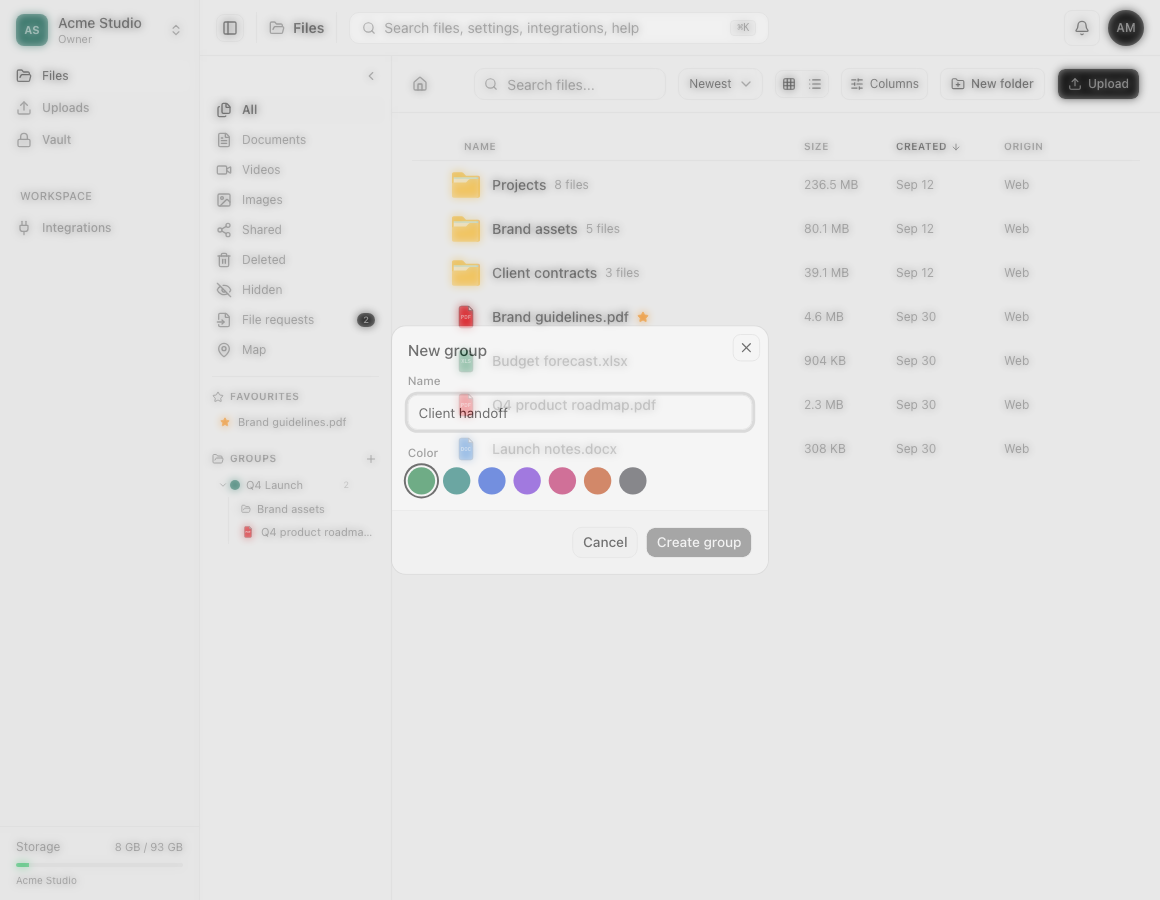
Steps: create and fill a group
- Under Groups in the Files sidebar, choose the + button.
- Enter a name and choose a colour. The colour is a visual marker, not an access rule.
- Choose Create group.
- Find a file or folder you want to collect.
- Right-click it or open its three-dot menu, then choose Add to group.
- Select the target group. Repeat for other files or folders, even when they live in different workspace folders.
- Choose the group name in the sidebar to open its flat Files view. Use the chevron beside the group to expand its contents in the sidebar.
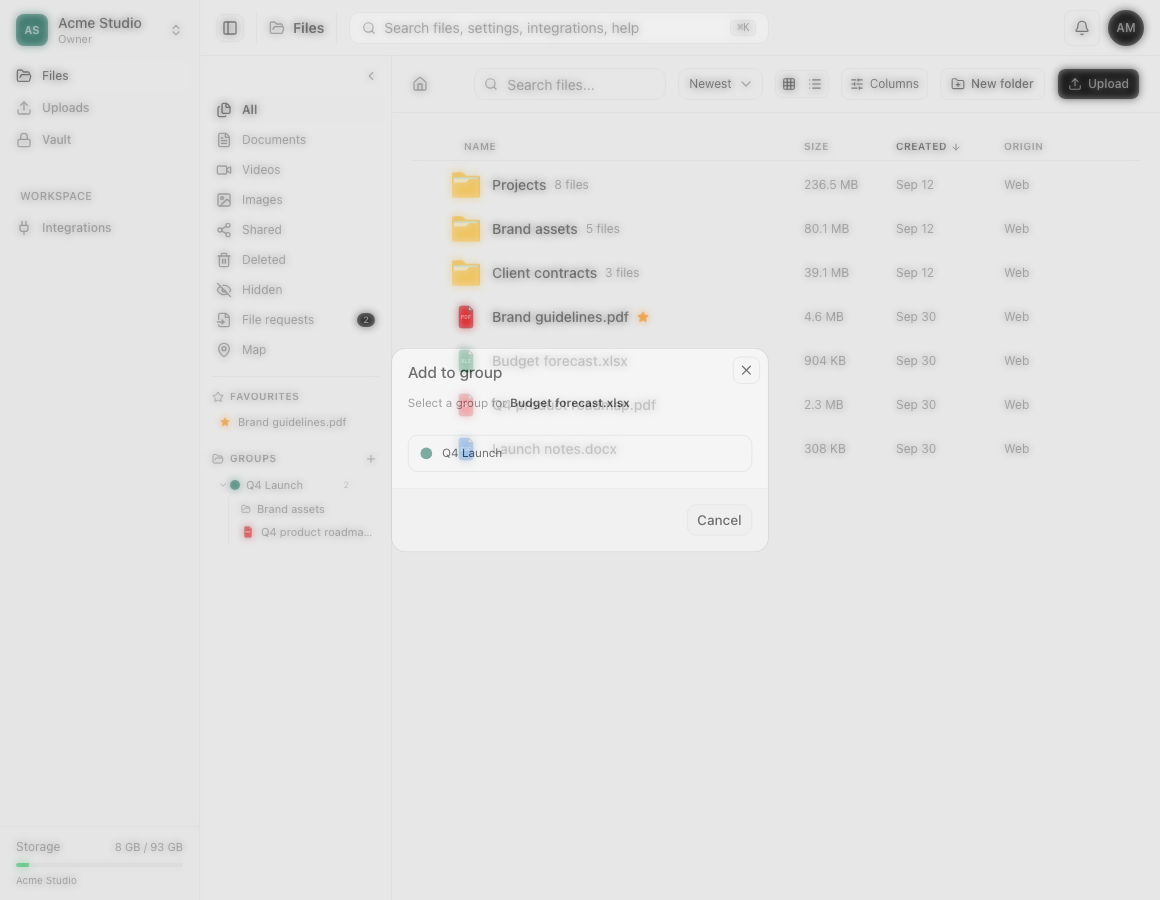
Expected result
Folders show the workspace hierarchy in the main Files list. Favourite files appear under Favourites. Groups appear under Groups, show an item count and can expand to display their collected files and folders.
Opening a group gives you one flat view of its members. Their original folder locations remain unchanged, and each group entry still refers to the original item rather than a second stored copy.
Limits and permission behavior
- Favourites and groups are personal organizers. They do not change another member’s permissions or expose an item the member cannot otherwise access.
- Adding an item to a group does not duplicate its bytes or consume storage again.
- Deleting a group removes the group and its membership entries. The files and folders inside remain in their original locations.
- A hidden item or an item inside a folder you can no longer open can disappear from favourites or groups until it becomes visible to you again.
- A group is a flat collection, so it is not a destination folder. Uploading or creating a folder from a group view uses the workflow shown by the app and enrolls the completed item in that group.
- A group name can contain up to 100 characters. Folder names and paths use their own validation rules.
Troubleshooting
Add to favourites is missing. Confirm you opened a file menu in the live Files view. The current web workflow uses favourites for files. For a folder shortcut, add the folder to a group.
The group list is empty. Create a group with the + button first, then reopen Add to group on the file or folder.
The item did not move. This is expected when you add a favourite or group entry. Use Move to… when the item’s actual folder should change.
A favourite or group item disappeared. Check the active workspace and your access to the original item. Hidden, deleted, locked or permission-restricted content is not exposed through an organizer shortcut.
Deleting a group did not delete its files. This is intentional. A group contains references. Delete or move the original items from Files when that is the intended action.
The sidebar is too narrow or hidden. On desktop, expand the Files sidebar with its chevron. On a smaller screen, use the available Files navigation and item menus; the layout can place sidebar tools behind compact navigation.
Frequently asked questions
Does adding a file to a group move it?
No. The original stays in its folder. The group adds a personal reference to the same item.
Do favourites create another copy?
No. A favourite is a shortcut to the existing file and consumes no additional file storage.
Can a group contain both files and folders?
Yes. Add each file or folder from its menu. The group view collects them without replacing the normal folder hierarchy.
Related guides
Was this helpful?
Loading helpfulness results…
Voting saves a necessary ballot cookie for up to 180 days so you can change your answer.
Questions and replies
Ask about the steps in this guide. Questions are reviewed before publication.
Keep account details, credentials and private files out of public questions. Use private support for those.
Loading questions…
Sign in to your Dosya account to ask a question.