Move a folder and its contents
Move a complete Dosya folder tree without copying data, while resolving role, backup-lock, same-name, same-place, and cycle refusals safely.
Last reviewed
A folder move reparents one folder and its entire live subtree inside the same workspace. It does not upload, duplicate, or re-encrypt the files below that folder.

Before you start
- Use a role with
rename_folders; Dosya uses that permission for structural folder moves. - For a folder-confined member, the API requires the source folder to be inside the assigned subtree. It checks the destination only for a live, visible folder in the same workspace; a Dosya picker may narrow the choices it displays, but the move endpoint does not apply the source-confinement check to that destination.
- A locked WordPress backup cannot be moved or renamed, and another folder cannot be moved into its protected tree.
- Look for a sibling folder at the destination with the same name. Move never merges two folder trees.
Steps
- In Files, open the source folder’s menu and choose Move to… on web or desktop; mobile labels the action Move to….
- In Move to folder or Move to…, browse to the new parent. Leave the picker at the top level to move the folder to the workspace root.
- Verify that the destination breadcrumb does not sit inside the source folder.
- Choose Move or Move here and wait for Moved or Moved successfully.
- Refresh the source parent and confirm the folder is gone from that level.
- Open the destination, inspect the folder’s new breadcrumb, and check representative nested files and subfolders.
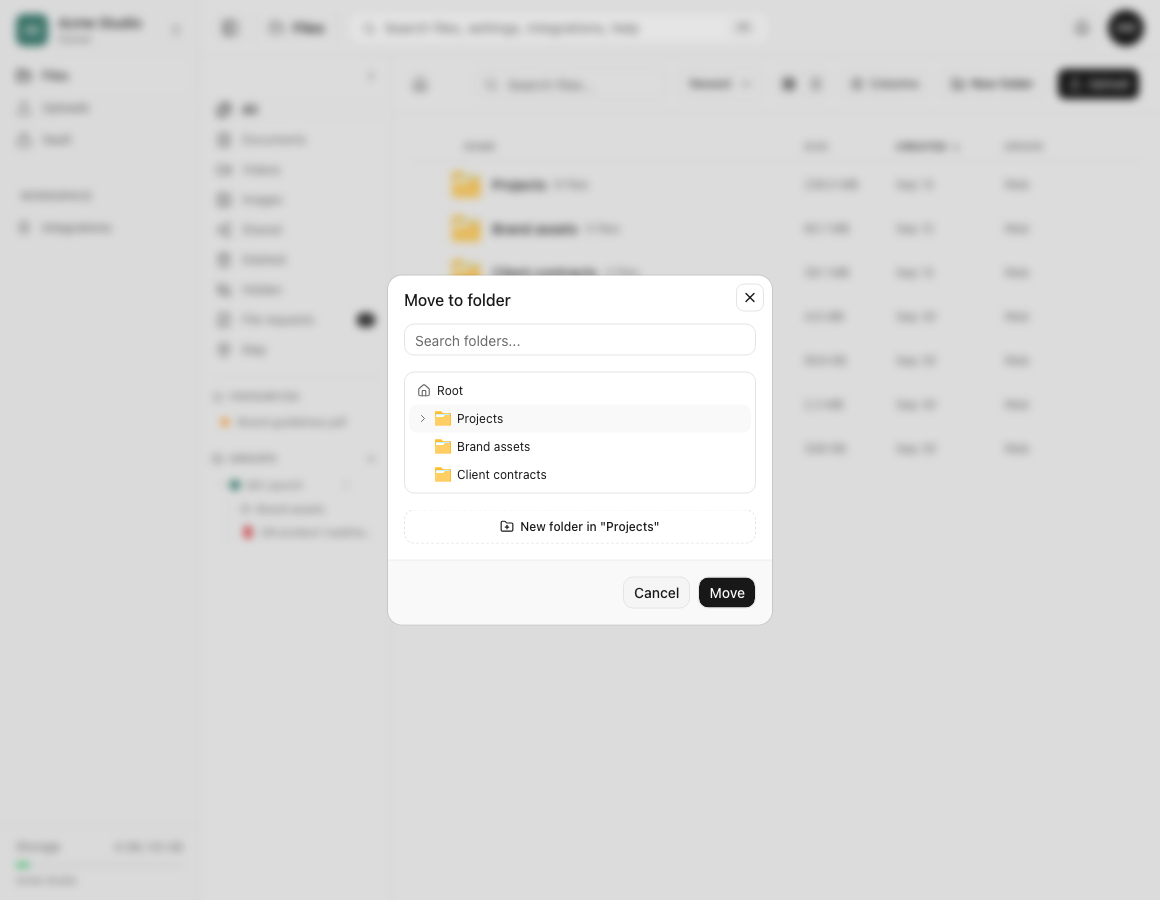
Expected result
The folder keeps its ID and stored name, and all descendant relationships remain intact. Workspace storage does not change. Path-based clients see the old path disappear and the new path appear after their next refreshed listing or sync snapshot.
Troubleshooting
- “You don’t have permission to move folders.” Ask an administrator for
rename_foldersor have an authorized member perform the move. - “Destination folder not found.” The target was deleted, hidden from your role, foreign to the workspace, or stale in the picker. Refresh and choose a visible destination.
- “Folder is already here.” The selected parent is already the current parent; cancel without retrying.
- “Cannot move a folder into itself” or “Cannot move a folder into its own subfolder.” Move upward or choose a separate branch. No part of the tree was changed.
- “A folder with this name already exists in the target folder.” Rename either sibling first. Dosya leaves both trees separate and does not overwrite content.
- The old path remains in a mounted client. Refresh that client’s directory listing. The API invalidates web, sync, WebDAV, and S3 path caches, but a client can still display its own cached view briefly.
Related guides
Was this helpful?
Loading helpfulness results…
Voting saves a necessary ballot cookie for up to 180 days so you can change your answer.
Questions and replies
Ask about the steps in this guide. Questions are reviewed before publication.
Keep account details, credentials and private files out of public questions. Use private support for those.
Loading questions…
Sign in to your Dosya account to ask a question.