Moving and renaming files or folders
Rename an item in place or move files and folders to another location within the active workspace, with collision and permission checks.
Last reviewed
Use Rename when the item should stay in the same folder with a new name. Use Move to… when its location should change inside the active workspace. The move picker contains folders from that workspace; it is not a cross-workspace transfer tool.
Before you start
- Confirm the active workspace and current folder. A similar name in another workspace is a different item.
- Check that you have the required permission. File renaming, folder renaming and moving files can be controlled separately by the workspace role.
- Close editors or sync tasks that are actively changing the item when possible.
- Check the destination for an item with the same name. Dosya refuses a collision rather than silently overwriting it.
- If the item has an active share link, protocol client or desktop sync relationship, test that workflow after reorganizing it. This review did not assume every external path behaves identically.
Steps: rename a file or folder
- Open Files and find the item.
- Right-click its row or open the three-dot menu.
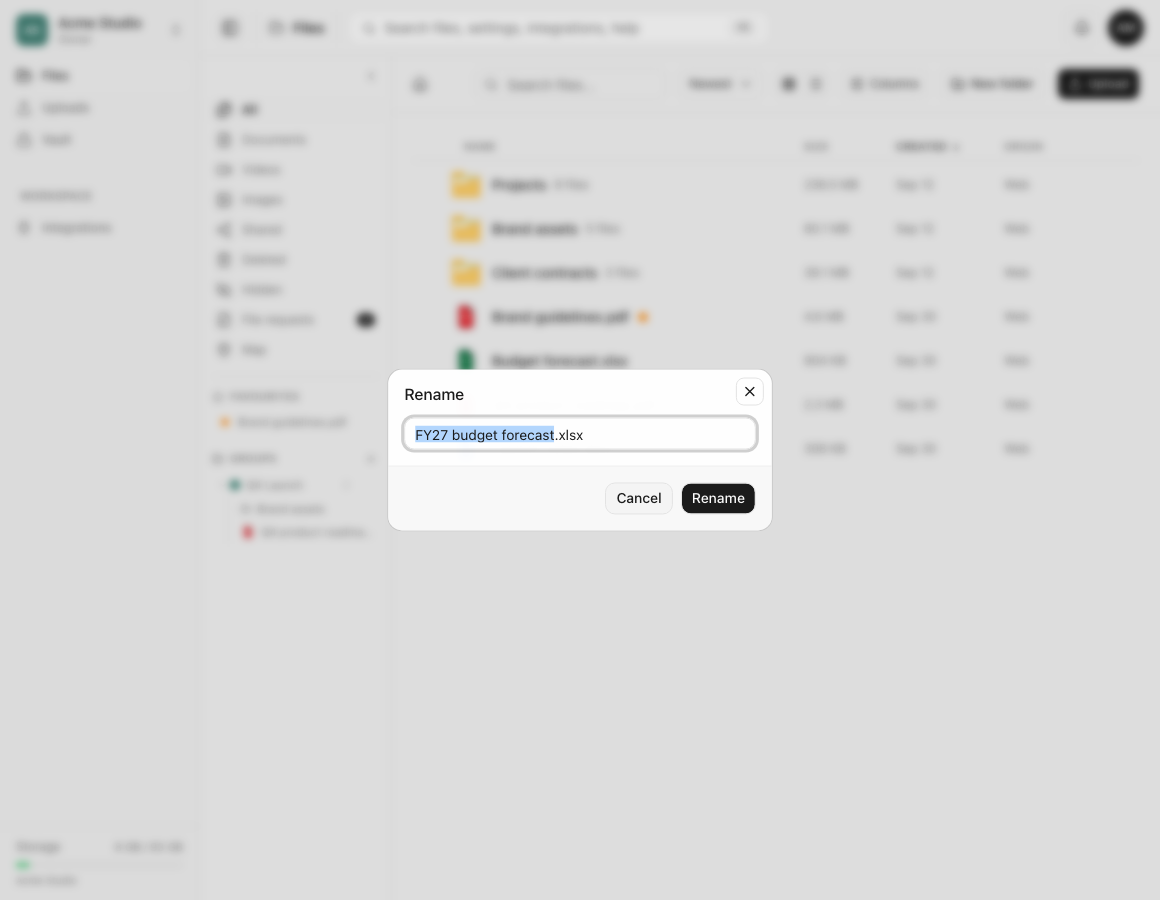
- Choose Rename.
- Enter the new name. For a file, keep the correct extension unless you deliberately intend to change the label; renaming does not convert the file’s contents.
- Choose Rename.
- Confirm the updated name in the same folder and open the item once to verify you changed the intended row.
Steps: move one item
- Open the file or folder menu and choose Move to….
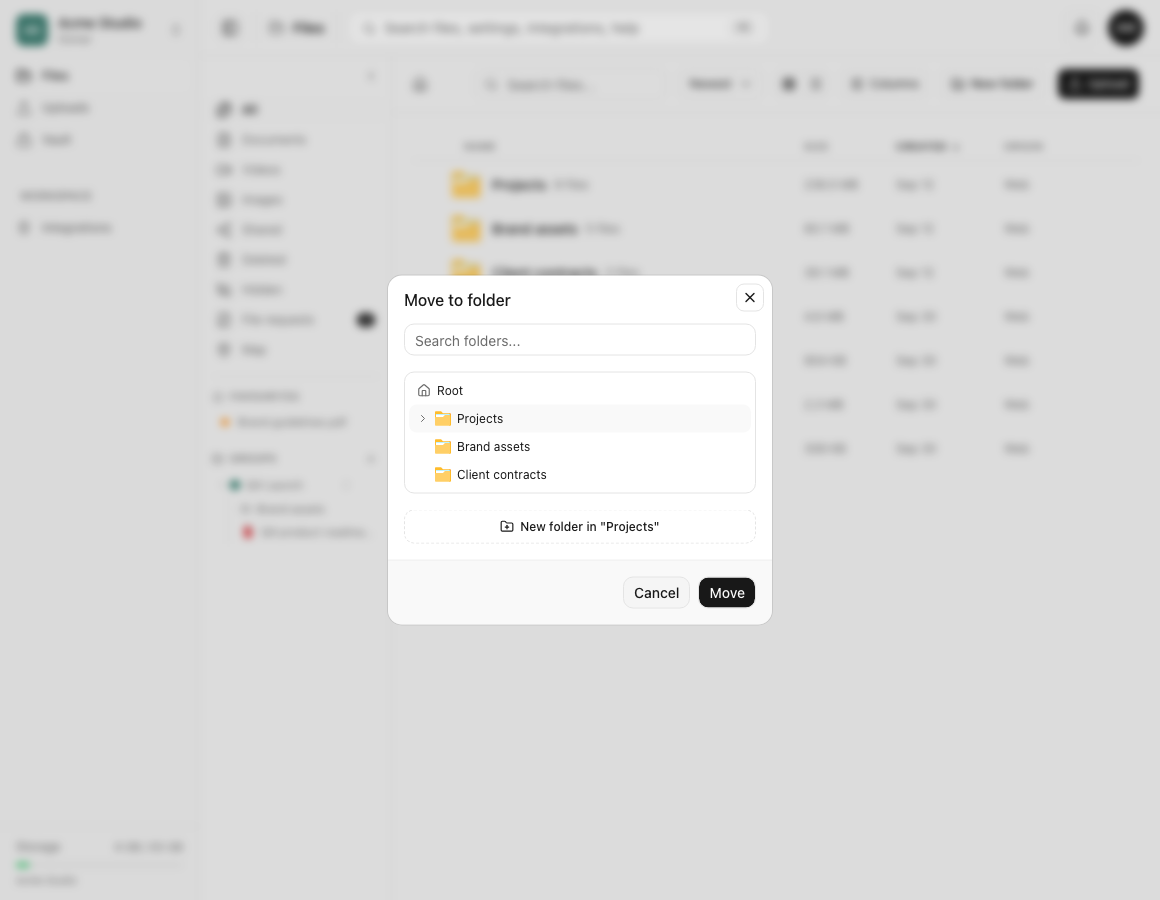
- In Move to folder, choose Root or select a destination folder.
- Expand a folder to browse its children, or use Search folders… when the workspace has a large hierarchy.
- Review the selected destination shown in the dialog.
- Choose Move.
- Open the destination and confirm the item appears there. Return to the source to confirm it no longer appears in its old location.
Steps: move several items
- Select the checkboxes beside the required files and folders.
- Review the selection count in the bulk action bar.
- Choose Move.
- Select one destination folder and confirm.
- Read the completion message. If a subset could not move, Dosya reports how many moved and how many were skipped.
- Check both the destination and source before retrying any skipped item individually.
Expected result
A rename changes the displayed name while leaving the item in its current folder. A move removes the item from the source listing and places it in the chosen folder in the same workspace.
Dosya keeps one item rather than creating an additional stored copy. Folder moves carry the folder’s contained hierarchy with it, subject to access, lock and cycle checks.
Limits and permission behavior
- File names can contain up to 255 characters; folder names can contain up to 100. Names must be a single safe path segment, so
/,\, control characters,.and..are refused. - A file cannot move to a destination that already contains a file with the same name. The equivalent duplicate-folder name is also refused.
- Moving an item to the place it already occupies is refused because it would make no change.
- A folder cannot move into itself or one of its own subfolders.
- File moves require the role’s file-upload capability for the destination. Folder moves use the folder-rename capability. The Rename actions follow the corresponding file or folder rename permission.
- Locked, hidden, confined or backup-locked items and destinations can have additional restrictions.
- The web picker moves within the active workspace. Moving data between workspaces requires a separate copy, download/upload or supported integration workflow.
Troubleshooting
Rename or Move to is missing. Your role may not have the required file or folder permission, or the item may be in a view where the action is unavailable. Ask a workspace owner to check the role rather than changing another permission at random.
A duplicate-name message appears. Inspect the destination for the same file or folder name. Rename one item first, or choose another folder. Dosya does not silently replace the existing item.
The folder cannot move. Make sure the destination is not the folder itself or any child below it. Choose a parent, sibling or unrelated folder instead.
The destination is missing from the picker. Confirm the active workspace and your access to that folder. Use the picker’s folder search. Hidden, inaccessible and out-of-scope destinations are not disclosed.
The file extension changed. Rename the item again and restore the correct extension. Changing .xlsx to .pdf, for example, changes only the name and does not convert spreadsheet bytes into a PDF.
Only part of a bulk move completed. Read the moved/skipped counts, inspect the destination, then retry each skipped item separately to expose its specific collision, permission or folder-cycle problem.
Frequently asked questions
Can I move a file into another workspace?
The current Files move picker works within the active workspace. Use an appropriate copy, download/upload or integration workflow for a different workspace, then verify both copies before deleting anything.
What happens when the destination already has the same name?
Dosya refuses the move with a duplicate-name message. It does not silently overwrite that file or folder.
Does renaming convert the file format?
No. Rename changes the label. Use an application that supports conversion when the file contents need a different format.
Related guides
Was this helpful?
Loading helpfulness results…
Voting saves a necessary ballot cookie for up to 180 days so you can change your answer.
Questions and replies
Ask about the steps in this guide. Questions are reviewed before publication.
Keep account details, credentials and private files out of public questions. Use private support for those.
Loading questions…
Sign in to your Dosya account to ask a question.