Hide a folder from selected roles
Hide a folder from everyone, selected users, or selected roles; understand inherited visibility, permission checks, target limits, and recovery.
Last reviewed
Hiding changes who can discover a folder and its descendants. It is separate from locking: no password is created, and the folder remains usable by viewers who are not hidden from it.

Available modes
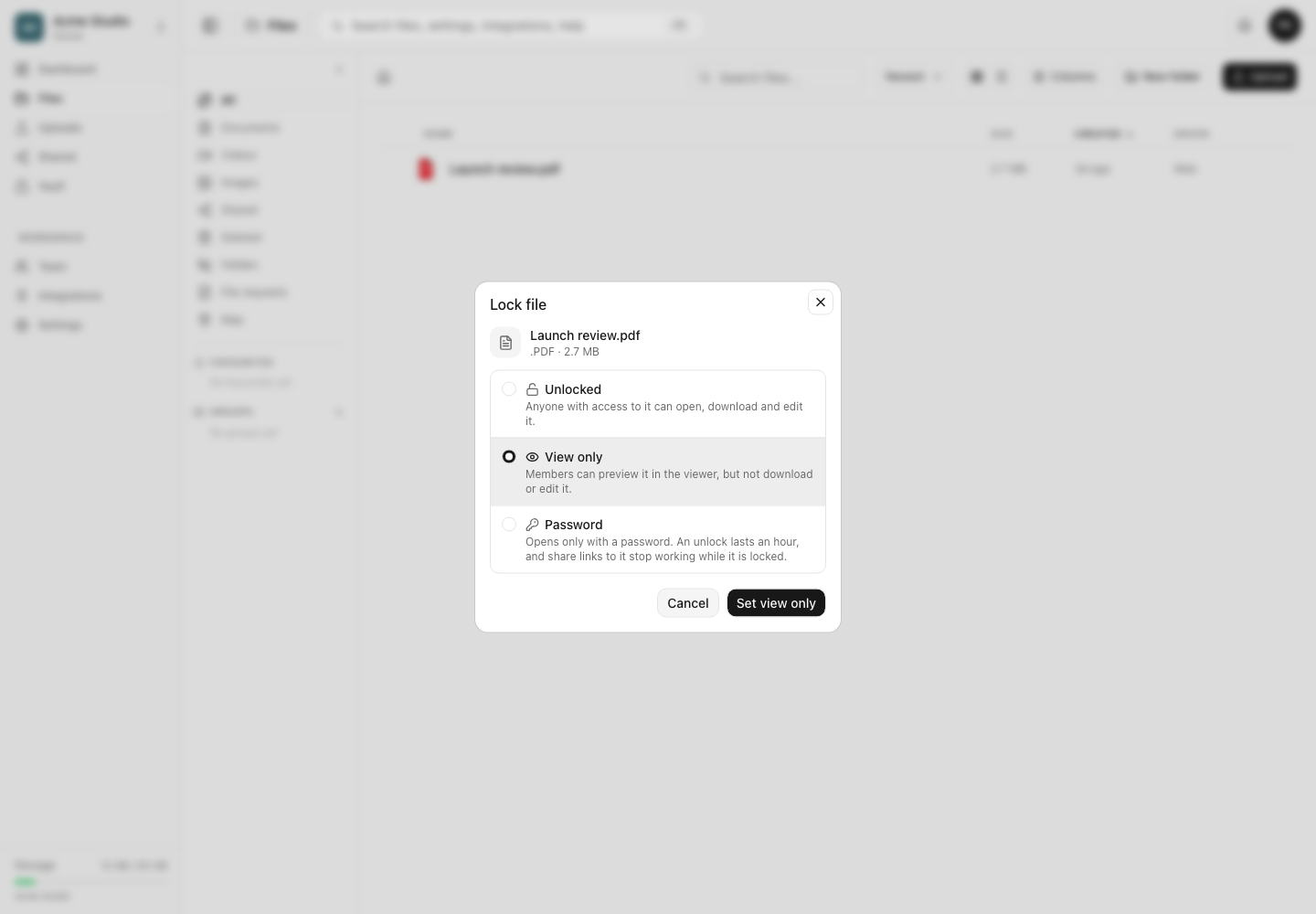
The Hide folder dialog offers Visible, Hidden from everybody, Hidden from specific users, and Hidden from specific roles. Targeted modes accept up to 200 users or roles. Your own user or role is disabled so you cannot deliberately hide the folder from your current identity. You need the Hide files capability; the API otherwise returns You don’t have permission to hide folders.
Steps
- In Files, confirm the exact folder path and list the people or roles that must lose visibility. Remember that the rule is inherited by descendants.
- Open the folder menu and choose the hide action. Select the narrowest mode that matches the requirement.
- For a targeted mode, select at least one user or role. The web form shows Select at least one user. or Select at least one role. when empty; the API may answer You must select at least one user or You must select at least one role.
- Choose Apply. The current success toast uses File hidden and This file is now hidden. even when the target is a folder.
- Sign in as one affected member and one unaffected member. Refresh Files, search, map results, and direct folder navigation to verify both outcomes.
Visibility and recovery
Affected members may see Folder not found rather than an explanation, preventing the interface from disclosing a hidden name. People with the privileged hidden-item capability can still see protected content. Lock modes, assigned roots, and workspace roles continue to apply independently to anyone who remains able to see it.
Hiding is reversible. To restore discovery, reopen the dialog as a permitted manager, choose Visible, apply, and have the member refresh. The action does not move content to Trash or erase bytes, but an overly broad rule can immediately remove an entire subtree from eligible members’ lists and navigation.
Expected result
The folder and descendants disappear only for the selected audience, remain visible to permitted viewers, and return after the mode is changed to Visible and clients refresh.
Related guides
Was this helpful?
Loading helpfulness results…
Voting saves a necessary ballot cookie for up to 180 days so you can change your answer.
Questions and replies
Ask about the steps in this guide. Questions are reviewed before publication.
Keep account details, credentials and private files out of public questions. Use private support for those.
Loading questions…
Sign in to your Dosya account to ask a question.