Locking or hiding a file and understanding access
Choose view-only, password locking or role-based hiding, and understand how each setting changes workspace and share-link access.
Last reviewed
Locking controls what someone can do after they find an item. Hiding controls whether selected workspace members can find or open it at all. Use View only or Password when the item should remain visible with tighter access, and use Hide when it should disappear for everybody, specific users or specific roles.
These controls reduce ordinary access. Anything displayed on a screen can still be photographed or captured, so view-only access is not a screenshot-prevention feature.
Before you start
- Select the correct workspace and use a harmless sample item when comparing roles.
- Your role needs the appropriate lock or hide permission. If an action is absent from the file menu, ask a workspace owner or admin to review your role.
- Decide whether you need to prevent downloads, require a password or remove the item from selected members’ views. These outcomes use different controls.
- Check existing sharing links. A full password lock stops links to the item while the lock remains; view-only and hidden-item rules have different effects.
Steps: choose a lock mode
- Open Files and find the file or folder.
- Open its menu and choose Lock. If it already has a lock, the menu can say Unlock while still opening the same access dialog.
- Choose one of the three modes:
- Unlocked allows people who already have access to open, download and work with the item.
- View only allows previewing but blocks downloading and editing. On a folder, members can browse and preview its contents but cannot download them.
- Password requires a password to open the item. A folder password also prevents new content from being added inside it while fully locked.
- For Password, enter at least eight characters. Updating an existing password replaces the old one.
- Apply the change and confirm the lock icon appears on the row.
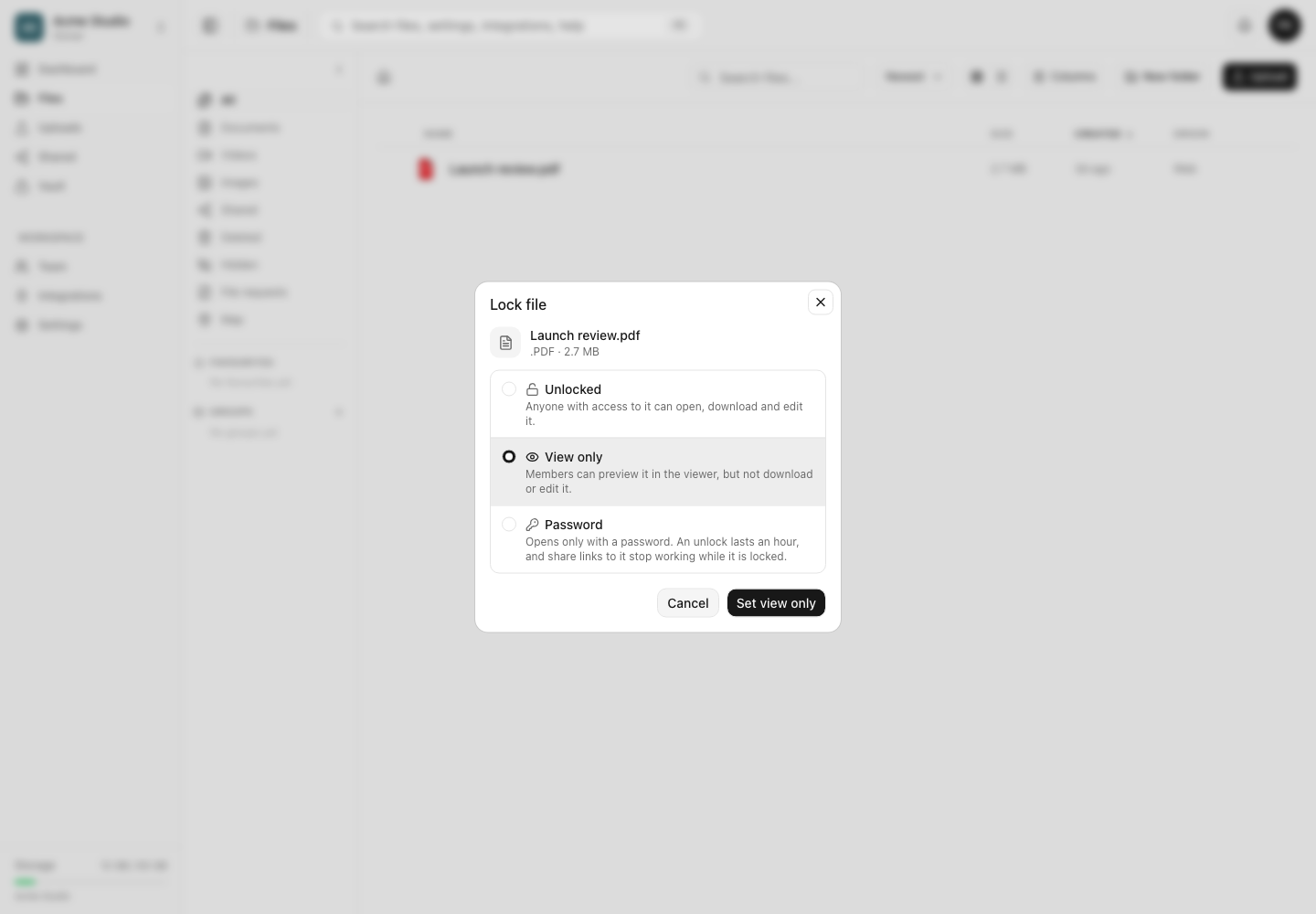
An accepted password unlock lasts one hour for that member. A full lock on a folder also applies through its descendant tree. Remove the lock when ordinary workspace access should resume.
Hide an item from workspace members
- Open the item’s menu and choose Hide.
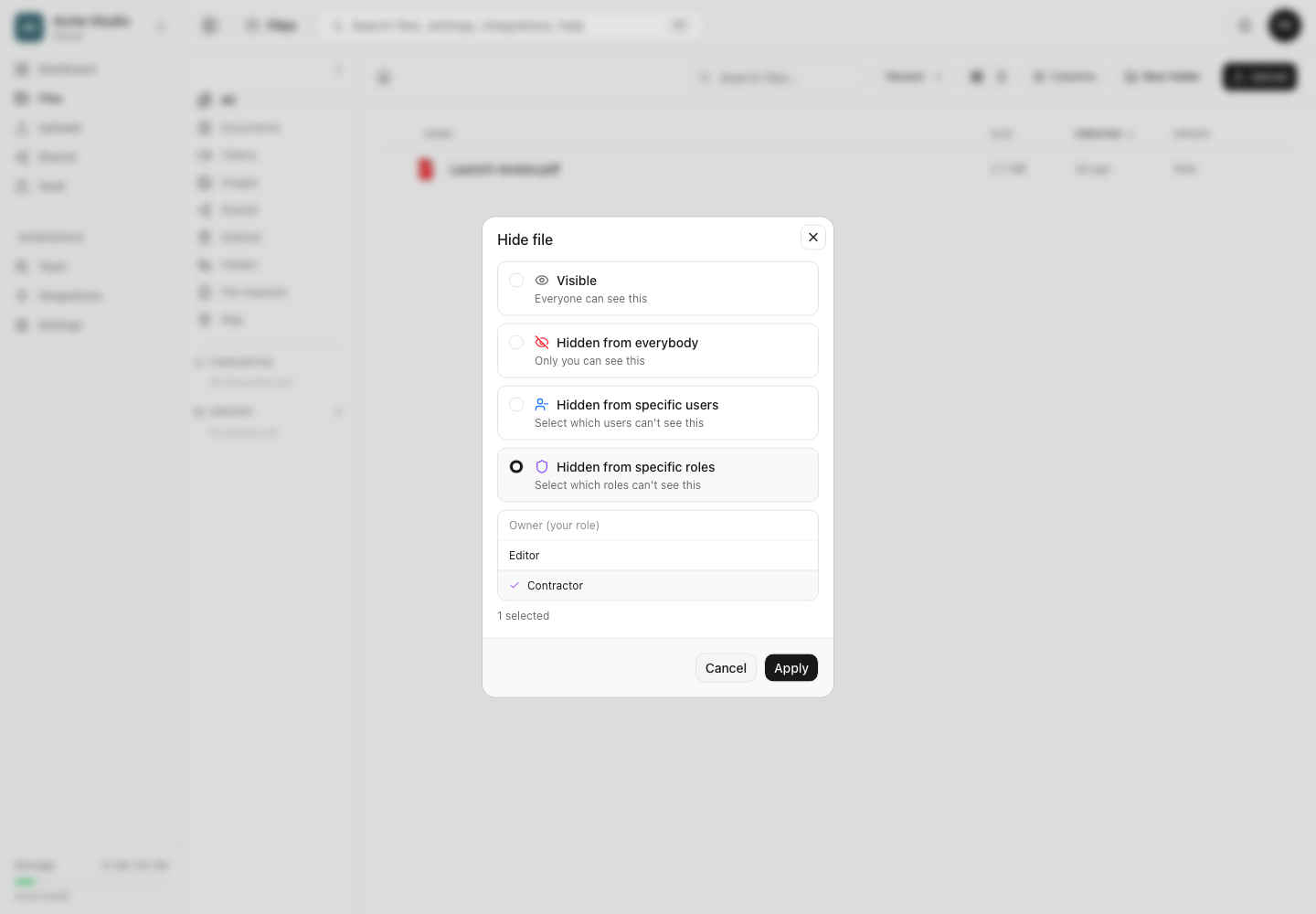
- Select the visibility rule:
- Visible removes the hidden state.
- Hidden from everybody hides the item from ordinary members who cannot manage hidden items.
- Hidden from specific users lets you choose individual workspace members.
- Hidden from specific roles applies the rule to every member assigned one of the selected roles.
- If you choose users or roles, select at least one target. You cannot select yourself or your own role in the dialog.
- Choose Apply.
- Open Files → Hidden to review items you can manage, then compare the result while signed in as an affected test member.
Access limits and comparison
| Setting | Appears in Files | Can preview | Can download or edit | Existing share links |
|---|---|---|---|---|
| Unlocked | Yes, when normal access allows | Yes | Yes, when role permissions allow | Continue under their own settings |
| View only | Yes | Yes | No download or edit through the protected item | Preview-only behavior applies; screen capture remains possible |
| Password | Yes, with a lock indicator | Only after unlock | Only after unlock and other permissions | Stop working while the target is fully locked |
| Hidden | No for the targeted viewer | No | No | Hidden or locked descendants are excluded from folder shares; direct access is also gated |
Role permissions, folder confinement and parent-folder rules still apply in every row. A lock or hide setting cannot grant access someone did not already have.
Folder shares and hidden descendants
When you create a sharing link for a folder, the Share dialog reports how many hidden or locked items inside that tree will be excluded. The link can still be created for the remaining content. This means a hidden file should not appear merely because one of its parent folders was shared.
The same principle applies if an item becomes hidden or fully locked after a link was created: public share access is checked again, rather than treating the original link as a permanent bypass.
Expected result
The selected lock mode changes the allowed action without widening workspace membership. A targeted hide rule removes the item and its protected descendants from affected members and sharing surfaces. Members with permission to manage hidden files can still see them so they can change or remove the rule.
Troubleshooting
Lock or Hide is missing. Your role may not include the matching permission, the item may be in Deleted, or the current view may not support that mutation. Return to the live Files view and ask an owner to check your role.
A member can still see a hidden item. Confirm that you targeted the member’s current role or exact user account. A member with permission to manage hidden files intentionally sees hidden content. Parent and child rules can also differ, so inspect the whole folder chain.
A folder link contains fewer files than expected. Reopen Share and read the excluded-item count. Hidden and fully locked descendants are omitted. Remove only the protection you intend to remove, then create or test the link again.
A password no longer works. Check whether another manager updated or removed the lock. Passwords are replaced rather than retained as a list. Enter the current password, and remember that an unlock expires after one hour.
View only still allows a screenshot. That is expected. View only removes supported download and edit paths; it cannot control another device’s operating-system capture tools or camera.
Frequently asked questions
Can a hidden file appear in a folder share?
It should be excluded for a viewer who is not allowed to see it. The folder Share dialog reports hidden and locked descendants that will not be included.
Does view-only stop someone from taking a screenshot?
No. It blocks supported download and edit actions while preserving preview access. Anything visible on screen can still be captured.
Is hiding the same as deleting?
No. The item stays live in the workspace. Hidden controls who can see it; Deleted is a recoverable trash state.
Related guides
Was this helpful?
Loading helpfulness results…
Voting saves a necessary ballot cookie for up to 180 days so you can change your answer.
Questions and replies
Ask about the steps in this guide. Questions are reviewed before publication.
Keep account details, credentials and private files out of public questions. Use private support for those.
Loading questions…
Sign in to your Dosya account to ask a question.