Setting workspace limits and sharing policies
Configure upload, storage, sharing and access rules for a workspace, then understand how they combine with plan and role limits.
Last reviewed
Workspace policies let an authorized administrator set a stricter operating boundary than the account plan. Use Hard limits for file size, storage and upload controls, and Security for sharing, sessions and access lists.
Before you start
- Select the intended workspace and open Settings.
- You need the permission named by the setting. Most security controls require Manage settings; hard-limit controls have dedicated permissions.
- Record the current values before changing them.
- Test restrictive changes with a harmless file and a second test member before relying on them for a team.
- A workspace policy can reduce an allowance. It cannot create storage or capabilities beyond the account plan.
Steps: configure hard limits
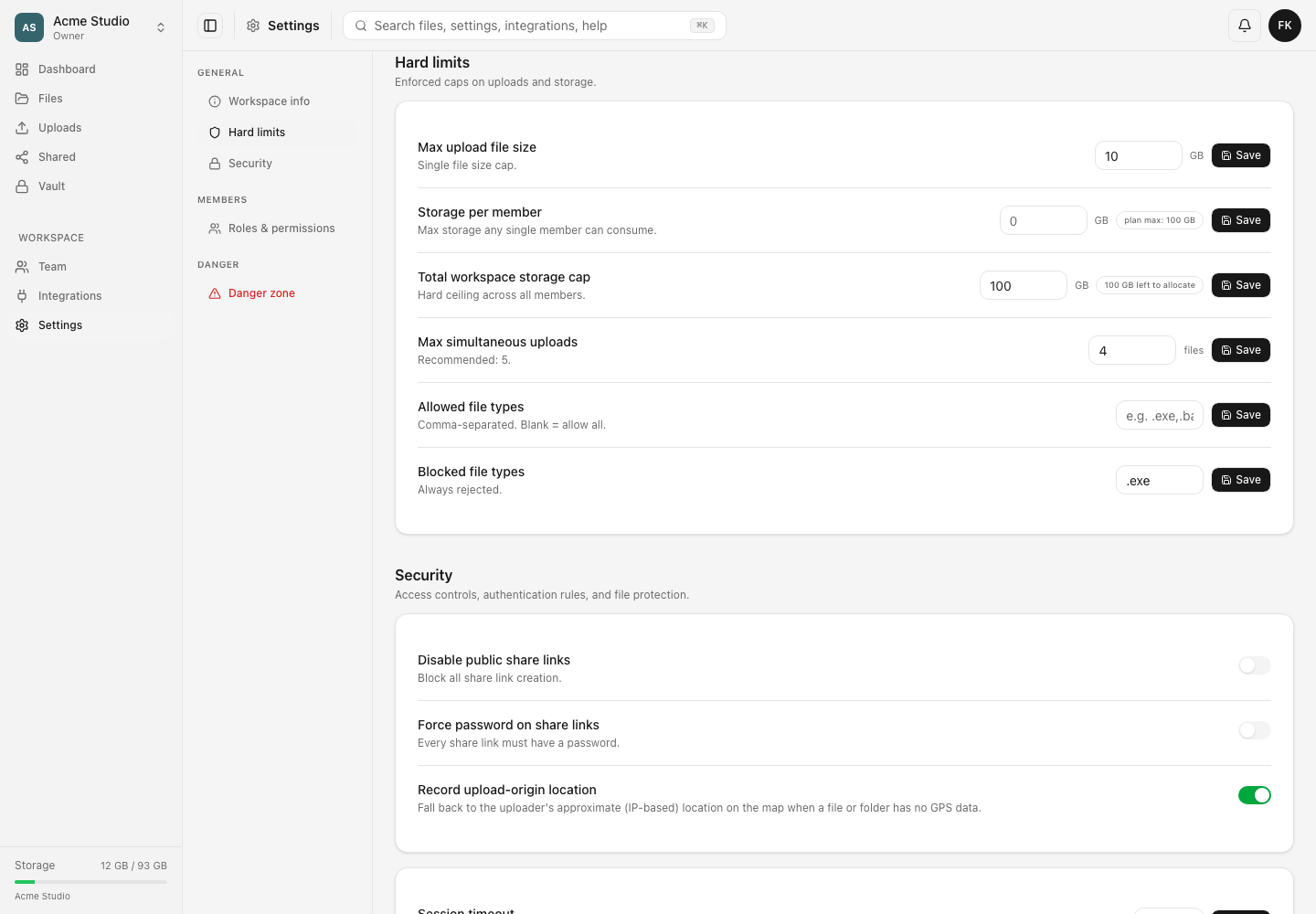
- Open Settings → Hard limits.
- Set Max upload file size for the largest single file the workspace should accept.
- Set Storage per member if one member should not consume the entire workspace allocation. Leave the field blank when no member-specific cap is needed.
- Set Total workspace storage cap below or equal to the allocation available to the workspace.
- Set Max simultaneous uploads to control per-member transfer concurrency.
- Use Allowed file types as a comma-separated allowlist, or Blocked file types to reject selected extensions. Avoid contradictory lists.
- Save each changed row and wait for its confirmation.
Steps: configure sharing and access rules
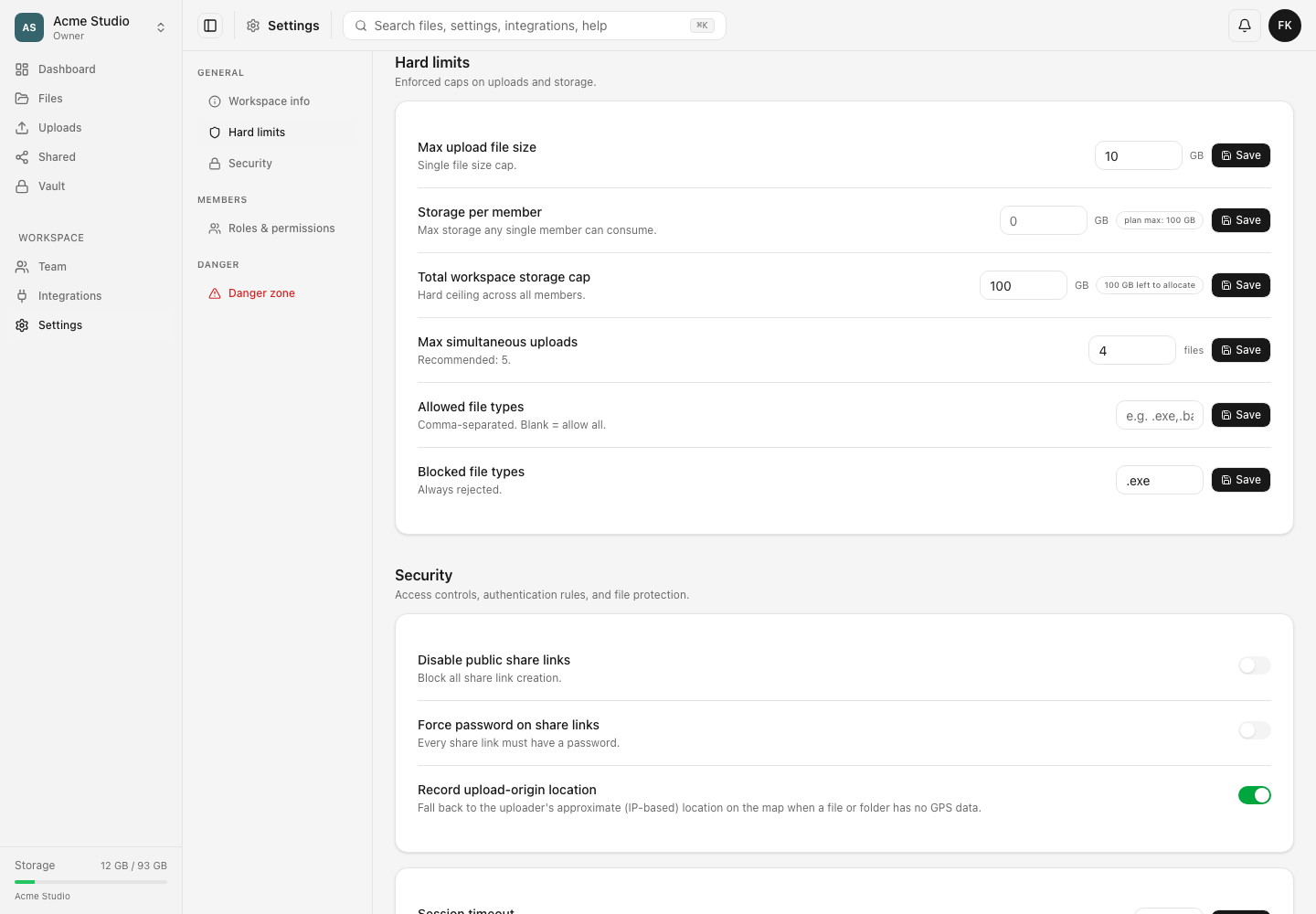
- Open Settings → Security.
- Turn on Disable public share links when the workspace must prevent new share-link creation.
- Turn on Force password on share links when every newly created link must have a password.
- Choose Share link max expiry to cap link lifetime. Default share link expiry only preselects a value that an eligible sharer may change within the cap.
- Set Session timeout and Download rate limit when required.
- Manage IP, country and allowed email-domain lists carefully. A mistaken allowlist can block legitimate members.
- Save, then perform one allowed and one deliberately denied test with a non-owner test member.
Expected result
Saved values remain visible after reload. New actions that exceed a cap or violate a rule are refused with an explanation. Existing members retain only the access allowed by their role, folder scope, workspace policies and account plan together.
Limits and interactions
- The effective upload limit is the smallest applicable plan, workspace, role, credential and request limit.
- Disabling share links prevents creation; manage existing links separately.
- Forcing passwords applies to share-link creation and does not turn ordinary storage into Vault encryption.
- Allowed email domains affect joining. They do not rewrite existing member email addresses.
- IP and country rules can be affected by VPNs, proxies and corporate gateways.
- Settings shown by the API but absent from the current UI should not be assumed to be enforced.
Troubleshooting
A member sees a smaller limit than the plan advertises. Compare the plan allowance with workspace hard limits, their role conditions and the specific upload or file-request limit. The smallest boundary wins.
Share creation is unavailable. Check Disable public share links, the member’s role and folder scope.
A link cannot use the requested expiry. The workspace maximum expiry clamps longer choices. Choose a shorter duration or have an authorized administrator review the cap.
A legitimate person cannot join. Review the allowed email-domain list and member cap. Do not weaken unrelated role permissions as a workaround.
A policy locked out a test user. Revert it from an owner or authorized administrator session. Preserve the exact error and setting name for private support.
Related guides
Was this helpful?
Loading helpfulness results…
Voting saves a necessary ballot cookie for up to 180 days so you can change your answer.
Questions and replies
Ask about the steps in this guide. Questions are reviewed before publication.
Keep account details, credentials and private files out of public questions. Use private support for those.
Loading questions…
Sign in to your Dosya account to ask a question.