View file details
Open Dosya file details to verify size, MIME type, region, uploader, timestamps, origin, sharing state, versions, and permitted file actions.
Last reviewed
File details identify the selected cloud object and place its primary actions, version controls, and format-specific editor entry in one panel. Use its identity fields before downloading, sharing, copying, restoring, editing, or deleting anything, and expect the server to enforce access again after a visible control is selected.

Where details appear
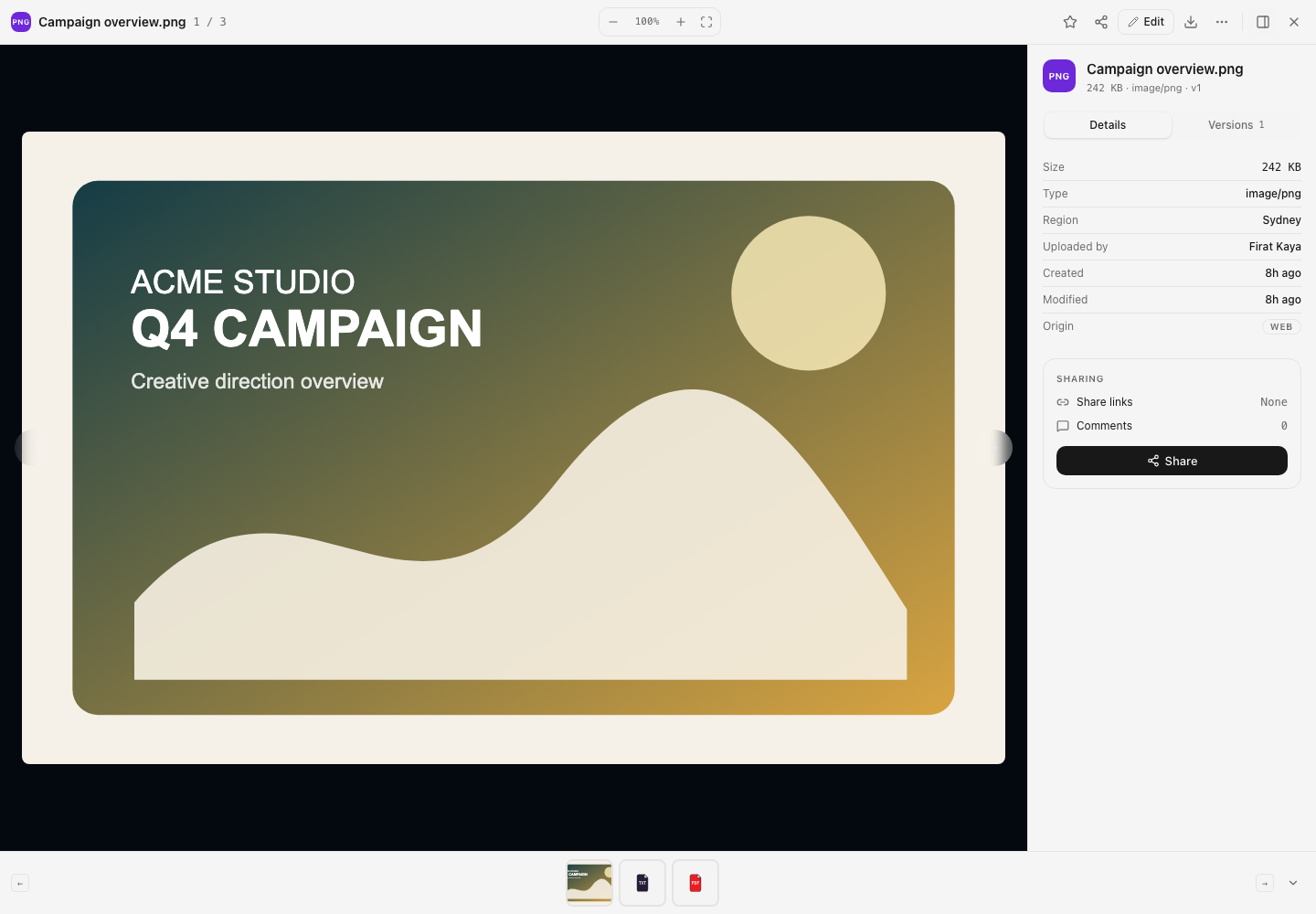
In the browser file list, selecting a file opens the File details panel at the side on larger screens and as a bottom sheet on smaller screens. Opening the file viewer provides a second inspector: select Toggle inspector or press its i shortcut, then choose Details, Versions, or Comments. The viewer inspector starts open at desktop widths and closed on small screens unless a linked tab requires it.
The list panel and viewer inspector overlap, but they are not identical. The list panel also offers action buttons and active share-link cards. The viewer inspector adds Modified, active share and comment counts, Live Photo companion information when present, and an Origin badge.
Steps
- Open Files in the intended workspace and select one file. Check the full name at the top of File details.
- Compare the summary line: file size, MIME type, and relative creation time. A badge shows
vNwhen the current version is greater than one. - Review Properties. It reports Uploaded by, storage Region, Created, and Extension. Synced files add Synced — Yes; imported content can add Source and Account.
- If the file has multiple versions, inspect Versions. Each row shows version number, size, uploader, relative time, and a download link. Every noncurrent row renders Restore; selecting it still requires
upload_filesat the API. - Under Share links, inspect each active URL, view count, expiry label, and Password badge. Use Copy only when you intend to distribute that exact link.
- Confirm which primary actions are present. The Files page supplies Download, Copy file, Share, and Delete file callbacks only when the role has the corresponding capability; View file is always present. Historical-version download links, noncurrent Restore, and Open in editor for an Office filename render independently of those four callbacks, so the server can still refuse the request or limit editor write access.
Locks, shares, and versions
A full lock replaces the panel contents with This file is locked, an Enter password field, and Unlock. A rejected password displays the server message or Incorrect password and clears the field. After a successful unlock, the panel can load versions for that session. A view-only file remains visible and gains a View only badge. The four primary callbacks still follow the enclosing Files page, while version and Office controls remain visible and rely on their endpoints for the final decision.
Revoke link is destructive for that share URL: after success it disappears from the active list and recipients can no longer use it. A failure shows Revoke failed — The share link could not be revoked. Copying the URL changes only your clipboard.
Restoring a noncurrent version sends a separate request that requires upload_files and reports Restored to vN. when accepted. It changes which content is current, so preview the target version before selecting Restore. A refusal reports Restore failed without changing the current version through that request. If the response is lost or uncertain, a restore may already have succeeded; refresh Versions and inspect the current content before retrying. Version download links request the selected historical version without restoring it, but their presence does not guarantee that the download endpoint will release the bytes.
Deleting from the details panel follows the normal confirmation flow and initially moves the file to trash, where it continues to use storage. Permanent deletion can happen later through an explicit purge or plan-based automatic trash cleanup and cannot be undone. Viewing metadata, closing the panel, or switching inspector tabs changes no file data.
If information is missing
Unknown for the uploader means the row has no resolved uploader name; it does not prove that the file has no creator. Share cards and version rows load separately. A transient request failure can leave those sections absent while the basic file properties remain visible, so refresh the Files page before concluding there is no history or active link. When one of the four primary actions is missing, the enclosing Files page usually withheld its callback for the current role; visible version and editor controls must still pass their server checks.
Expected result
The displayed name and at least two independent fields, such as size, MIME type, uploader, region, or timestamp, match the intended file. Simply inspecting them creates no version, share link, copy, download, or deletion.
Related guides
Was this helpful?
Loading helpfulness results…
Voting saves a necessary ballot cookie for up to 180 days so you can change your answer.
Questions and replies
Ask about the steps in this guide. Questions are reviewed before publication.
Keep account details, credentials and private files out of public questions. Use private support for those.
Loading questions…
Sign in to your Dosya account to ask a question.