Previewing files without downloading
Open supported images, PDFs, media, documents, text, books and archives in the browser, and use the safe fallback when a format cannot preview.
Last reviewed
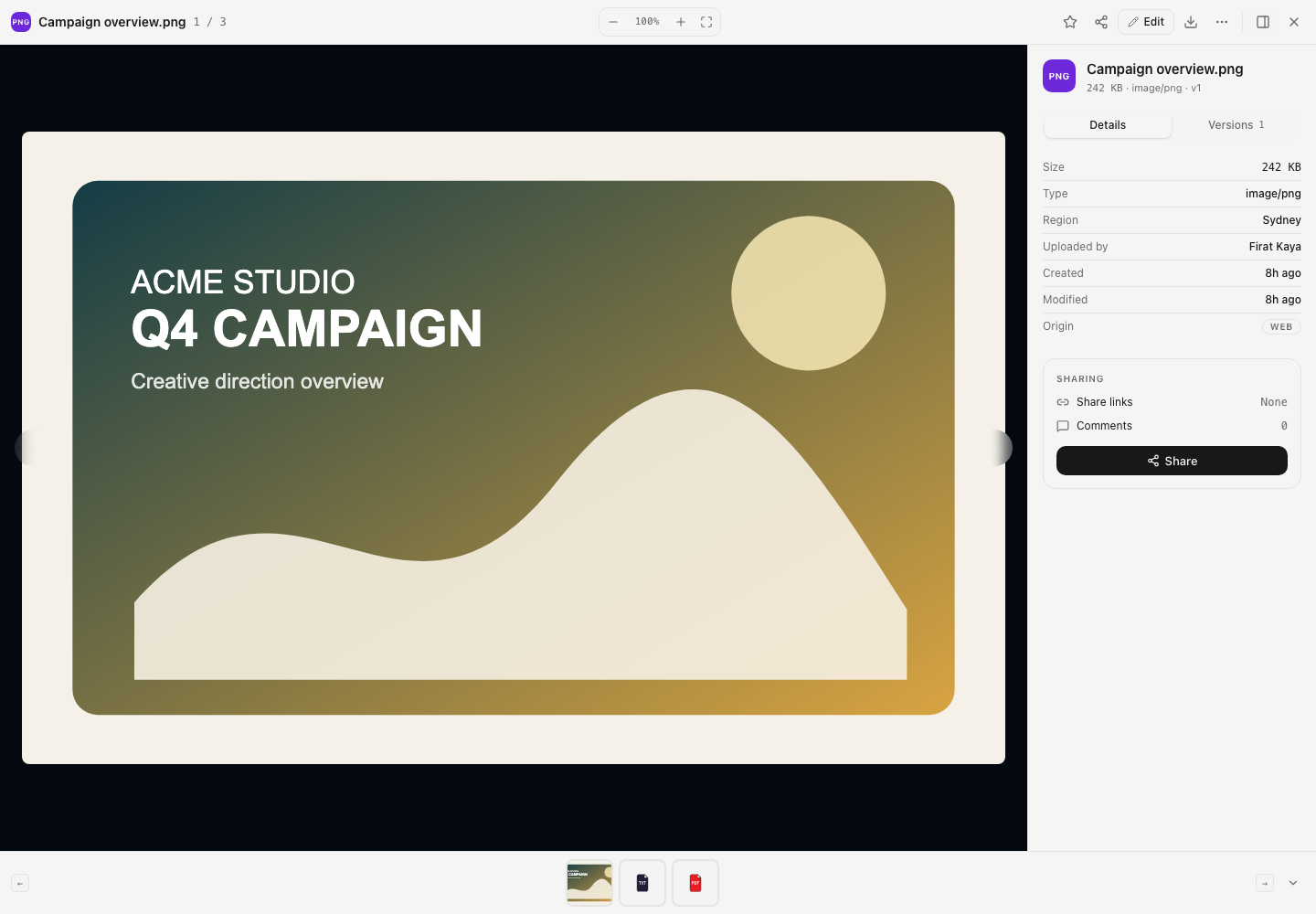
Open Files in the intended workspace, then choose a filename or use its menu and choose View. Dosya opens the file in an overlay when it has a browser viewer. The file stays in the workspace; opening a preview does not create a download or change the stored file.
Before you start
- Confirm the active workspace and find a harmless sample file.
- Make sure your role can access the file and its folder. A full lock can require its password before the viewer opens.
- Allow the first preview a moment to prepare. PDF and Office viewers can load extra code or convert a document before displaying it.
- Keep Download available as the fallback for formats or codecs your browser cannot render.
- Treat a preview as a reading view. It does not prove that every feature of the file’s original application is represented.
Steps: open and navigate a preview
- Open Files and locate the file.
- Choose its filename, or open the file menu and choose View.
- Inspect the file in the centre stage. Use the right-hand Details rail for size, type, region, uploader, dates, origin, share-link count and comment count.
- Use the left and right arrows to move between files in the current listing. The filmstrip along the bottom shows the same sequence.
- For an image, use the zoom controls in the header. For video or audio, use the media controls. PDF, archive, book, CSV, Markdown and text viewers provide controls suited to that format.
- Choose the download icon when you need the original bytes in a local application.
- Choose × or press Escape to close the viewer.
What the current viewer handles
| File family | Current browser behavior |
|---|---|
| Images | PNG, JPEG, GIF, WebP, AVIF, BMP, SVG, ICO and HEIC/HEIF use image previews; HEIC/HEIF can fall back to browser-side decoding. |
| Opens in Dosya’s PDF reader with page navigation, thumbnails and find controls. | |
| Video and audio | Opens in an inline player when the browser supports the file’s codec. A familiar extension does not guarantee that every browser can decode its contents. |
| Office documents | DOCX, XLSX, PPTX and other listed Office/OpenDocument formats can prepare an inline PDF preview and offer Open in editor. |
| Text and code | Supported text formats open as text, with syntax highlighting for smaller files. Markdown, CSV and TSV receive structured views. |
| Books and contacts | EPUB, MOBI, AZW3, FB2, CBZ and vCard files have dedicated readers. |
| Archives and disk images | ZIP, ISO and supported IMG images open an entry browser. Other archive formats can fall back to download. |
Support here means the current Dosya viewer has a route for the format. The actual preview can still depend on valid file bytes, browser media support, conversion availability, size and permissions.
Steps: use the fallback for an unsupported file
- Open the file in the viewer.
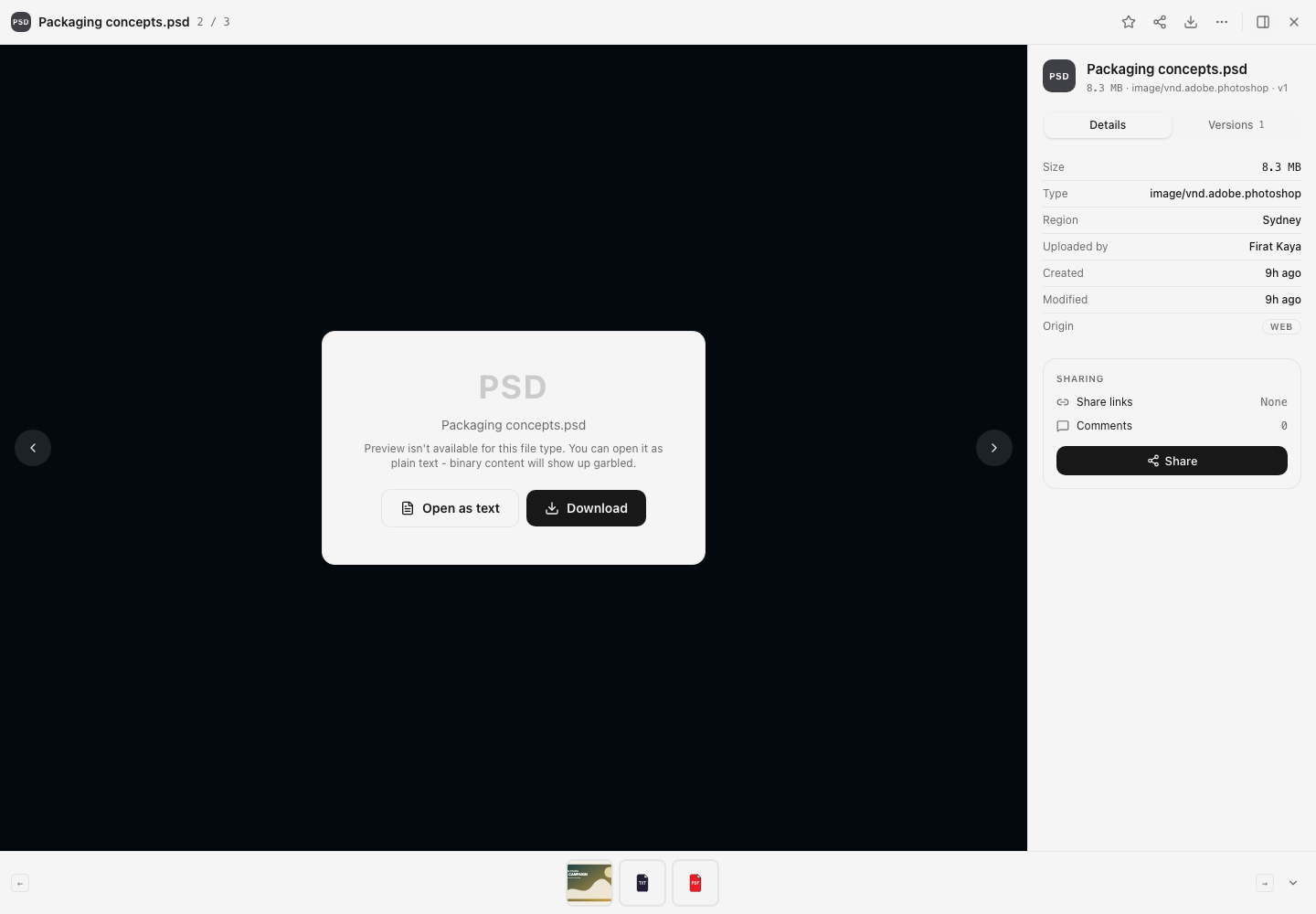
- Read the message in the centre card. For an unknown type, it states that a preview is unavailable.
- Choose Open as text only when plain text is plausible. Binary data can appear as unreadable characters; opening it this way does not modify the file.
- Choose Download to open the original in an application that understands the format.
- If a normally supported file falls back unexpectedly, compare its extension with its actual content type and try another current browser before reporting the problem.
Expected result
A supported file appears in the browser viewer without a separate download. The viewer identifies the current file, provides relevant reading or playback controls, and lets you move through the current list.
When inline preview is unavailable, Dosya shows a clear fallback with Download and, for unknown formats, an optional Open as text action.
Preview limits and permission behavior
- Text, Markdown, CSV and TSV previews are limited to 2 MB. Larger text-like files show a download fallback. Syntax highlighting is limited to smaller bodies even when plain-text preview still works.
- An Office conversion larger than 20 MB falls back rather than loading the converted PDF inline. Conversion can also fall back when the document service cannot prepare the file.
- Video and audio playback depends on the browser’s codec support. An MP4, MOV, MKV or audio extension describes a container or family, not a guarantee that this browser can decode the streams inside.
- The current archive browser handles ZIP and ISO content plus supported disk-image input. ZIP-like book formats use their book reader. Formats such as RAR, 7z, TAR and GZ are not claimed as browsable by this guide.
- Preview follows file visibility, folder confinement and lock rules. It does not bypass access restrictions.
- The preview is not a format conversion. Downloading or renaming a file does not change its underlying format.
Troubleshooting
The viewer says preview is unavailable. Use Download and open the file in its native application. If the file may contain text, Open as text is a read-only attempt and can display garbled binary data.
A text file says it is too large. The browser text viewer stops at 2 MB. Download it and use an editor designed for larger files.
A video opens but will not play. The browser could not decode its codec. Download it and use a player with broader codec support, such as VLC.
An Office file stays on Preparing preview and then falls back. Retry once after a short wait. If it still fails, use Open in editor or Download. Include the file type, approximate size, time and redacted error when contacting support.
The preview looks incomplete or different from the source application. Use the original application for layout-critical approval, editing, macros, embedded objects or other application-specific behavior.
The viewer asks for a lock password. Enter the file or folder lock password supplied through your workspace process. Do not send the password in a support ticket.
Frequently asked questions
Does previewing a file download it to my Downloads folder?
No. The browser fetches the data needed to render the preview, but it does not create a normal local download unless you choose Download.
Can I preview PDFs, videos and ZIP archives?
Yes. PDFs use Dosya’s PDF reader, browser-supported video plays inline, and ZIP files use the archive browser. Media codecs and archive contents can still cause a fallback.
Can I edit from the preview?
The viewer is primarily for reading. Some supported images, videos, text and Office files expose edit actions, but editing is a separate workflow that saves a new version.
Related guides
Was this helpful?
Loading helpfulness results…
Voting saves a necessary ballot cookie for up to 180 days so you can change your answer.
Questions and replies
Ask about the steps in this guide. Questions are reviewed before publication.
Keep account details, credentials and private files out of public questions. Use private support for those.
Loading questions…
Sign in to your Dosya account to ask a question.