Edit your own file comment
Edit a comment you authored, keep or change its mentions, and understand save limits, access checks, failure behavior, and the lack of undo.
Last reviewed
Editing replaces the stored body of a comment you authored. It does not create a visible revision history, change the comment’s parent, or move its time or PDF-page anchor. The available editor depends on where you opened the conversation.

Before you start
- Open the correct file conversation and find a comment posted by the signed-in account.
- Only the author sees Edit. Workspace owners and admins may delete another person’s comment, but they cannot edit it; an author must also remain a member of that workspace.
- Copy important original wording elsewhere first. The product stores the replacement text and offers no comment revision viewer.
Steps
- Choose the editing surface that is already showing the conversation:
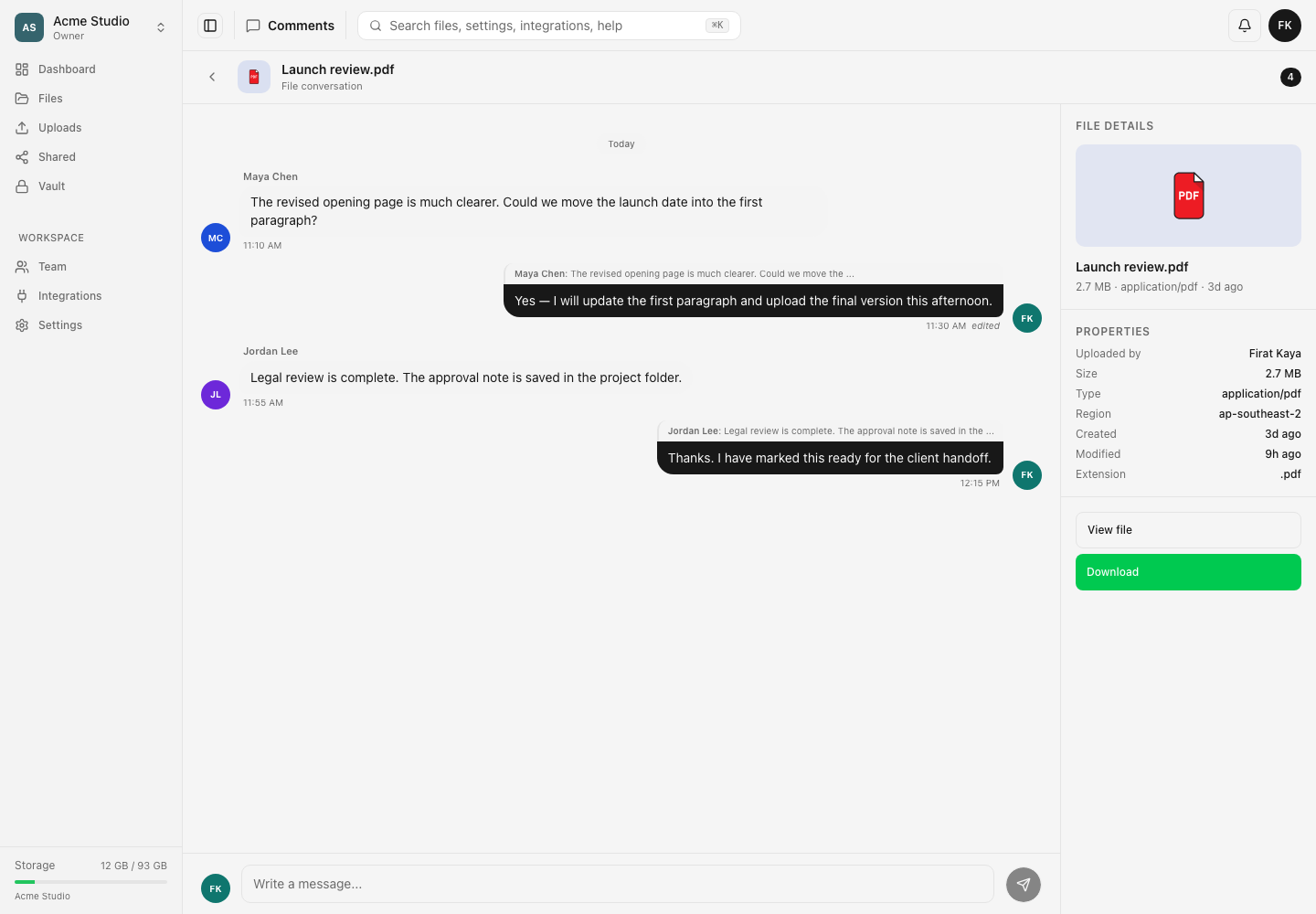
- On the dedicated browser Comments page, hover your bubble and select Edit. Its plain textarea changes the body only; use Save or Cancel.
- In the browser file-preview comments panel, select Edit beneath your comment. This opens the mention-aware composer with the existing body and current mention identities.
- On mobile, select the inline Edit action below your own bubble. The replacement field, Cancel, and Save stay inside that bubble.
- Correct the prefilled text. The trimmed saved body must contain 1 to 5,000 characters on every surface.
- In the file-preview panel only, review @mentions. Its counter appears above 4,500 characters, Escape cancels when the mention picker is closed, and Save sends the active mention list. At most 20 distinct recipients are accepted, and newly mentioned people must be able to see the target.
- On the dedicated Comments page or mobile, save the body-only edit. Because those clients omit
mention_user_ids, the API preserves the comment’s stored mentions instead of clearing or revalidating them. - Wait for the thread to reload and compare the displayed body with the intended correction. The dedicated browser Comments page and mobile show an edited marker; the file-preview panel refreshes the text without rendering that marker.
The API returns “You can only edit your own comments” for a non-author, “Comment not found” for a missing ID, “Comment body is required” for empty text, and “Comment too long (max 5000 characters)” above the limit. Every edit requires the author and current workspace membership. Only the file-preview panel’s mention-aware request also rechecks Files access, confinement, hidden state, and enclosing folder locks.
Expected result
The same comment ID and thread position now show the trimmed replacement body. Its creation time, parent relationship, and anchor remain intact; the update time and edited state change.
There is no one-click undo. To recover an earlier version, edit again and paste wording you saved separately.
Troubleshooting
Edit is absent. Verify that the comment’s author is your current account. Administrators do not receive an override for rewriting somebody else’s words.
Save failed after access changed. First confirm you are still a workspace member. A file-preview edit that includes mentions must also pass the file visibility gates; restore legitimate access or remove the mention change before retrying from a body-only surface.
Your correction remains in the field. That means the request did not succeed. The browser keeps edit mode and mobile retains its edit text on failure, so resolve the shown error before trying again.
Related guides
Was this helpful?
Loading helpfulness results…
Voting saves a necessary ballot cookie for up to 180 days so you can change your answer.
Questions and replies
Ask about the steps in this guide. Questions are reviewed before publication.
Keep account details, credentials and private files out of public questions. Use private support for those.
Loading questions…
Sign in to your Dosya account to ask a question.