Commenting on a file and managing replies
Open a file conversation, post and reply to feedback, and understand who can read, edit or delete each comment.
Last reviewed
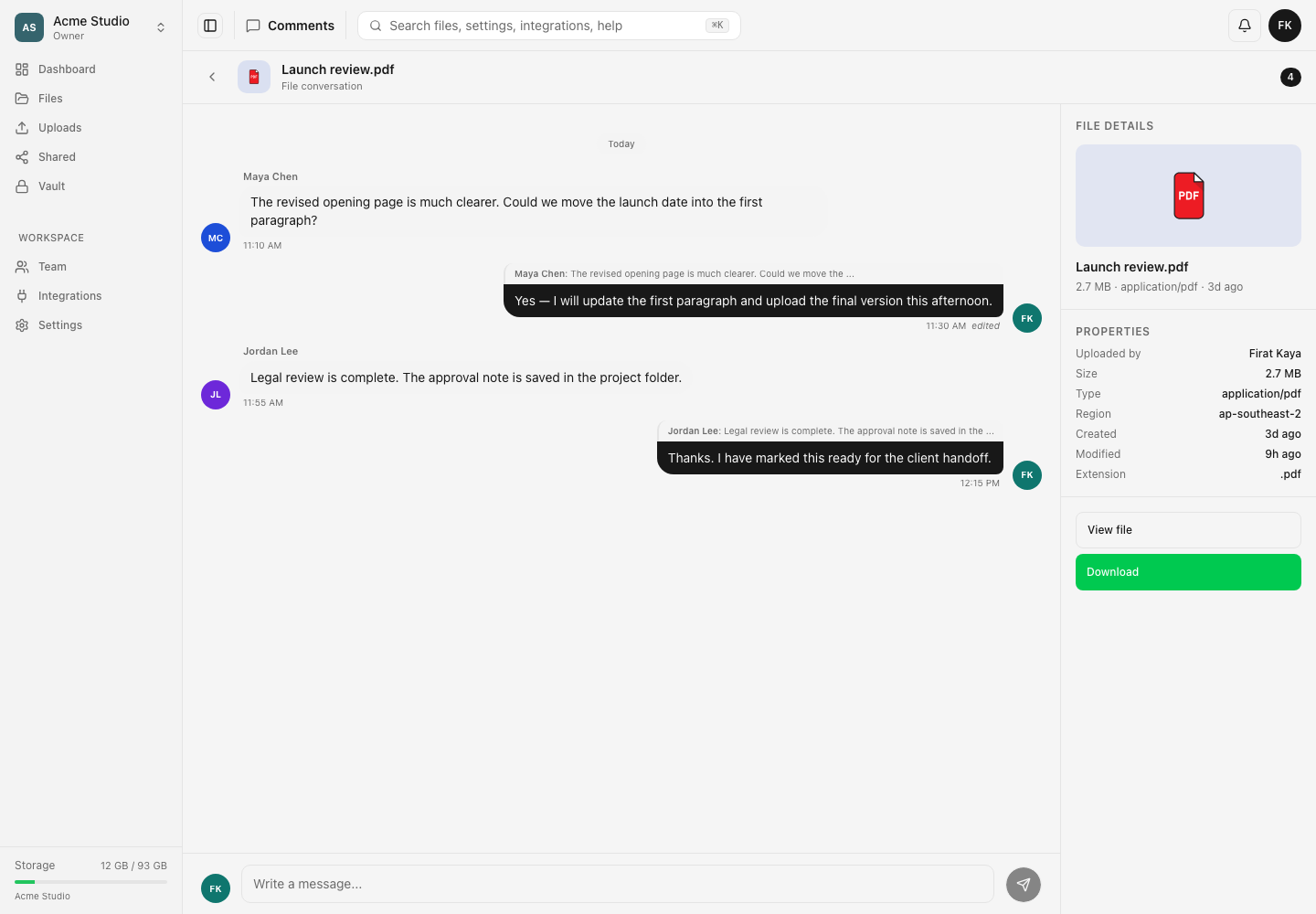
Open a file’s Comments action to start a workspace conversation about that file. Comments appear in chronological order, replies quote the comment they answer, and your own messages provide edit and delete controls.
File comments are visible to workspace members who can access the underlying item. They are separate from questions and replies on public Help Center articles.
Before you start
- Select the workspace that contains the file and confirm your role can access Files.
- The file must be visible within your permitted folder tree. Hidden-item and locked-folder rules also protect its conversation.
- Use comments for feedback about the file. Do not paste passwords, private sharing URLs, API keys or other secrets.
- A comment can contain up to 5,000 characters. The composer shows a counter when you approach that limit.
Steps: open the file conversation
- Open Files and find the intended file.
- Open its menu and choose Comments. A comment-count badge can also open the conversation when the file already has messages.
- Check the file name at the top of the page. On larger screens, the right panel also shows file details and preview or download actions.
- Read the thread before adding feedback. Messages are grouped by date and author, with the oldest first.
Post a comment or reply
- Enter a short, actionable note in Write a message….
- Select the send button, or press Ctrl+Enter on Windows and Linux or Command+Enter on macOS.
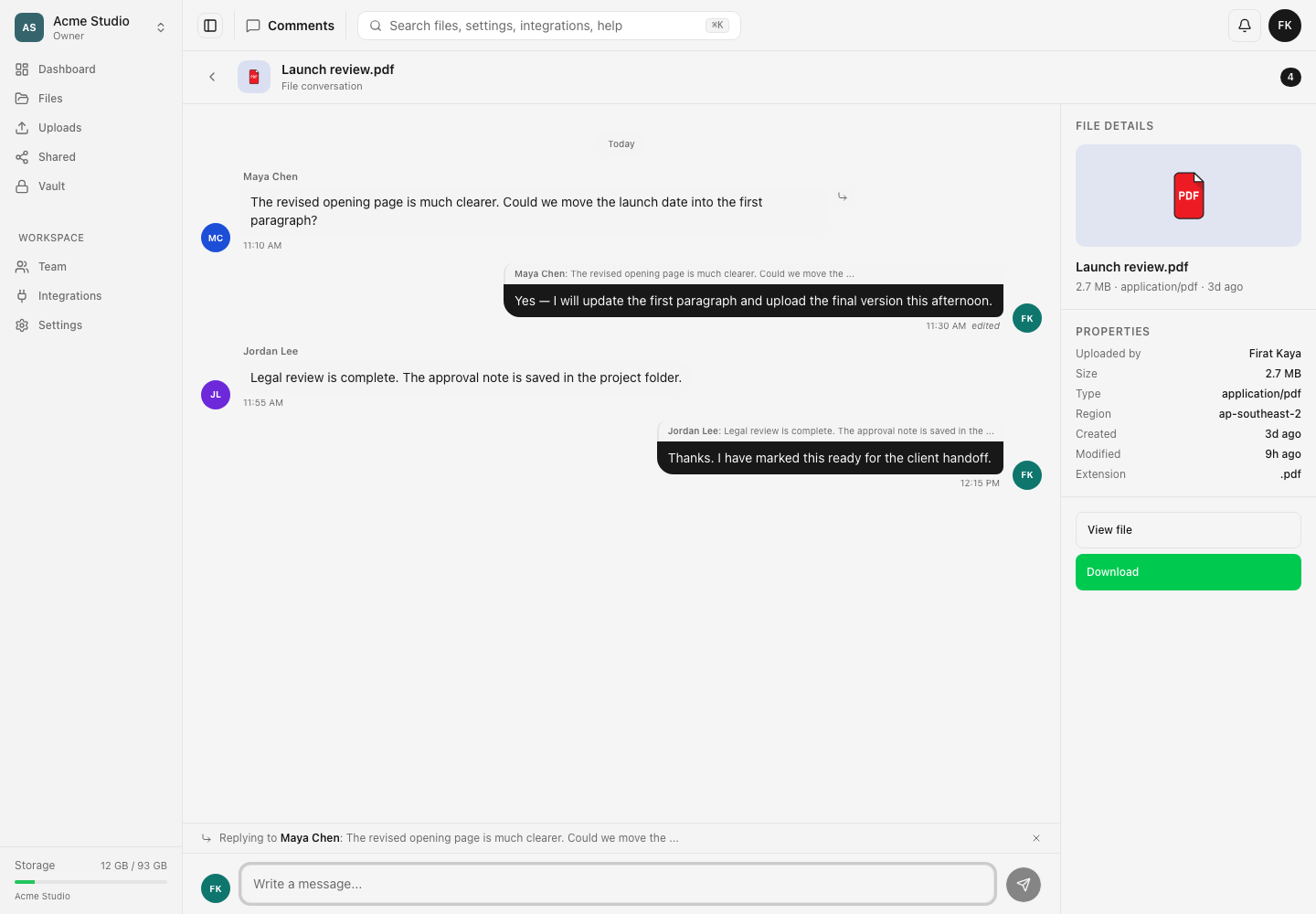
- To answer a particular comment, point to its message and choose Reply.
- Check the Replying to bar above the composer. It shows the author and a preview of the comment you selected.
- Write and send the response. Use the close control in the reply bar if you want to return to an ordinary top-level comment.
Edit or delete a comment
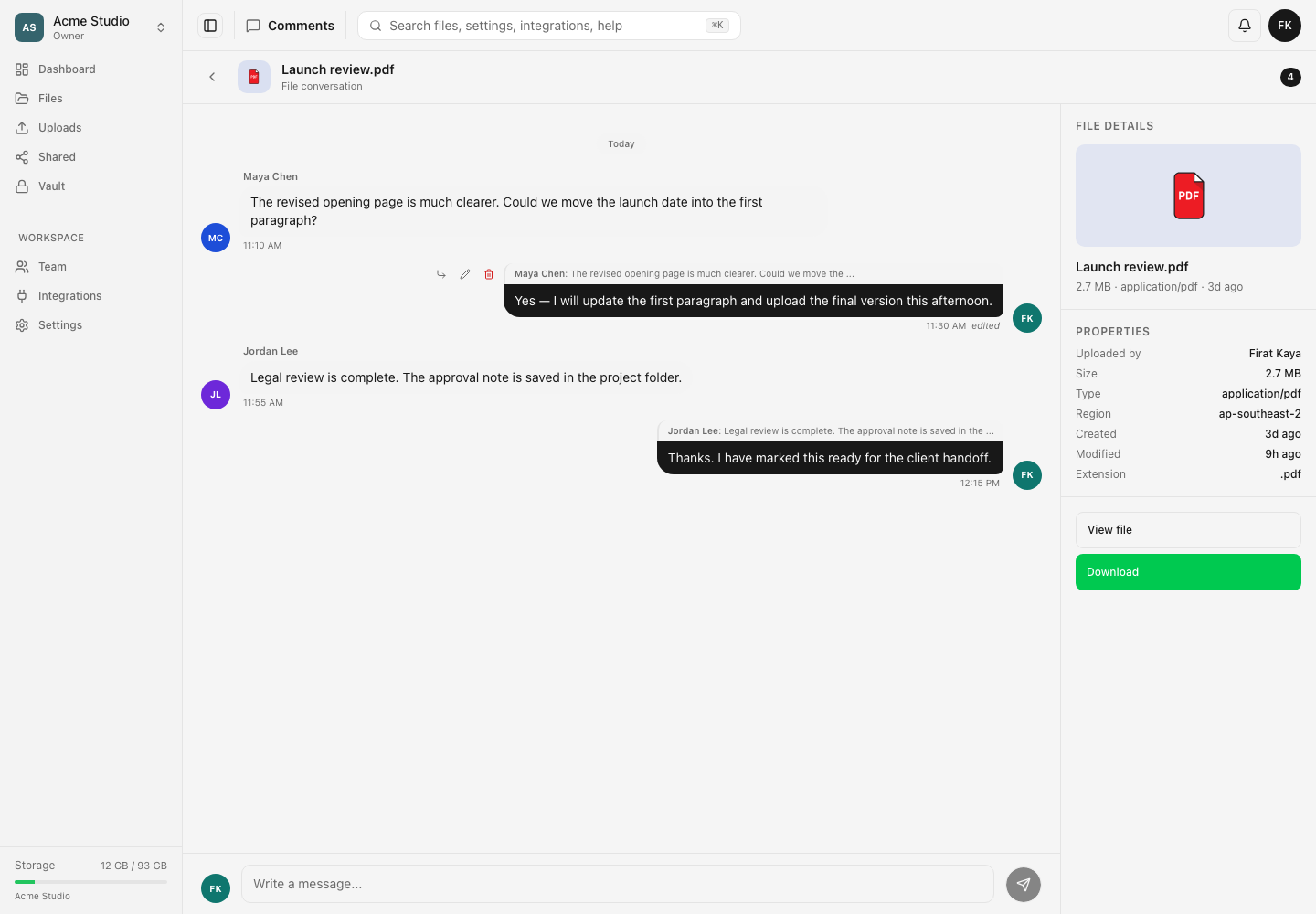
- Point to one of your own message bubbles.
- Choose Edit, update the text, then choose Save. The thread marks the message edited.
- Choose Delete when your own comment should be removed.
- Workspace owners and admins can also delete another person’s comment when moderation is needed. Other members cannot edit someone else’s text and cannot delete it unless their workspace role has that administrative authority.
- Review replies before deleting a parent. Deleting a comment also removes replies attached to it.
Visibility and permission limits
Comments follow the underlying file or folder’s workspace access. A member must still belong to the workspace, have access to Files, remain within any folder confinement and pass the item’s hidden and parent-folder lock checks.
A file’s own password lock does not turn comments into a public discussion. Comments remain an authenticated workspace feature. Public share recipients do not receive this workspace conversation through the sharing link.
Comment text is displayed as plain text with line breaks. A URL typed into a comment is not a privileged sharing mechanism and does not change access to its destination.
Expected result
The new message appears in the selected file’s conversation. Replies identify their parent, edits carry an edited label, and only supported author or moderator controls are available. Other permitted members see the same thread after it refreshes.
Troubleshooting
Comments is missing. Confirm you are in the live Files view and your role can access Files. Open the file menu or its comment-count badge.
The thread says the file cannot be found. The file may have moved outside your permitted folder tree, become hidden from you or been removed. Ask the file owner to confirm its current location and visibility.
The thread reports a locked folder. Unlock the protected parent folder, then reopen the conversation. A thread can contain details about the file, so the parent-folder gate applies to comments too.
Edit or Delete is absent. You can edit only your own comment. You can delete your own comment; deleting another person’s message requires owner or admin authority.
A long comment will not send. Reduce it to 5,000 characters or fewer. Attach detailed work in the file itself and use the comment to explain the requested action.
A message did not appear. Check the connection, reload the thread and avoid submitting the same text repeatedly until you know whether the first request succeeded.
Frequently asked questions
Can I edit or delete my own comment?
Yes. Point to your message to reveal Edit and Delete. An edited message is labelled, and deleting a parent removes its replies.
Who can see a file comment?
Workspace members who can access the underlying item can read its thread. Hidden items, folder confinement and locked parent folders can remove access.
Are Help Center questions part of this thread?
No. File comments are workspace collaboration content. Help Center questions are a separate, moderated support surface.
Related guides
Was this helpful?
Loading helpfulness results…
Voting saves a necessary ballot cookie for up to 180 days so you can change your answer.
Questions and replies
Ask about the steps in this guide. Questions are reviewed before publication.
Keep account details, credentials and private files out of public questions. Use private support for those.
Loading questions…
Sign in to your Dosya account to ask a question.