Verify an extension save in Dosya
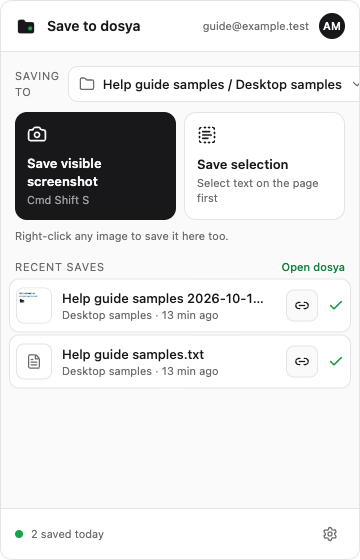
Open the completed Recent saves row by its exact file ID, then verify the generated name, destination, file type and captured content in Dosya.
Last reviewed
The completed Recent saves row is the strongest extension receipt because it opens the exact Dosya file ID returned by upload.

Steps
- Open the popup and find the target filename under Recent saves. A completed row carries a green check rather than a retry message.
- Read its folder label and relative save time, then select the row body. Dosya opens
app.dosya.dev/files?view=<fileId>for that exact result. - Confirm the destination and generated filename. Screenshots end in
.png, selections end in.txt, and webpage images use their source or inferred type. - For a screenshot, compare the saved pixels with the visible viewport captured at that time; the PNG does not contain a separate source-URL record.
- For a selection, verify
Title:,Source:, the blank separator, and the chosen text. For an image, compare the actual stored dimensions and content. - Keep the file if all checks agree. Use Copy link only after verification because creating or copying a share link does not validate the stored bytes.
Expected result
The completed row opens one file whose name, type, folder, and contents match the capture method. The exact file-ID link serves as the upload receipt.
Only the ten newest rows appear in the popup. Local item records remain for 30 days, while blob data attached to failed rows is removed after seven days.
Related guides
Was this helpful?
Loading helpfulness results…
Voting saves a necessary ballot cookie for up to 180 days so you can change your answer.
Questions and replies
Ask about the steps in this guide. Questions are reviewed before publication.
Keep account details, credentials and private files out of public questions. Use private support for those.
Loading questions…
Sign in to your Dosya account to ask a question.