Revoke one unfamiliar Dosya session
Sign out one unfamiliar device from the Dosya mobile Sessions screen while keeping your current device and every unrelated session signed in.
Last reviewed
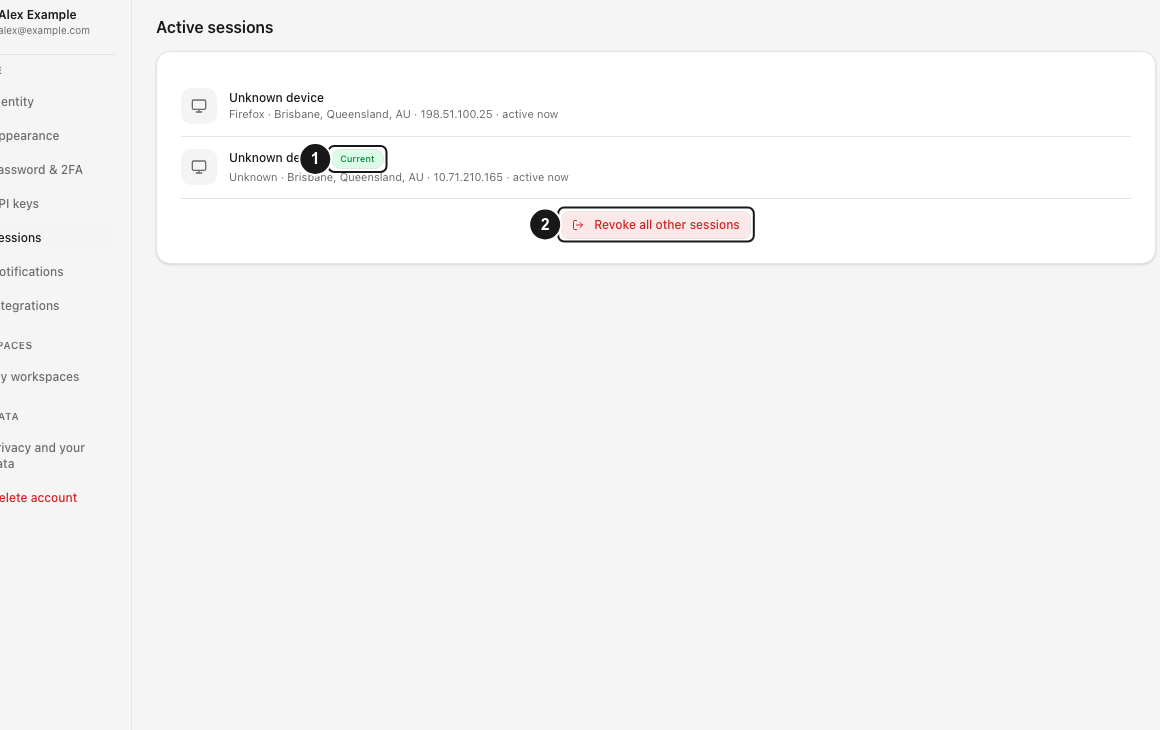
Use single-device revocation when one entry is unfamiliar and the rest of your signed-in devices are trusted. The current Dosya mobile app exposes this action on each non-current row. The web Active sessions page currently offers only Revoke all other sessions, so use the mobile Sessions screen for a targeted revocation.
The list includes browser sessions and mobile app tokens. The mobile app labels its own row This device and hides the sign-out control on that row. This prevents a session revocation from being used as a disguised logout.

Steps
- In the Dosya mobile app, open Profile → Sessions.
- Locate This device first. Keep that row as your trusted reference.
- Compare every other row’s device name and metadata. Browser metadata can include browser, stored location or IP, and last activity; app entries identify the dosya.dev app.
- On the one row you do not recognize, select the sign-out icon. Its accessibility label is Sign out [device].
- Wait for the confirmation toast Device signed out.
- Refresh the list. The selected row should be gone, while This device and unrelated trusted rows remain.
What happens to the selected device
Revoking a browser session deletes that session and clears its authentication cache. Revoking a phone token revokes that token family, including linked sessions it created, such as its Files extension access. The selected device must sign in again before it can reach protected files or account data.
The server refuses the current browser or mobile credential with Cannot revoke your current session. Use logout instead. A missing or already-ended row returns Session not found. Session IDs are scoped to the current account, so another account’s session is also reported as not found.
Revocation does not erase local downloads already stored on that device. If the row represents a lost or stolen device, also change the account password and review public links, API keys, and connected applications.
Troubleshooting
If the app says Couldn’t load sessions., choose Retry. If a targeted sign-out is unavailable in the web app, do not assume the row is protected; use the mobile screen or choose the broader web action to end all other sessions.
If the row reappears after a successful revocation, the person or device signed in again. Treat a repeated unfamiliar login as suspicious activity and secure the identity method immediately.
Expected result
The chosen device disappears from Sessions and must authenticate again, while the current device and every other session you did not select remain active.
Related guides
Was this helpful?
Loading helpfulness results…
Voting saves a necessary ballot cookie for up to 180 days so you can change your answer.
Questions and replies
Ask about the steps in this guide. Questions are reviewed before publication.
Keep account details, credentials and private files out of public questions. Use private support for those.
Loading questions…
Sign in to your Dosya account to ask a question.