Verify storage after an upgrade
Confirm an upgrade through the success state, storage ledger, total limit, subscription interval and Stripe receipt before retrying uploads.
Last reviewed
Verify capacity in Billing after Stripe settles; the checkout confirmation alone does not prove that the account entitlement has synchronized.

Steps
- Wait for Purchase complete or Plan updated on the success page.
- Confirm the capacity band’s added amount and total, then read the plan/interval and receipt rows.
- The page runs an immediate billing sync and, while no subscription is visible, retries up to eight times at 2.5-second intervals.
- Open Billing and check the new base-plan or add-on row in Storage ledger and the bold Total limit.
- Compare the receipt amount, invoice number when available, masked card, and billing email. Retry a previously blocked upload only after the new limit is displayed.
An active license or referral can make the total larger than the purchased item. Workspace-specific caps can still refuse an upload even when account capacity is sufficient.
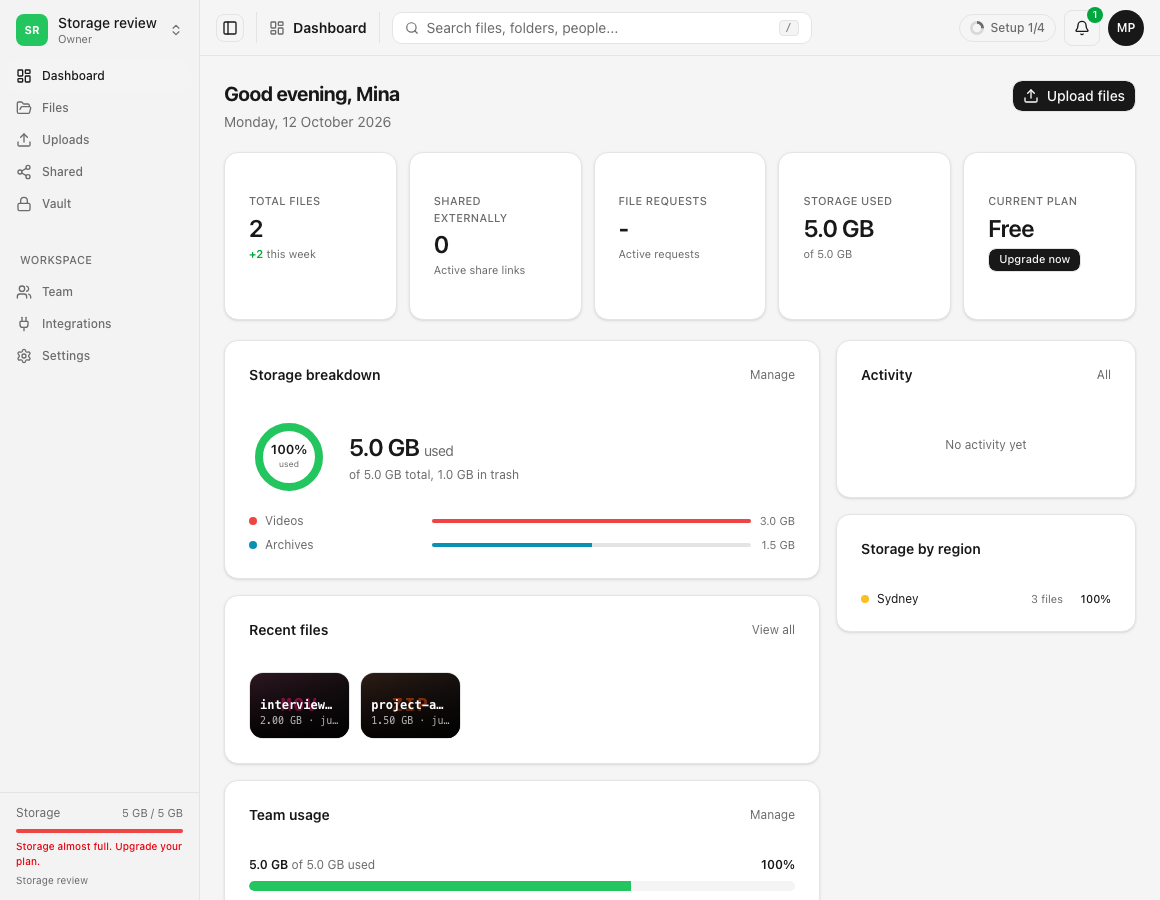
Expected result
The success page and Billing agree on plan, interval and total storage, and the invoice/receipt identifies the transaction that caused the change.
If status polling gives up, use its retry control or return to Billing and reload. If Payment processing remains, wait for Stripe rather than starting another checkout.
Related guides
Was this helpful?
Loading helpfulness results…
Voting saves a necessary ballot cookie for up to 180 days so you can change your answer.
Questions and replies
Ask about the steps in this guide. Questions are reviewed before publication.
Keep account details, credentials and private files out of public questions. Use private support for those.
Loading questions…
Sign in to your Dosya account to ask a question.