Switch accounts in the mobile app
Sign out of the current Dosya account, clear its device-only data, sign in as the second account, and verify workspaces before restarting backup.
Last reviewed
The mobile app does not keep a visible list of multiple signed-in accounts. Switching means using Sign out for the current identity and then authenticating as the other one. This boundary prevents one account from inheriting another account’s cached files, active workspace or photo-backup ledger.
Wait for important uploads before starting. Explicit sign-out clears pending device work even if the phone cannot reach the logout endpoint, while completed cloud files stay with their original account and workspace.

Before you start
- Open Backup and the upload queue under the first account. Let required transfers finish, because queued and staged items are discarded during cleanup.
- Verify the first account’s important files from another Dosya client if this phone holds the only local originals.
- Have the second account’s password or provider access and any required two-factor method ready.
- Record which workspaces and backup destinations belong to each identity. Similar names do not make them the same storage boundary.
Steps
- Select Settings and read the name and email on the account card.
- Confirm Backup is idle and no manual file upload is still queued or uploading.
- Return to Settings and tap Sign out.
- Dosya first tries to unregister this phone from push delivery, then asks the server to revoke the current refresh session and its linked iOS Files session. The logout request waits at most four seconds; local sign-out continues when the phone is offline or the request fails.
- At Welcome back, enter the second account under Email and Password, or choose its Google, GitHub or Apple provider. Complete Two-factor authentication when shown.
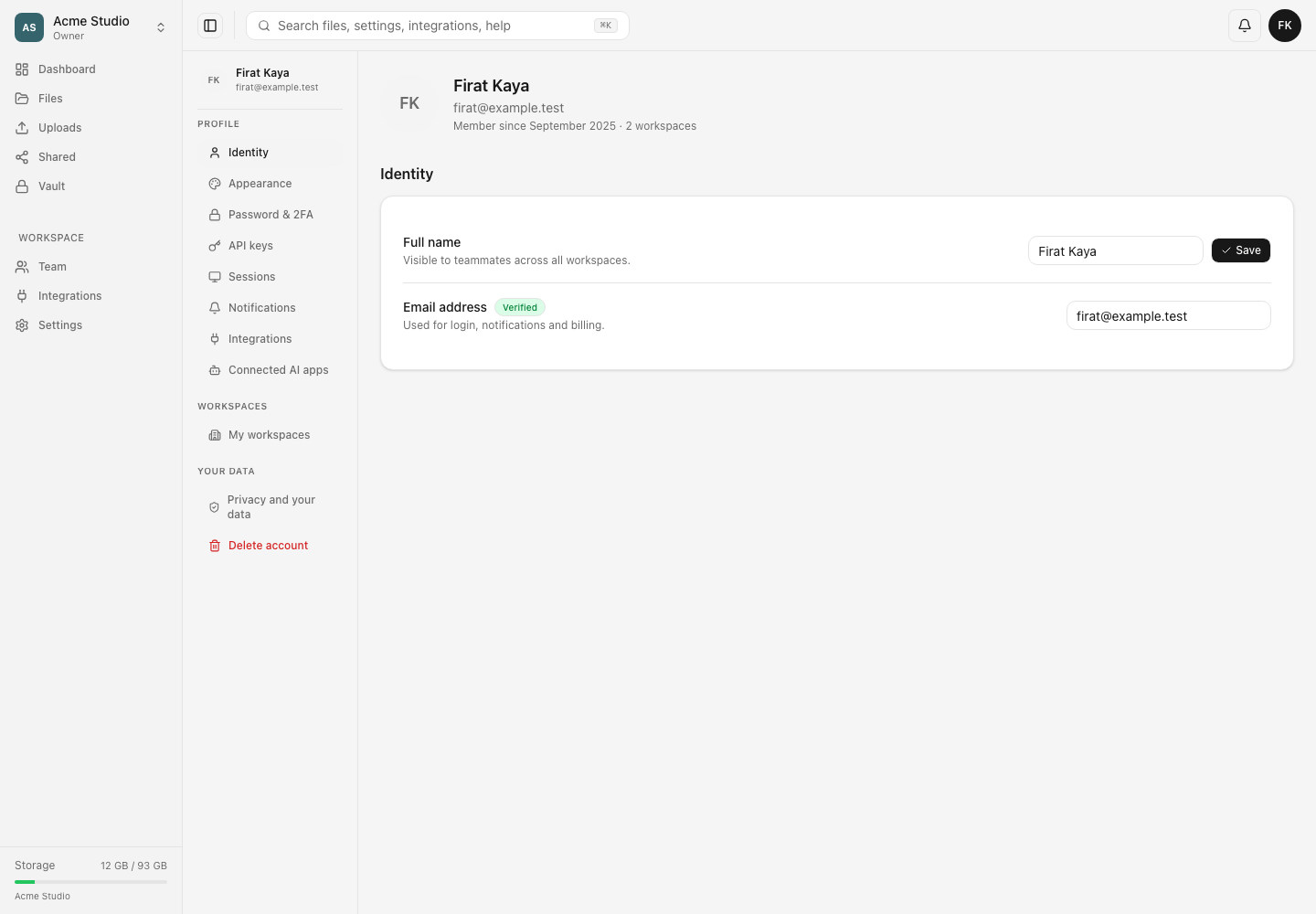
- Open Settings and verify the second name and email. Do this before entering a folder or starting a backup.
- Select Files, choose the intended workspace in the header, and open one known item that belongs to the second account.
- Visit Settings → Backup. Recreate the second account’s destinations and device-specific choices; sign-out resets photo-backup configuration to defaults.
- Run one small test backup, then confirm its cloud copy under the selected second-account workspace.
Expected result
The account card, workspace list and file views all belong to the second identity. The first account’s mobile credential is revoked when the server receives logout, and its local cached data no longer appears on the phone. Files already stored in either account are unchanged.
Data removed from this phone
Sign-out stops playback and backup work, cancels supported background jobs, clears the upload queue, backup ledger and history, backup settings, active workspace, contacts-backup state, notification registration, persisted API responses, cached thumbnails, downloaded file bytes, CarPlay recents, Vault unlock state and the first account’s onboarding record. Cleanup is best effort so one failing step cannot keep the account signed in.
Device-level preferences remain: Unlock with biometrics, the last sign-in-method hint, theme, and file-view presentation settings. Because biometric lock survives, it can protect the next account immediately.
Important boundaries
- There is no role or plan requirement for signing out. Membership and permissions are evaluated again after the second account opens a workspace.
- Signing out is different from deleting an account; it does not erase server files, workspaces or billing records.
- A failed network revocation can leave the old server credential live until another control revokes or expires it, even though local tokens are gone. Use Sessions from another signed-in client if the device was lost or the logout happened offline.
- Switching only the active workspace does not change the account email. Use the workspace header for project boundaries and this sign-out flow for identity boundaries.
Troubleshooting
The first account still appears after tapping Sign out. Wait for the screen transition and reopen Dosya. If the process was interrupted, use Settings → Sign out again, then review Sessions elsewhere.
The second account sees empty Files. Check its account email, then change the active workspace. An account can be valid while lacking membership in the workspace you expected.
Previous backup settings disappeared. That reset is intentional account isolation. Configure destinations, media types, date, size, Wi-Fi and charging rules again for the new identity.
Biometric lock remained enabled. The preference belongs to the installation rather than an account. Turn off Settings → Security → Unlock with biometrics if that is not appropriate for the new user.
Related guides
Was this helpful?
Loading helpfulness results…
Voting saves a necessary ballot cookie for up to 180 days so you can change your answer.
Questions and replies
Ask about the steps in this guide. Questions are reviewed before publication.
Keep account details, credentials and private files out of public questions. Use private support for those.
Loading questions…
Sign in to your Dosya account to ask a question.