Changing profile details and account settings
Update your name, avatar and email, then find appearance, password, sessions, notifications, integrations and data controls in Profile.
Last reviewed
Your Profile contains account-wide identity, security, integration and data controls. These settings follow your account across workspaces; workspace roles and policies are managed separately.
Before you start
- Sign in to the web app and open the profile menu in the upper-right corner.
- Keep access to your current password and email inbox before changing the email address.
- Prepare a PNG, JPEG, WebP or GIF under 2 MB for a new avatar.
- Confirm whether a change is account-wide or belongs to one workspace.
Steps: update identity
- Open the profile menu and select Profile.
- Select Identity.
- To change the avatar, select the current avatar, choose an image under 2 MB and wait for confirmation.
- Edit Full name and select Save. Teammates will see the new name across workspaces.
- To change Email address, enter the new address and select Change.
- Enter the current password when asked.
- Retrieve the six-digit verification code from the new inbox and confirm it.
- Reload Profile and check that the new address is marked Verified.
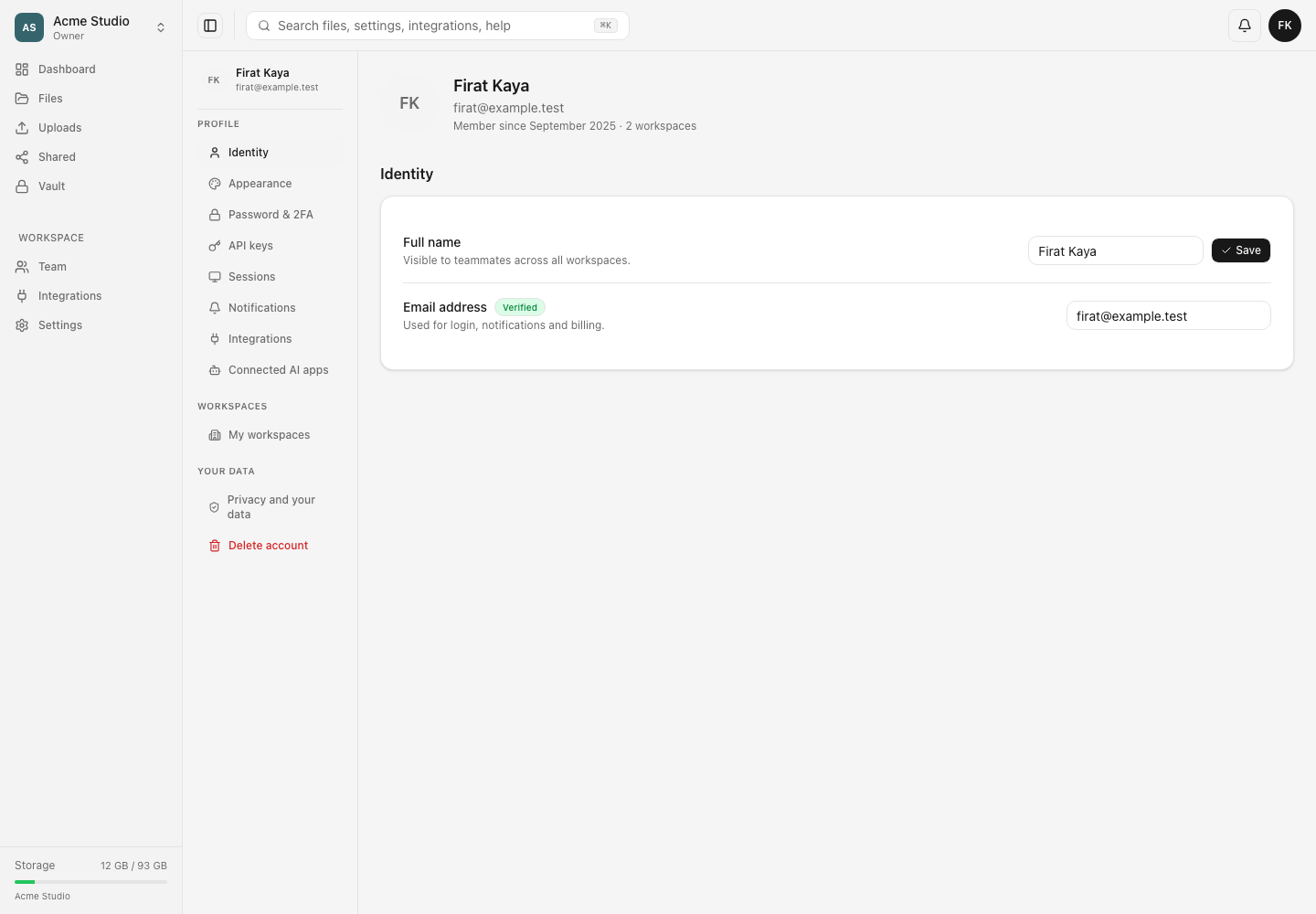
Find other account settings
- Appearance controls the interface theme.
- Password & 2FA changes or sets a password and manages two-factor authentication.
- API keys creates and revokes programmatic credentials.
- Sessions lists signed-in devices and lets you revoke sessions.
- Notifications controls supported account and workspace notifications.
- Integrations manages connected cloud accounts.
- Connected AI apps shows authorized AI connections.
- My workspaces lists workspace memberships.
- Privacy and your data contains privacy and export controls.
- Delete account has its own protected workflow.
Expected result
Saved identity values persist after reload. A verified email change becomes the address used for login and account notifications. Navigation sections display the controls available to the current account.
Limits and behavior
- Changing an account name does not rename a workspace.
- Changing an email may affect future email-bound invitations and sign-in; existing workspace membership remains tied to the account.
- A pending email change is not complete until its verification code is accepted.
- OAuth-created accounts can set a password for email sign-in and password-gated actions.
- Session revocation, API-key revocation and Vault unlock state have separate controls.
- Deleting an account is different from leaving a workspace or canceling a paid plan.
Troubleshooting
The avatar is rejected. Use a supported image format under 2 MB.
The name did not change. Enter a non-empty value, select Save and wait for the success message before leaving.
The email code did not arrive. Check the new address and filtered mail. Restart the change if the address is wrong or the code expires.
The current password is refused. Social-login-only accounts may need to set a password first. Otherwise use the password-reset flow.
A workspace setting is missing from Profile. Open that workspace’s Settings page. Profile contains account-wide controls.
Related guides
Was this helpful?
Loading helpfulness results…
Voting saves a necessary ballot cookie for up to 180 days so you can change your answer.
Questions and replies
Ask about the steps in this guide. Questions are reviewed before publication.
Keep account details, credentials and private files out of public questions. Use private support for those.
Loading questions…
Sign in to your Dosya account to ask a question.