Respond when a member upload reaches quota
Diagnose a member’s per-uploader storage refusal, compare it with workspace and account capacity, then free or raise the correct limit before retrying.
Last reviewed
Storage per member measures bytes attributed to one uploader and can refuse that person while the workspace still shows free capacity. It is independent of the total workspace cap.

Before you start
- Capture the file size, active workspace, uploader account, and full error message.
- The settings editor needs Access Settings and Change storage per member.
- Moving a file to Trash removes it from the live per-member sum, but workspace and account storage stay charged until permanent purge; purging is irreversible.
Steps
- Confirm the upload reports You’ve reached your N GB per-member storage limit rather than a workspace or account message.
- Open Workspace settings → Hard limits and read Storage per member plus Total workspace storage cap.
- Compare the member’s attributed bytes plus the incoming file with the per-member limit using 1 GB = 1,073,741,824 bytes.
- Move disposable files attributed to that uploader to Trash to lower the member total, or save a higher allowed per-member value.
- Retry after the live rows or saved limit update; permanently purge Trash only when the workspace or account storage ceiling also needs space.
- Retry the single failed upload and verify it completes without crossing the workspace owner’s remaining entitlement.
Limit interaction
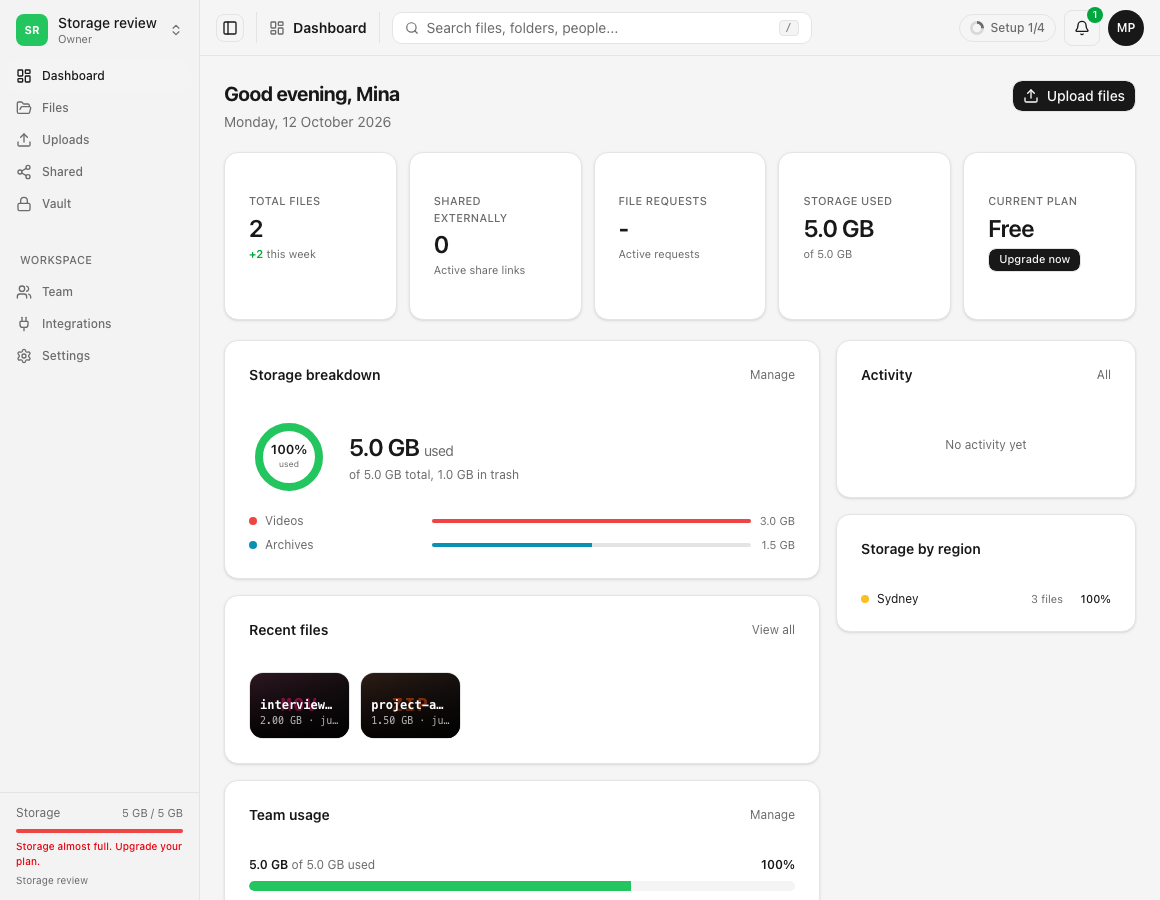
Raising the per-member value cannot exceed the owner’s plan storage ceiling and does not bypass the total workspace cap. An upload must satisfy the credential, role, file, member, workspace, and account gates.
The final measured-byte reservation is atomic, so two concurrent writes cannot both claim the same remaining workspace capacity. A successful retry increases workspace usage by the committed bytes.
Expected result
The member’s controlled retry succeeds after live attributed usage plus the new file fits the per-member rule and both broader storage ceilings. Trash can resolve the member rule while the broader ceilings remain unchanged until purge.
Troubleshooting
The same member message remains. Confirm the trashed files were uploaded by that member and are no longer live; another uploader’s files do not reduce this member’s attributed total.
The error changes to a workspace or account limit. The member ceiling is resolved, but Trash is still charged to those broader totals; permanently purge disposable content or raise the binding ceiling.
Only one client fails. Inspect credential-specific maximum file size and role usage limits on that surface.
Related guides
Was this helpful?
Loading helpfulness results…
Voting saves a necessary ballot cookie for up to 180 days so you can change your answer.
Questions and replies
Ask about the steps in this guide. Questions are reviewed before publication.
Keep account details, credentials and private files out of public questions. Use private support for those.
Loading questions…
Sign in to your Dosya account to ask a question.