Change a workspace storage allocation safely
Change the whole-GB workspace storage cap within the owner’s entitlement, understand over-cap behavior, and verify the saved limit without deleting files.
Last reviewed
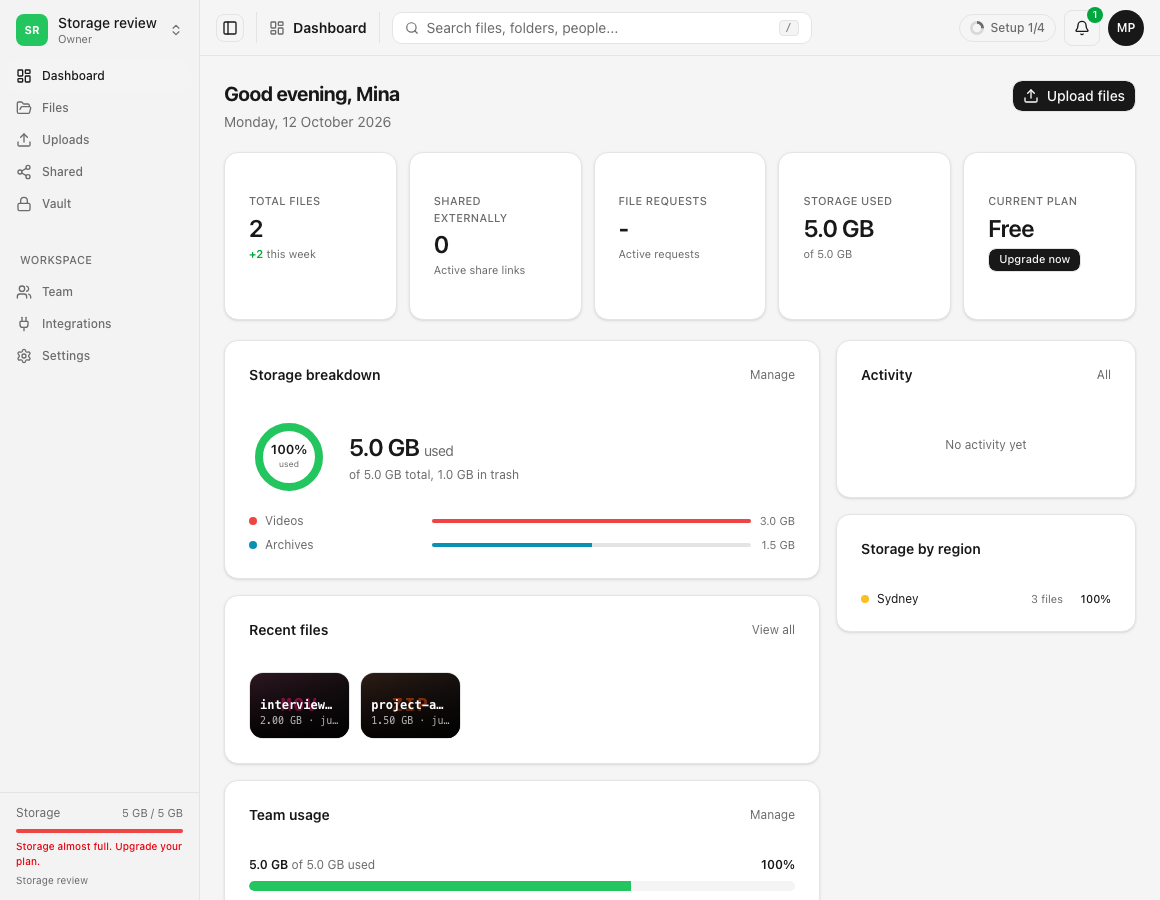
Total workspace storage cap sets a hard ceiling for new byte-adding operations. Lowering it below current usage blocks further uploads but does not delete existing content.

Before you start
- The actor needs Access Settings plus Change total workspace storage cap.
- Review workspace usage, owner entitlement, and every explicit cap across the owner’s workspaces.
- Clearing the field removes only this workspace-specific cap; the account and per-member ceilings remain.
Steps
- Open Workspace settings → Hard limits and locate Total workspace storage cap.
- Record current usage, the saved cap, and the GB left to allocate badge.
- Choose a whole number of at least 1 GB, or leave the field empty to remove this boundary.
- Select the row’s save control and wait for Limit updated — Your hard limit has been saved.
- Reload Settings and confirm the stored value plus any warning that usage already exceeds it.
- Use a small disposable upload to verify the new boundary without attempting to fill all remaining storage.
Allocation rules and effects
The sum of explicit caps across the owner’s workspaces cannot exceed effective account entitlement. Editing a cap returns that workspace’s old allocation before checking the replacement. Values are rounded to whole GB and cannot exceed the plan-backed storage pool.
A tighter cap can revoke an outstanding temporary storage allowance that no longer fits. The change is reversible by an authorized administrator, but uploads refused while over cap do not resume automatically.
Expected result
The saved whole-GB value reappears after reload, existing files remain untouched, and new byte-adding work is allowed or refused according to the tighter of workspace and account capacity.
Troubleshooting
All … GB of your plan is already allocated to workspace limits. Lower another explicit cap or add entitlement.
You can allocate at most … GB more. Enter no more than the remaining amount shown.
New uploads are blocked until usage drops below the limit. Permanently empty enough Trash content or raise the cap; moving items to Trash is insufficient.
Related guides
Was this helpful?
Loading helpfulness results…
Voting saves a necessary ballot cookie for up to 180 days so you can change your answer.
Questions and replies
Ask about the steps in this guide. Questions are reviewed before publication.
Keep account details, credentials and private files out of public questions. Use private support for those.
Loading questions…
Sign in to your Dosya account to ask a question.