Review file-request controls under workspace policy
Control file-request exposure through role permissions and per-request limits, then verify guest uploads obey the folder, count, size, type and expiry.
Last reviewed
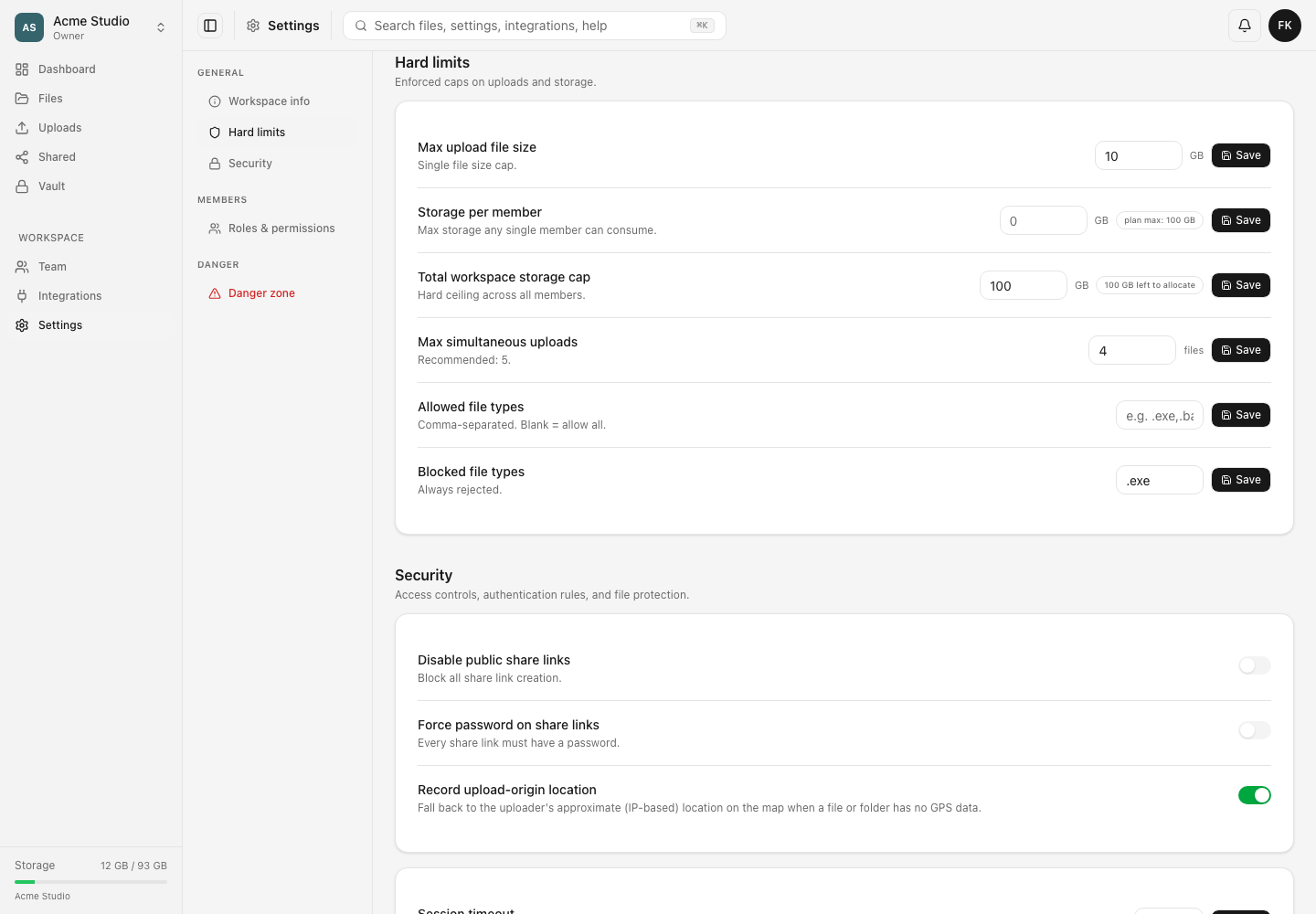
Dosya has no workspace-wide “disable file requests” switch. Control this public upload channel through role permissions, destination scope, and limits saved on each request.

Before you start
- Creating a request requires Upload files because its URL delegates upload rights to unauthenticated guests.
- Listing requests uses View own shared links or View all shared links; folder confinement also filters visible destinations.
- Use a disposable destination outside Vault and any full-lock folder.
Steps
- Open the custom role editor and decide which roles may hold Upload files and inspect their own or all shared records.
- Save the least-privilege role, then reload a test member assigned to it.
- Open File requests and create a disposable request aimed at a live folder inside that member’s scope.
- Set a clear title plus needed expiry, maximum files, maximum file size, extension allowlist, password, and recipient addresses.
- Open the returned guest URL in a private session and upload one allowed sample plus one sample designed to exceed a chosen limit.
- Verify only the allowed upload appears in the destination, then revoke the request so its public URL stops accepting files.
Enforced boundaries
A password must contain at least eight characters. Negative expiry or size values and negative or non-integer file counts are refused. Up to 100 valid recipient addresses are processed, and reserved service addresses are rejected rather than silently skipped.
A request cannot point at a missing, foreign, hidden, Vault, or full-lock destination. A folder-confined creator is anchored to their subtree. Guest uploads also face workspace extension, file-size, storage, concurrency, and lock gates.
Expected result
The authorized member can create and view only the intended request records, the guest’s valid file lands in the chosen subtree, the invalid sample is refused, and revocation closes the URL.
Troubleshooting
You don’t have upload permission in this workspace. Add Upload files only if the role should delegate guest uploads.
Destination folder not found or folder_locked. Choose a visible, live destination outside Vault and full locks.
The member sees an empty request list. They hold neither View own shared links nor View all shared links, or their folder scope excludes those destinations.
Related guides
Was this helpful?
Loading helpfulness results…
Voting saves a necessary ballot cookie for up to 180 days so you can change your answer.
Questions and replies
Ask about the steps in this guide. Questions are reviewed before publication.
Keep account details, credentials and private files out of public questions. Use private support for those.
Loading questions…
Sign in to your Dosya account to ask a question.