Verify access removal for a former member
Verify a former member lost workspace access, review the live links that remain, and understand the irreversible membership and request cleanup effects.
Last reviewed
Removing a member deletes the membership and invalidates its cache, but share links they created remain live. Favourites, groups, and open file requests enter separate best-effort cleanup passes.

Before you start
- The actor needs Manage roles to remove someone else. A member can remove themselves.
- The current owner cannot be removed until ownership is transferred.
- Record critical share links and file requests first; the membership deletion is not an undoable toggle.
Steps
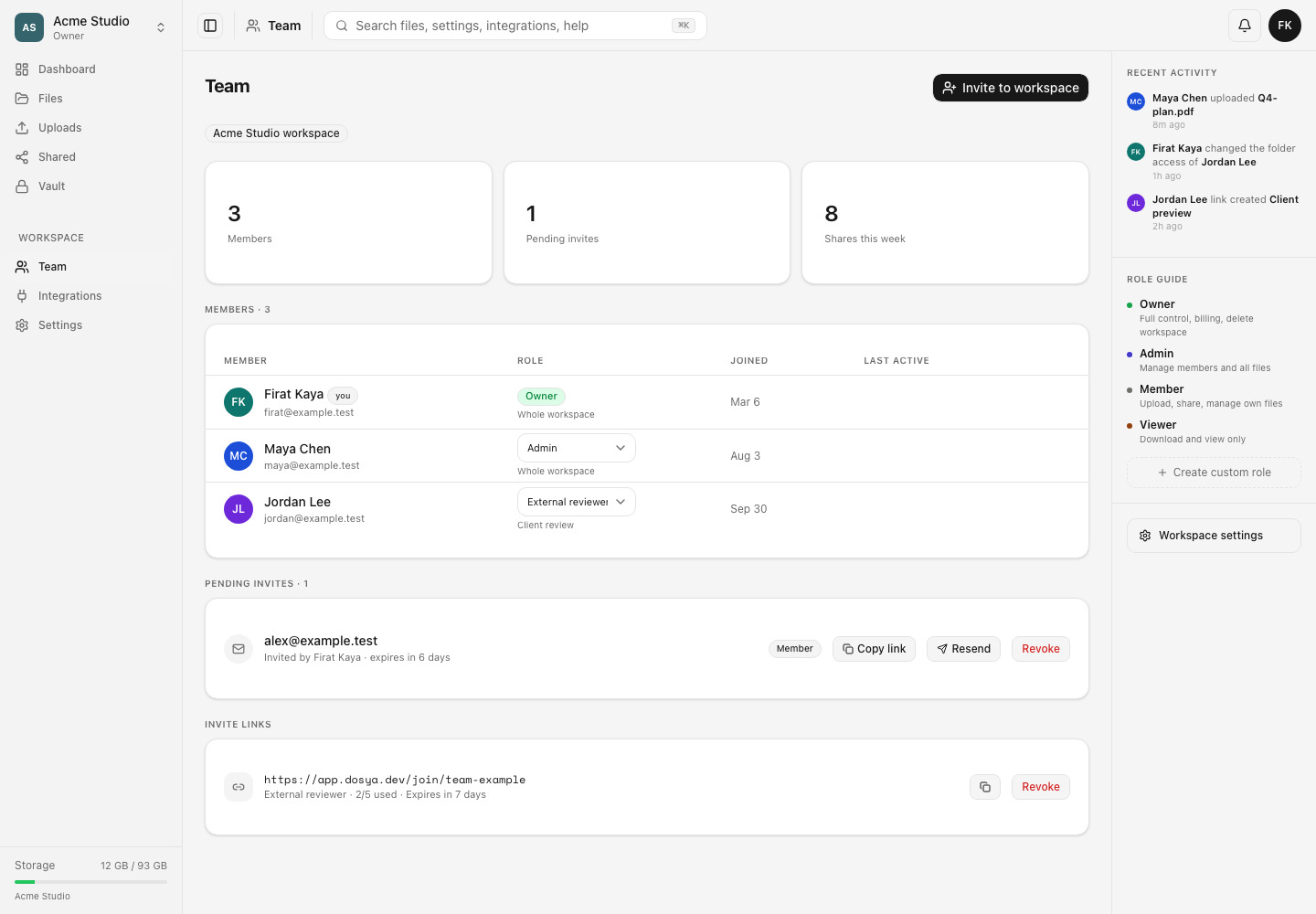
- Open Team, match the target by name and email, and verify the row is not the workspace owner.
- Review that member’s live share links and open file requests before choosing the removal control.
- Select the destructive remove button and reread the name in the Remove member dialog.
- Confirm Remove and wait for Member removed — They no longer have access to this workspace.
- Reload Team and verify the person is absent from Members while relevant administrators receive the removal activity or notice.
- From the former member’s session, confirm the workspace is unavailable; then verify the creator’s file requests are revoked and manually close any residual request or share URL.
Permanent and surviving effects
The membership row is deleted immediately and cannot be restored; returning requires a new invitation or link acceptance. Favourites, folder groups, and creator-owned file requests are swept after deletion. Those cleanup errors are swallowed because access removal is already final, so an administrator must verify that no request remains open.
Existing files stay in the workspace. Share links created by the person remain live and the administrator notice includes their count, so removal alone is not a link-revocation strategy.
Expected result
The former person is absent from Team and cannot reopen the workspace. Every remaining file request is checked and revoked, while intentionally retained share links are documented.
Troubleshooting
Cannot remove the workspace owner. Transfer ownership first. Complete the ownership transfer before retrying.
You don’t have permission to remove members. Ask someone holding Manage roles.
A public URL still opens. Membership removal deliberately preserves share links; revoke the specific link from Shared if continued access is unwanted.
A former member’s file request still accepts uploads. The post-removal request sweep is best-effort. Open File requests, identify records created by that account, and revoke each residual URL.
Related guides
Was this helpful?
Loading helpfulness results…
Voting saves a necessary ballot cookie for up to 180 days so you can change your answer.
Questions and replies
Ask about the steps in this guide. Questions are reviewed before publication.
Keep account details, credentials and private files out of public questions. Use private support for those.
Loading questions…
Sign in to your Dosya account to ask a question.