Choose a workspace role before inviting someone
Choose a built-in or custom role before inviting someone, apply the inviter permission ceiling, and test the smallest access set the job requires.
Last reviewed
The role stored on an invitation becomes the new member’s permission map at acceptance. Select by concrete capabilities because a custom role name carries no security meaning by itself.

Before you start
- Your account needs Invite members and may offer only roles whose enabled permissions are contained in your own.
- Owner cannot be assigned by invitation; ownership uses the transfer workflow.
- A direct email invite is valid for seven days and is bound to its recipient address.
Steps
- List the pages, file actions, team duties, and protocol access the person actually needs.
- Open View role permissions for each candidate and inspect all 36 switches plus any IP, active-hours, or usage restrictions.
- Prefer the narrowest role that enables the required work; remember that page access and action permissions are separate.
- Open Team → Invite to workspace → Email invite and add the exact recipient address.
- Choose the reviewed value under Role, then select Send invite.
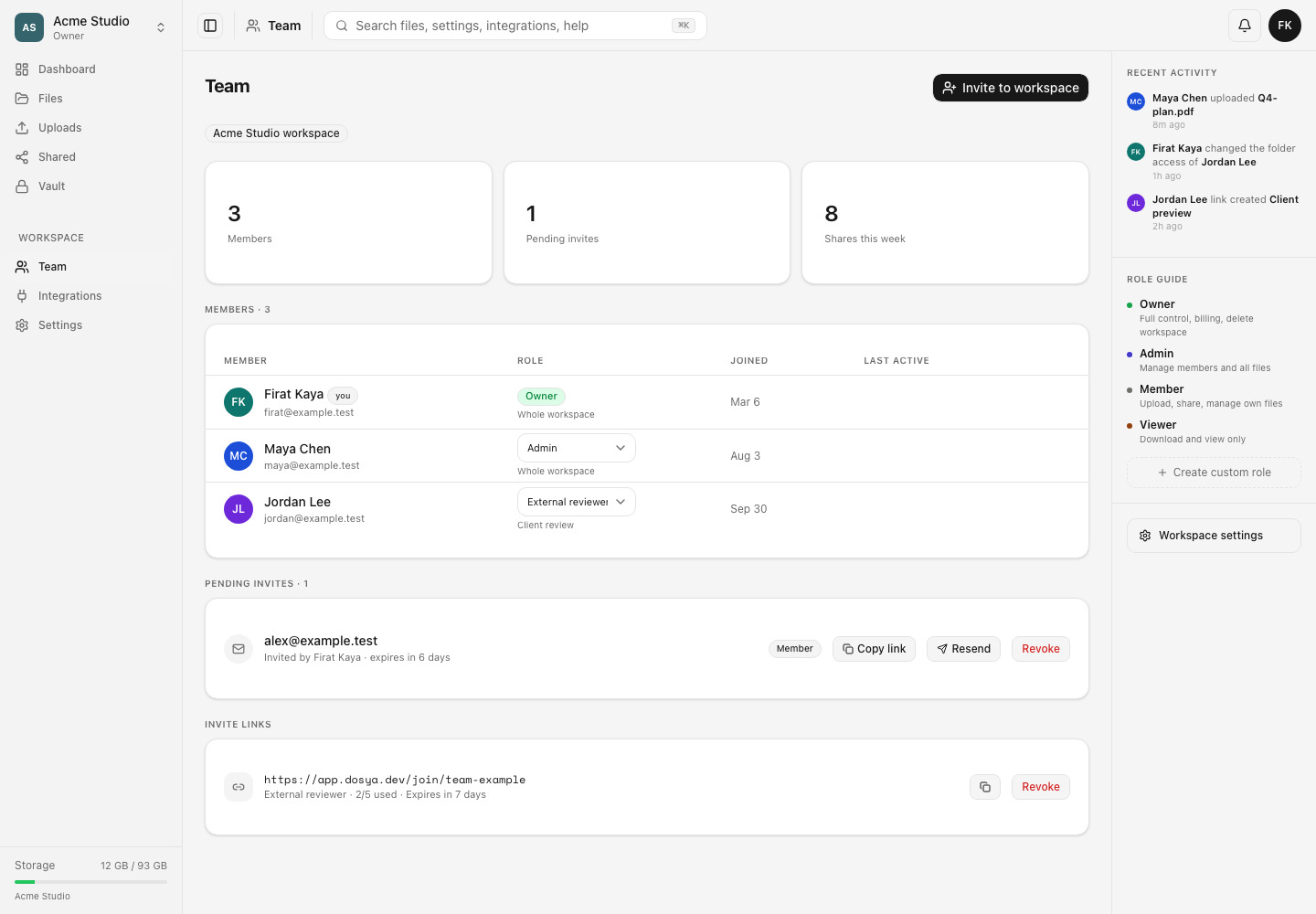
- Confirm Invites sent, inspect the exact role on the new Pending invites row, and verify the accepted member’s role in Team.
Role boundaries
Built-in Viewer is read-oriented, Member handles ordinary file work, and Admin manages members and workspace content; verify actual permissions instead of relying on these summaries. Custom roles can combine any registry entries, subject to the creator’s grant ceiling.
The recipient cannot change the offered role while accepting. The invite landing GET labels every custom role Member, even though acceptance POST applies the stored custom role ID. Treat Pending invites before acceptance and the Team member row afterward as the authoritative role checks. If the pending row is wrong, revoke it and issue a new invite; resending retains the original role.
Expected result
The pending and accepted Team rows display the intended role, its permissions fit the inviter’s ceiling, and the member can work without unrelated administrative access.
Troubleshooting
You don’t have permission to invite this role. Select a role fully contained in your permission map or ask a broader administrator.
Invalid role. Reload Team; the custom role may have been deleted or belong to another workspace.
An invite is already pending for this email. Review and either resend or revoke that row rather than creating a duplicate.
The acceptance page says Member for a custom role. This is a display limitation in the public invite GET. Complete acceptance only after checking Pending invites, then confirm the stored role in Team.
Related guides
Was this helpful?
Loading helpfulness results…
Voting saves a necessary ballot cookie for up to 180 days so you can change your answer.
Questions and replies
Ask about the steps in this guide. Questions are reviewed before publication.
Keep account details, credentials and private files out of public questions. Use private support for those.
Loading questions…
Sign in to your Dosya account to ask a question.