Uploading large files with available storage
Check storage and workspace limits, keep a large transfer running, and verify the completed file before removing the original.
Last reviewed
Dosya does not publish a plan-level maximum size for one file. A file can be as large as the storage available to it, unless the workspace has a tighter Max upload file size, member-storage cap, total-storage cap or file-type rule. Check both capacity and workspace policy before starting a long transfer.
Large uploads are split into parts so a recoverable transfer can reuse completed parts. Keep the original file unchanged and available: resume still depends on the saved session, the destination remaining valid and selecting the same source file.
Before you start
- Sign in to the Dosya app, select the destination workspace and confirm that your role can upload there.
- Check the storage indicator at the bottom of the sidebar. It belongs to the active workspace; switching workspaces changes the capacity you are viewing.
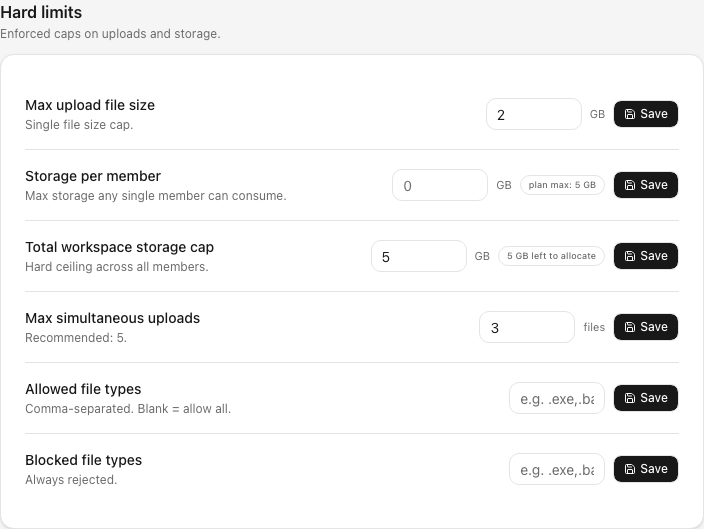
- Ask a workspace owner or admin whether Settings → Hard limits applies a maximum file size, per-member storage cap, total workspace cap or file-type restriction.
- Keep more capacity available than the displayed size when the workspace also contains versions, trash or other members’ files. Do not depend on an estimate that is already at the limit.
- Keep the browser tab running, the device awake and the source file in place until the result shows Done.
Steps: check capacity and workspace limits
- Select the correct workspace. Read the workspace name at the top of the app sidebar.
- Check available storage. Read the storage indicator near the bottom of the sidebar. Compare the available amount with the size shown by your operating system for the source file.
- Check workspace rules. If you are an owner or admin, open Settings → Hard limits. Review Max upload file size, Storage per member, Total workspace storage cap, Max simultaneous uploads, Allowed file types and Blocked file types. If you cannot open these settings, ask an owner or admin to confirm the applicable values.
- Use the tightest applicable limit. Remaining plan storage does not override a lower workspace file-size or member limit. A file can fit the plan and still be refused by workspace policy.
- Choose a safe sample when testing. Use a non-confidential file that is large enough to exercise the workflow but small enough to leave comfortable storage headroom.
Steps: upload and monitor the large file
- Open Uploads and choose Upload options → Folder. Confirm the destination before adding the file.
- Select browse for files, choose the original file and confirm the selection. Avoid adding the same file again while the first attempt is active.
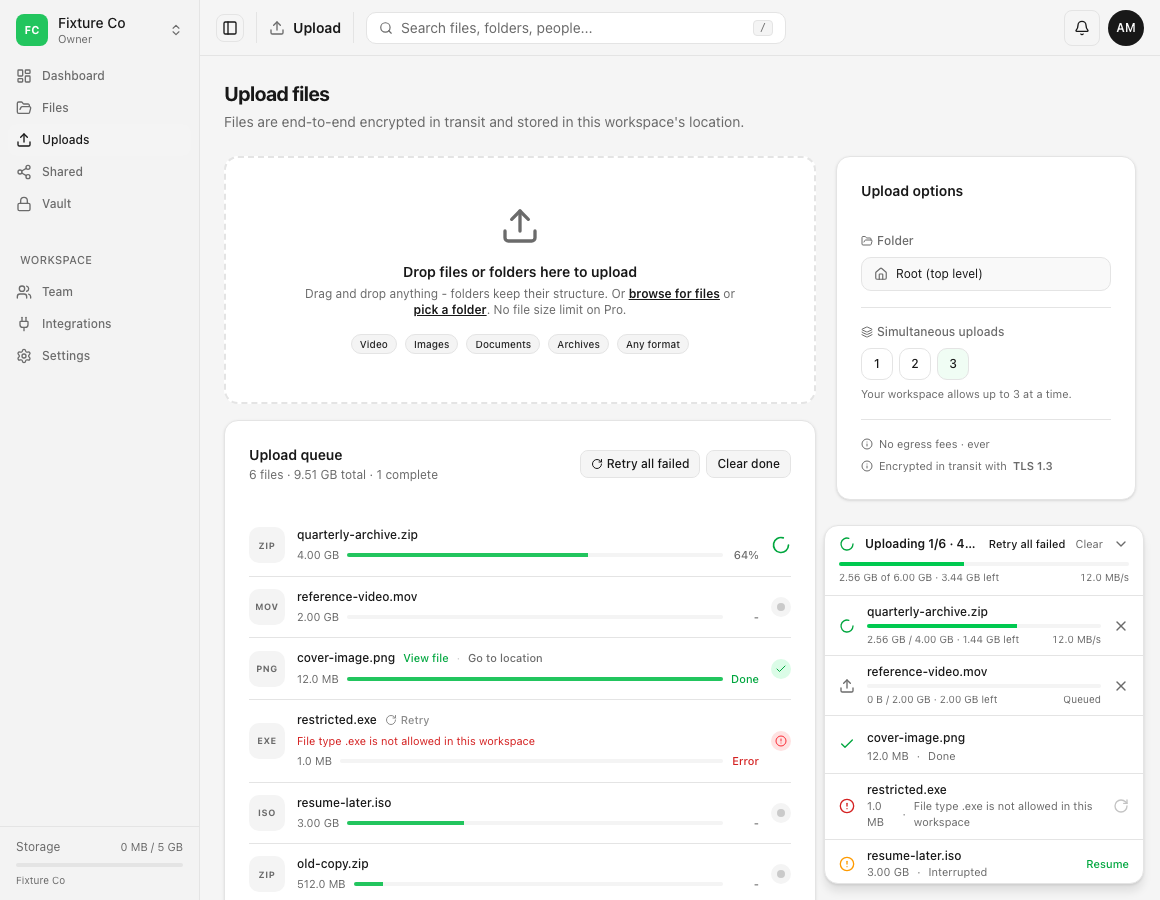
- Find the file in Upload queue or the upload list at the bottom right. An active transfer shows its percentage and transferred bytes. A Queued item is waiting for a transfer slot; it has not failed merely because another file is running first.
- Keep the tab open and the device awake. You can navigate to another page inside the Dosya web app while the global upload list continues, but closing or reloading the tab can interrupt access to the browser’s source file.
- If the connection is unstable, avoid starting extra transfers. A workspace can cap simultaneous uploads, and using a lower value can leave more bandwidth for the large file.
- Wait for Done. A progress value close to 100% is not completion; the service still needs to finish and record the file.
Steps: verify the completed file
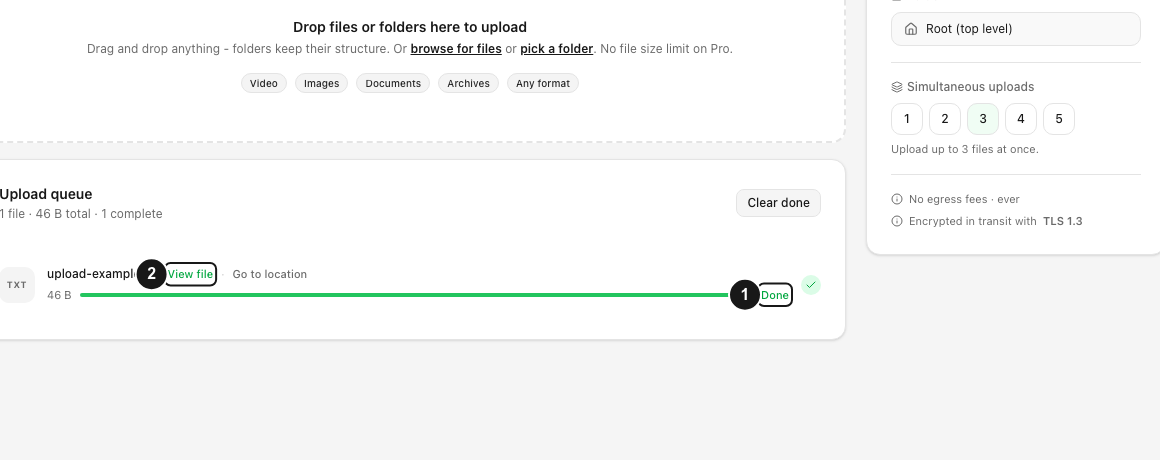
- Confirm that the exact row shows Done.
- Select View file or Go to location from the completed row.
- In Files, check the workspace, folder, filename and displayed size. For important data, download or open the completed file and use your own checksum or application-level check when available.
- Keep the original until that verification succeeds. Clearing a finished queue row only removes its transfer history from the display; it does not validate or delete the stored file.
Expected result
The upload reaches Done, and the destination contains the expected file with the correct name and size. You can open or download it, and any independent integrity check you use matches the original.
If the file does not reach Done, retain the original and diagnose the displayed state. Do not infer completion from elapsed time, a full-looking progress bar or a queue row that disappeared.
Limits and recovery expectations
- The effective maximum is the smallest relevant constraint: available storage, workspace maximum file size, per-member storage, total workspace storage, file-type rules and your upload permission.
- Dosya uses multipart transfers for large files. Completed parts can be reused only while the saved upload session, destination and permissions remain valid.
- After a reload, the browser no longer holds the original file object. An Interrupted row can ask you to select the original again. Dosya checks its name and size, which is not a content-integrity guarantee.
- Browser storage can be cleared, sessions can expire and workspace policy can change. Resumable transfer support does not guarantee indefinite recovery.
- The Free plan’s storage and transfer allowances are separate. See Free plan allowances and check the current public policy before planning sustained automation.
Troubleshooting
The file is smaller than the available storage but is refused. Check Max upload file size, per-member storage, total workspace storage, allowed or blocked types and your role. The sidebar’s remaining storage does not override those rules.
The file is Queued for a long time. Check whether other transfers are active and review Simultaneous uploads. A workspace can impose a lower concurrency cap. Keep the tab open and look for progress on the running rows.
The transfer shows Error. Read the exact message before retrying. Restore connectivity or resolve the named storage, permission, destination or file-type issue. Repeated Retry clicks cannot remove a workspace restriction.
The transfer shows Interrupted after a reload. Expand the upload list at the bottom right, select Resume and choose the unchanged original file. See Troubleshooting a failed upload for the complete recovery flow.
The transfer reached 100% but did not show Done. Keep the tab running while Dosya finishes the request. If it changes to Error or Interrupted, follow that state. Check Files before starting another copy.
The workspace is almost full. Remove unneeded data only after checking versions, trash and retention requirements, or add capacity. Confirm the active workspace before deleting anything.
Frequently asked questions
What is the maximum file size?
Dosya does not publish a plan-level per-file cap. The practical maximum is the storage available to that file unless the workspace sets a lower maximum or another workspace rule applies.
Can a workspace owner set a lower maximum?
Yes. An owner or admin can configure Max upload file size under Hard limits, alongside member, total-storage, concurrency and file-type rules.
Can I browse the app during a large upload?
Yes. Navigation inside the web app can continue while the global upload list runs. Keep the tab open; closing or reloading it can interrupt the browser’s access to the source file.
Related guides
Was this helpful?
Loading helpfulness results…
Voting saves a necessary ballot cookie for up to 180 days so you can change your answer.
Questions and replies
Ask about the steps in this guide. Questions are reviewed before publication.
Keep account details, credentials and private files out of public questions. Use private support for those.
Loading questions…
Sign in to your Dosya account to ask a question.