Restoring deleted files and folders
Find an item in Deleted, restore it to your workspace, and understand folder recovery and retention limits.
Last reviewed
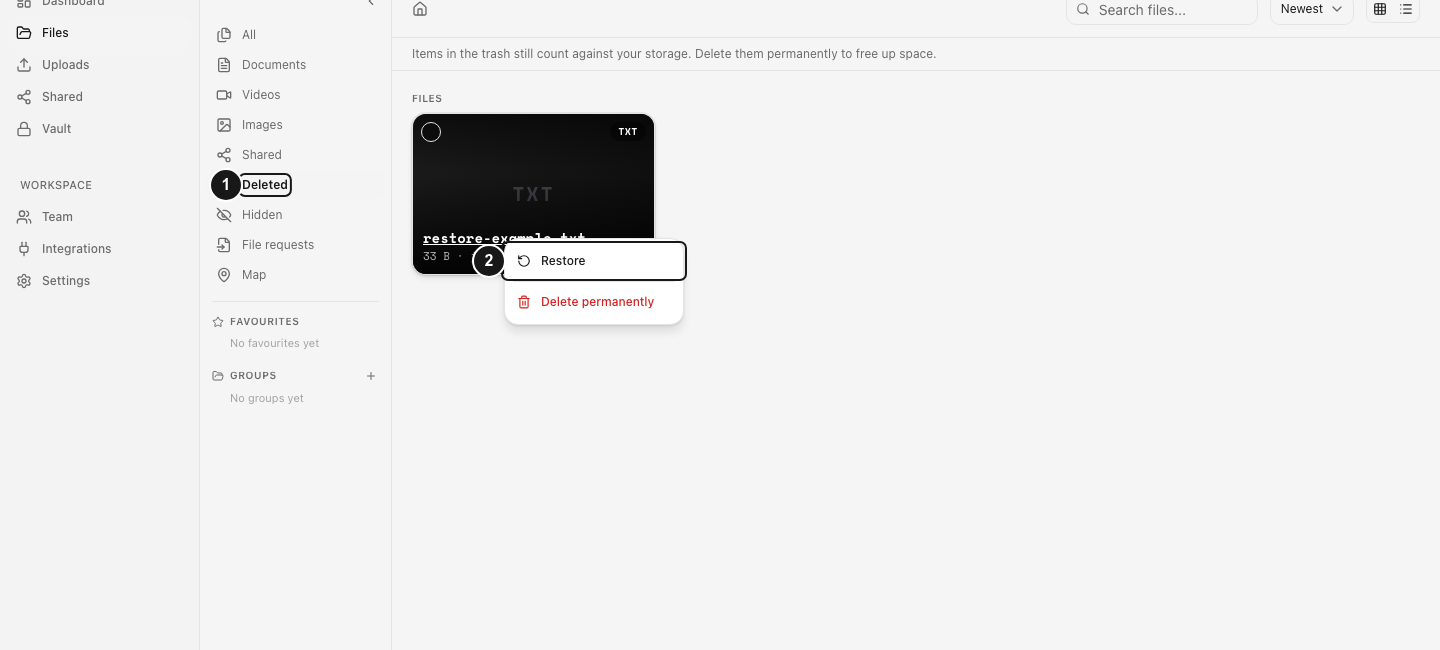
Open Files, select Deleted in the file sidebar, then open the deleted item’s three-dot menu and choose Restore. Restore a deleted folder first when the file you need was inside it.
Before you start
- Sign in to the Dosya app and select the workspace where the item was deleted.
- Your role must allow restoring the item. Dosya uses the permission to delete your own files or other people’s files for this action too. Deleted may be absent if your role has neither permission.
- The item must still be in Deleted. Files already permanently removed are unavailable through this workflow.
- Restore promptly. Trash retention follows the workspace owner’s plan: 7 days on Free and 30 days on paid plans.
Steps: restore one file
- Open Files from the app navigation.
- Choose Deleted in the file sidebar. If that sidebar is collapsed, use Expand to reveal its labels. The Deleted view is also available at Files → Deleted.
- Find the file by its name. If it was deleted with a folder, find that folder first. You can open a deleted folder to see its remaining deleted items.
- Open the file’s three-dot menu and select Restore. You can also right-click the file and choose Restore on devices that support a context menu. Clicking a deleted file alone selects it; it does not restore it.
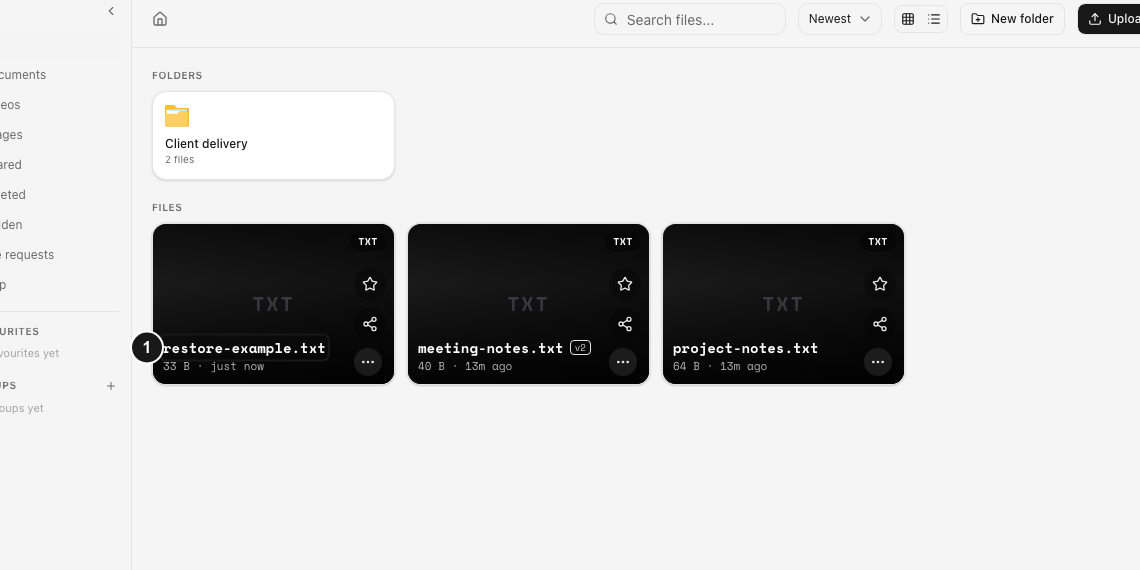
- Wait for the Restored message. The file disappears from Deleted when the list refreshes.
- Return to All, open the file’s original folder, and check that the file is available. Open or download it to confirm it is the item you intended to recover.
Restore a folder or several items
To recover a folder, find the folder that was deleted as a whole, open its three-dot menu, and choose Restore. The action brings back the folder and the remaining files and subfolders swept into Deleted with it. A nested folder deleted as part of that parent does not have its own Restore action; restore the parent instead.
If the folder’s original parent is unavailable, the folder returns to the workspace’s top level. The Restored message tells you when this happens. If a live folder already uses the original name at the destination, Dosya chooses an available name, such as a name with a numbered suffix. Check the message for the restored name.
To restore several items, select their checkboxes in Deleted, check the selection count, and use Restore in the selection toolbar. Read the result message: a bulk operation can restore some items while reporting failures for others. Restore a parent folder before retrying a file whose parent is still deleted.
Expected result
A restored file becomes available again in its original folder under its existing name. A restored folder returns with the remaining items associated with that folder’s deletion, using the destination and name described above. Files you had deleted separately before deleting the folder remain in Deleted until you restore them separately.
Limitations
- Delete permanently is irreversible. Permanently removed files cannot be recovered through Deleted.
- Deleted files still count toward storage until permanently removed. Restoring them does not add a second copy to the storage total.
- A deleted folder can remain visible after some of its files have passed retention. Restoring it does not recover files already permanently removed.
Troubleshooting
The app says to restore the folder first. The file’s containing folder is still in Deleted. Find and restore the parent folder, then check whether the file returned with it. If the file had been deleted separately, restore that file afterward.
Restore is missing from a nested folder’s menu. Return to the folder that was originally deleted as a whole. A folder deleted with its parent must be restored through that parent. If Restore is also missing there, ask the workspace owner to check your permissions.
The file is missing from Deleted. Check the selected workspace, clear any search, and look inside its deleted parent folder. Retention or permanent deletion may have already removed it. Do not use Delete permanently while trying to recover an item.
For a persistent Restore failed message, contact private support with the workspace name, approximate deletion time and exact error. Keep private files and account details out of public questions.
Frequently asked questions
Can I restore a file after its trash retention window?
Restore is available only while the deleted file remains available. Automatic removal applies after the plan’s retention window, so do not rely on recovery beyond it. See the fair-use and retention policy for the published windows.
Does restoring a folder restore everything it ever contained?
It restores the remaining items deleted together with that folder. Previously deleted items and files already permanently removed do not return automatically.
How do I recover an older copy of a file that is still in Files?
Use version history. Deleted restores a deleted item; version history selects an earlier saved version of a live file.
Related guides
Was this helpful?
Loading helpfulness results…
Voting saves a necessary ballot cookie for up to 180 days so you can change your answer.
Questions and replies
Ask about the steps in this guide. Questions are reviewed before publication.
Keep account details, credentials and private files out of public questions. Use private support for those.
Loading questions…
Sign in to your Dosya account to ask a question.