Using version history and restoring an earlier version
Find saved versions in the file viewer, preview an older version, and make it current without discarding the previous latest version.
Last reviewed
In Files, right-click the file and choose Version history. In the viewer, open the inspector if needed, select Versions, then choose Restore beside the earlier version you want to make current.
Before you start
- Sign in to the Dosya app and select the file’s workspace.
- The file must be available in Files. If it is deleted, restore the file or its parent folder first.
- Viewing history depends on your access to the file. Restoring an earlier version also requires permission to upload or modify files.
- A locked file cannot have its versions restored. Ask the workspace owner about the lock and your access before changing it.
- Only retained versions are available. Check the retention details below if the copy you need is missing.
Steps: open and restore version history
- Open Files and find the file you want to recover an earlier copy of.
- Right-click the file and select Version history. This opens the full file viewer.
- Find the inspector beside the preview. If it is closed, use the toolbar’s Inspector (i) control, whose accessible label is Toggle inspector. On smaller screens, the inspector opens as a sheet rather than a side panel.
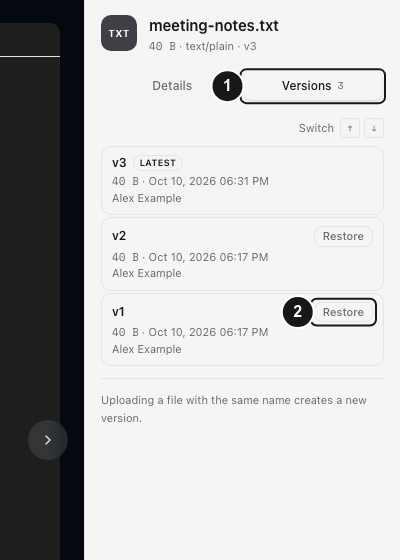
- Select Versions next to Details. The tab includes a count of the available versions.
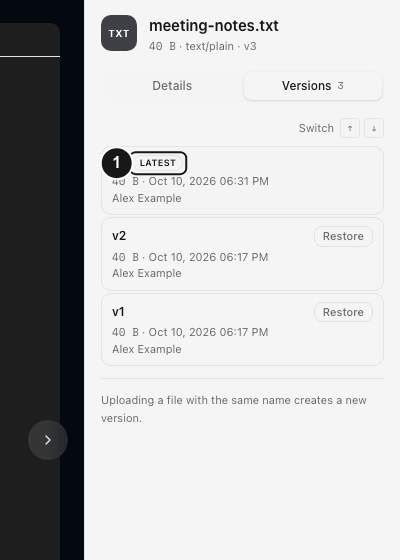
- Compare the version numbers, dates, times and sizes. The current version carries the Latest label. An uploader name also appears when available.
- Select an older version’s row to preview it when that file type supports a preview. Selecting a row changes the preview; it does not make that version current.
- Choose Restore on the older version’s row when you are ready. This button performs the restore directly; there is no additional confirmation dialog in this workflow.
- Wait for Restored, then check the refreshed version list. The restored contents appear as a new Latest version with a new version number.
- Close and reopen the file, or download its current copy, to confirm that the restored version is now the one you want to use.
Add a new version deliberately
If you want to update an existing file while keeping available history, right-click it in Files and choose Upload new version. Select the replacement file in your device’s picker, then follow its progress in the upload dock. Wait for completion before opening version history again.
This action targets the existing file. Use it when you mean to revise that file, and check the selected file’s name before choosing a replacement. See uploading files and folders for destination selection and upload troubleshooting.
Expected result
Restore makes a new current version using the selected older version’s saved data. In the example below, restoring v1 while v2 was current created a new history entry, v3. The existing versions, including v2, remain in history while allowed by retention and the version-count setting.
The file keeps its place in the workspace; restoring a version does not create a separately named file in another folder.
Limitations
- On Free, older versions have a 7-day retention window; paid plans have no age limit. Both are also subject to the workspace’s version-count cap, which defaults to the newest 10 versions and can be changed by a workspace administrator. The newest version is retained. See the fair-use and retention policy.
- Stored versions count toward your storage quota. Uploading a replacement may fail if the workspace has insufficient space or its upload rules prevent the operation.
- A preview depends on the file type. Having version history does not guarantee that every older file can be previewed in the browser.
- Restoring cannot recover a version whose saved data is no longer available.
Troubleshooting
I only see Details. Open the inspector and select its Versions tab. Choosing Version history from the context menu opens the viewer; it does not automatically select the Versions tab.
There is only one version or an older version is missing. Confirm you opened the intended file, then check whether the replacement upload finished. A separately uploaded file is not necessarily the history of this one. Older versions can also have been removed by retention or the workspace’s version-count cap.
Restore failed. Check that the file is still available, your role allows modifying it, and it is not locked. Reload the viewer before retrying. If a listed version repeatedly fails to restore, use private support and include the version number, approximate time and error message; do not post private files publicly.
Frequently asked questions
Does selecting an older version change the file for everyone?
Selecting its row changes your preview. Restore changes the current workspace file by creating a new latest version.
Can I return to the version that was current before restoring?
Yes, while that version remains in history. Find its row and choose Restore again. Each restore creates another version; retention and the workspace’s cap still apply.
Can I restore a file that was deleted instead?
Use Deleted to restore the item first. Version history restores an earlier saved version of an available file.
Related guides
Was this helpful?
Loading helpfulness results…
Voting saves a necessary ballot cookie for up to 180 days so you can change your answer.
Questions and replies
Ask about the steps in this guide. Questions are reviewed before publication.
Keep account details, credentials and private files out of public questions. Use private support for those.
Loading questions…
Sign in to your Dosya account to ask a question.