Download selected files as ZIP archives
Use Download ZIP for a mixed file selection, understand when Dosya creates multiple archives, and recover from size, count or permission errors.
Last reviewed
Use Download ZIP when you want one local download for several selected files or folders. Dosya streams each archive to the browser instead of building the entire ZIP in the page’s memory.
The control appears only when your workspace role has download_files permission. Locked and hidden content is protected during archive creation: a file or subtree you cannot download is omitted without revealing its name. Unlock permitted password-protected ancestor folders before selecting their eligible contents. A file’s own Password or View only mode remains excluded even after a personal preview unlock; a permitted manager must deliberately remove that file lock if ZIP inclusion is intended.

Steps
- Open Files and enter the workspace and folder that contain the items.
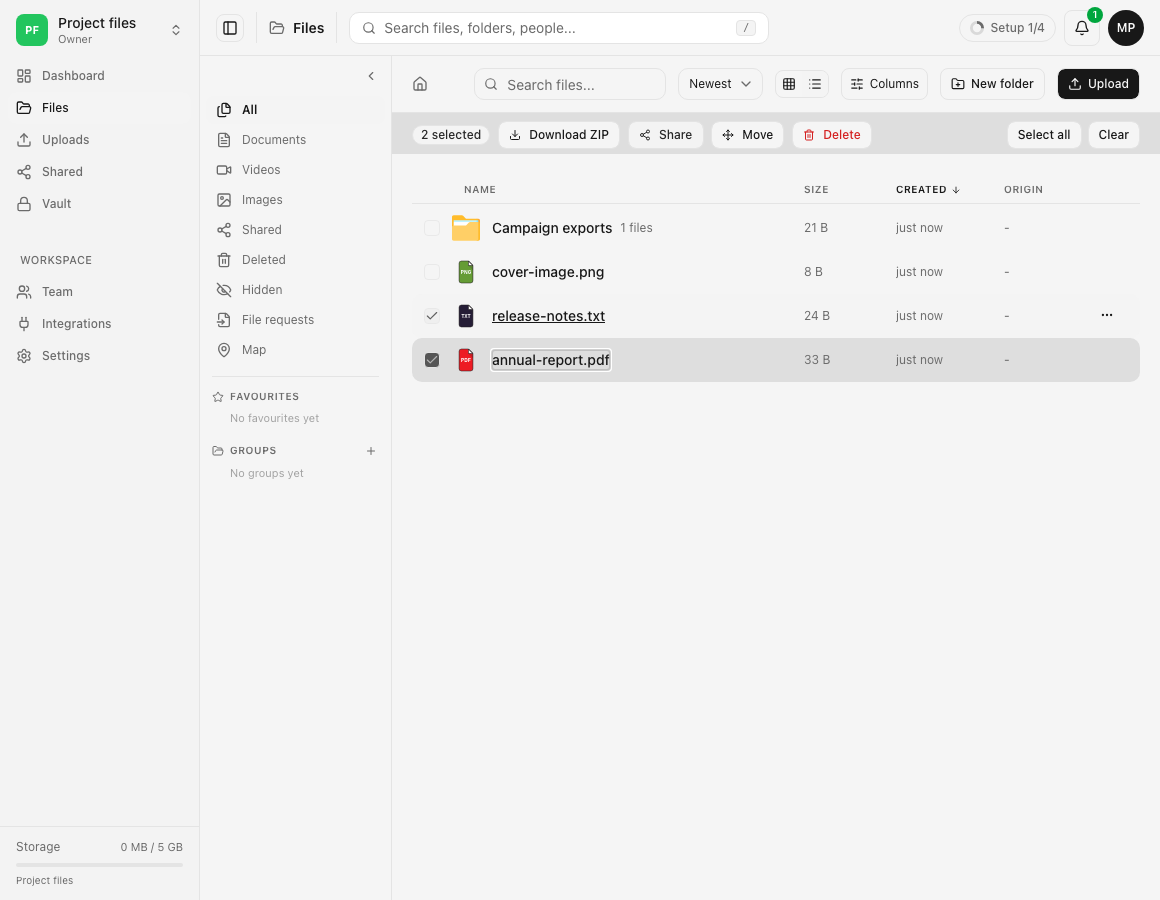
- Select each file or folder. The bulk-action bar shows the number selected.
- Review the highlighted names, then choose Download ZIP.
- Read the confirmation. One archive shows Download started with “Your ZIP is being prepared by the browser.” A larger selection can say “Too many items for one file - arriving as N ZIPs.”
- Use the browser’s download list to confirm that every planned ZIP reaches its completed state.
Know when the selection becomes several ZIPs
Up to 300 selected IDs fit in one browser download request. A longer selection is divided into parts of at most 300 IDs, with folder parts and file parts kept separate. One action can start at most 20 downloads.
When more than 20 parts would be required, nothing starts. Download problem reports the required part count and says that 20 is the maximum. Clear part of the selection, download the remainder, and repeat for the items you removed.
Each produced ZIP is still subject to the server limits: no more than 10,000 included files and no more than 5 GiB of source bytes per archive. A selected folder counts by all downloadable files in its tree, so one folder can exceed either ceiling even though it occupies only one selection row.
What the ZIP contains
Files selected directly appear at the archive root. A selected folder keeps its folder name in the paths of included files. Empty descendant folders have no ZIP entry. If two entries would have the same path, the later name gains a number such as report (2).pdf rather than replacing the first copy. Dosya supplies the attachment name dosya-download.zip.
Fix a refused or incomplete selection
- “Too many files to archive at once (max 10000)”: select fewer folders or download a large subtree separately.
- “Archive too large (max 5 GiB)”: split the items into smaller groups whose total source size is below 5 GiB.
- “You don’t have download permission”: ask a workspace administrator for a role that includes file downloads. Retrying cannot bypass the role.
- “No items found”: refresh Files. The IDs may no longer resolve, or all requested content may be hidden or locked from the current view.
- “This folder/file is outside the folder you’re confined to”: return to the folder assigned to your member access and select content inside that boundary.
- “Nothing to download - the selection contains no files”: choose rows that contain downloadable files.
- Only some multi-part downloads started: the Download problem toast gives counts, not the failed IDs. Use your source checklist to repeat known smaller groups and verify the resulting paths, avoiding duplicate local copies.
Expected result
Every planned ZIP reaches the browser’s completed state. Open each one in a trusted archive tool, compare its paths with the downloadable files expected from the selection, and open at least one file from each included nested folder. If an object disappeared from storage during streaming, the ZIP contains MISSING - <original filename>.txt in that file’s place; download the original by itself and contact support if it also fails.
Related guides
Was this helpful?
Loading helpfulness results…
Voting saves a necessary ballot cookie for up to 180 days so you can change your answer.
Questions and replies
Ask about the steps in this guide. Questions are reviewed before publication.
Keep account details, credentials and private files out of public questions. Use private support for those.
Loading questions…
Sign in to your Dosya account to ask a question.