Troubleshoot a Dosya Zapier automation
Trace a failed Zap through invitation, account connection, key restrictions, trigger subscription, sample data, field mapping, upload, and replay.
Last reviewed
Open the failed run in Zap history and identify the first Dosya step that did not produce the expected output. Record its time, connected-account label, input fields, status and redacted response. A missing trigger, failed action and completed-but-mis-mapped action require different repairs.

Steps
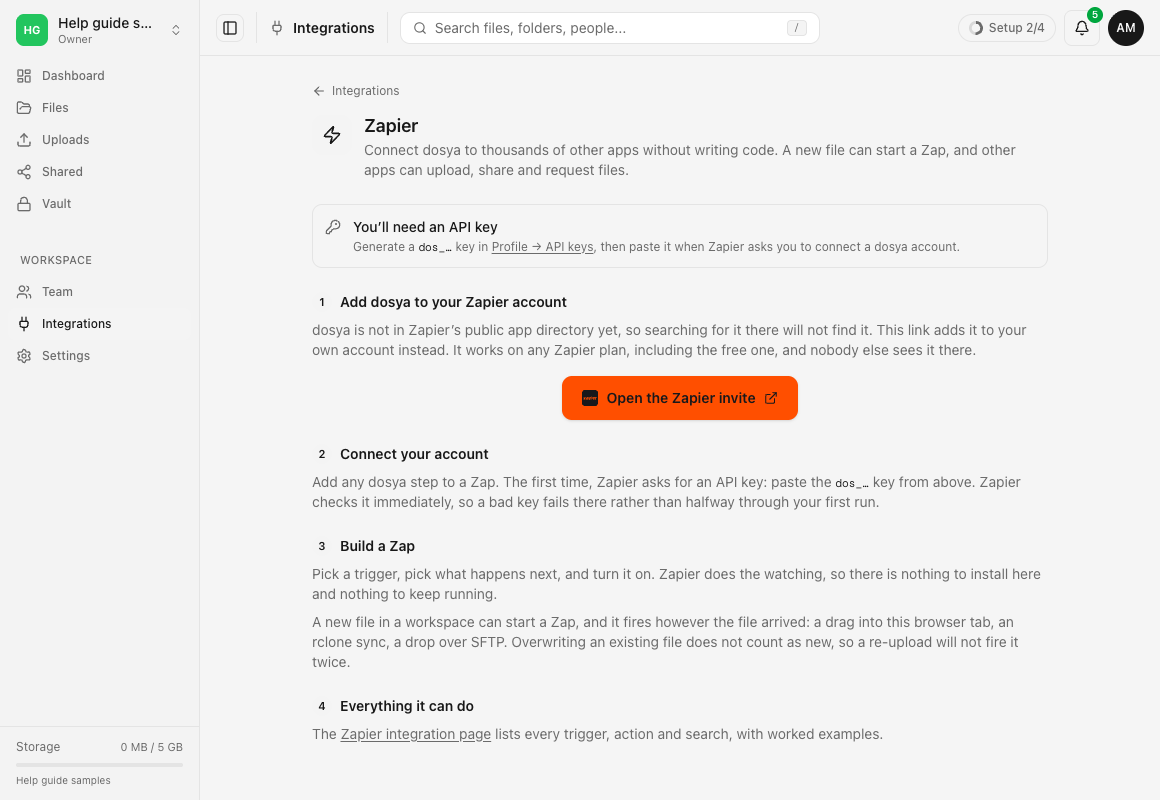
Dosya is currently a private Zapier app. Sign in to the Zapier account that owns the Zap, open Dosya Integrations → Zapier, select Open the Zapier invite, and accept it in that same account. Searching the public app directory will not find the private integration. An organization can require administrator approval for private apps.
The connected account uses a complete dos_… API key from Profile → API keys. It must have Full access, permit REST API, and have no folder anchor. Pinning one workspace is supported. The account label in Zapier is the key owner’s email, so compare that label before replacing anything.
Use the returned message:
- A 401 asks Zapier to refresh authentication. Replace an expired, revoked or incorrect key and retest the connection.
- This key has “…” scope. dosya needs a key with full scope to subscribe to file events. Create a full-scope key and reconnect. means Read only/Upload only cannot create the trigger subscription.
- This dosya API key is anchored to a folder, which cannot be used over the REST API. Create a key with no folder anchor and full scope, then reconnect. identifies an incompatible WebDAV/S3-style anchor.
- A 403 with another message can come from protocol restriction, workspace pin, active hours, IP policy, membership or role. Correct the named boundary rather than repeatedly reconnecting.
- A 429 is surfaced as a throttled Zapier error and uses the response’s
Retry-Afteror 60 seconds. Wait instead of replaying several runs.
Create a dedicated replacement before revoking the old key when the Zap must remain available. Removing a Zapier connection or revoking its key stops future requests but does not delete files or share links already created.
If New File does not trigger
When a Zap is turned on, Dosya creates one webhook endpoint for that Zap and event. Full access plus workspace manage_settings is needed to subscribe. Endpoint caps or a role refusal can therefore appear when enabling a trigger even though the connection test succeeded.
Confirm the trigger’s Workspace. For New File in Folder, confirm Folder as well; leaving it empty watches only the workspace root. Then upload a genuinely new, uniquely named file and wait for its Dosya upload to complete.
New File and New File in Folder intentionally ignore an overwrite/new version (is_new_version: true). Re-uploading under an existing path is not a valid trigger test. Trigger sample loading can return recent files that already existed; publishing does not replay those old samples.
If Test trigger has no useful record, add a new harmless file in the selected scope and request samples again. Workspace-wide sampling collects at most 25 recent files while probing the root and up to 12 folders, so an older item can be absent even though future live events work.
If an action targets the wrong item
Inspect the failed step’s Data in. Map File ID (file_id/id) or Folder ID from the trigger/search output, not the visible name. Names can repeat across folders. A root item has a null Folder ID, which is a real location rather than missing data.
For Create Share Link, choose Share a → File or Folder and map the corresponding ID. Choose a file to share. or Choose a folder to share. means the required mapped identifier was empty. The action test creates a real public link; verify its target and expiry in Dosya, then revoke an unwanted test link. The optional Access code protects recipients and is not the Dosya account password.
If Upload File fails or times out
File must be a Zapier file object or directly downloadable URL. A preview/login page may answer HTTP 200 and be uploaded as HTML, so verify the saved bytes. Supply File name explicitly; the current fallback name is upload when that field is empty.
The Upload File action accepts at most 52,428,800 bytes (50 MiB) and has Zapier’s 30-second action deadline. Use the exact result:
| Failure | Recovery |
|---|---|
| Could not fetch the file: the source at … answered with status … | Refresh or authorize the upstream file reference. Dosya credentials are not sent to that third-party host. |
| This file is larger than 50 MB… | Use Upload File From URL with a public HTTPS source; Dosya performs that import asynchronously. |
| The app did not respond in-time. It may or may not have completed successfully. | Check the target folder and Zap history before replaying. The first upload may already have committed. |
| File saved as a web page | Replace the browser preview/login URL with a direct-download file output and use a new test name. |
| Storage, extension or permission refusal | Resolve the actual workspace/key/role policy, then retest one small item. |
The same Zap run derives a stable idempotency key for Upload File, so a retry of that run can reclaim its saved result. A new run is a different identity. Uploading the same visible name in one folder creates a Dosya version; use event-specific names when separate files are intended.
Upload File From URL pauses until Dosya calls Zapier back. A failed callback appears as dosya could not import that file: …. Record its job ID and error code. Testing while Zapier loads sample fields returns sample output without starting a real long download, so verify one published/live run separately.
Replay without duplicate side effects
Before replaying a task, search Dosya by the returned File ID, Share ID, request ID or exact event-specific name. If the expected resource exists, continue from the failed downstream step when Zapier permits it. Re-running a create action can add a file version, link, folder or request.
After the correction, test the single Dosya step with one non-confidential item. Confirm its output IDs, inspect the actual Dosya resource, then turn on the Zap and trigger one new live event. Keep it off while repairing mapping that could affect production files or recipients.
For unresolved failures, send private support the Zap step name, operation, run time/timezone, account label, workspace ID, mapped field names, returned status/error, and nonsecret resource/job identifiers. Redact API keys, private share URLs, access codes, external signed file URLs and file content.
Expected result
The repaired Zap uses the intended Dosya account and workspace, processes one controlled test item, and leaves a single matching result in Task history and Dosya.
Related guides
Was this helpful?
Loading helpfulness results…
Voting saves a necessary ballot cookie for up to 180 days so you can change your answer.
Questions and replies
Ask about the steps in this guide. Questions are reviewed before publication.
Keep account details, credentials and private files out of public questions. Use private support for those.
Loading questions…
Sign in to your Dosya account to ask a question.