Connecting Zapier and building your first file automation
Create a compatible API key, add Dosya to Zapier, and build a New File automation that creates a sharing link for the uploaded sample.
Last reviewed
Create a Full access API key that allows REST API, add Dosya through the Zapier invite on Integrations → Zapier, then connect the key in Zapier. For a first automation, use New File as the trigger and Create Share Link as the action. Test with a disposable file before publishing the Zap.
Before you start
- Have a Dosya account, a Zapier account and a regular workspace you are allowed to automate.
- Choose a disposable sample file with a new filename. This example creates a public sharing link for it, so use material you intend to share and review the expiry.
- Check your Zapier plan and account policies for the chosen workflow. Additional steps, other apps and organization controls can have their own requirements.
- Prepare private credential storage for a dedicated Zapier API key. Do not put its full value in screenshots or support messages.
Steps: create a compatible API key
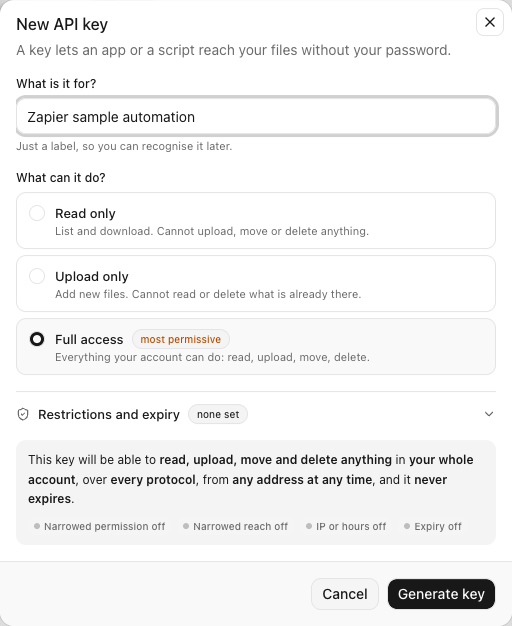
- Open Profile → API keys. Select New API key and name its purpose, such as Zapier file automation.
- Choose Full access. The integration needs this permission to create the event subscription used by the trigger. A Read only or Upload only key is refused for this connection.
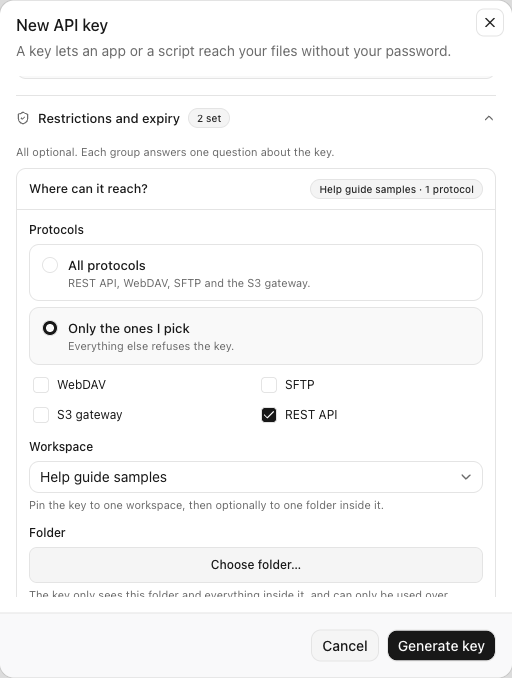
- Review Restrictions and expiry. Under Protocols, allow REST API. You can choose Only the ones I pick and select REST API for a key dedicated to this integration.
- Limit the workspace when appropriate. Select the workspace this automation should use. Leave the folder restriction unset: folder-restricted keys work over WebDAV or S3, not the REST API used here.
- Set expiry and access conditions deliberately. An expired key or a key restricted to the wrong addresses or schedule will interrupt the automation. Arrange to replace an expiring key before its expiry.
- Generate and save the key. Review the summary, select Generate key, copy the full key once and store it privately before closing the result. The list’s partial identifier cannot authenticate Zapier.
Steps: add Dosya and connect Zapier
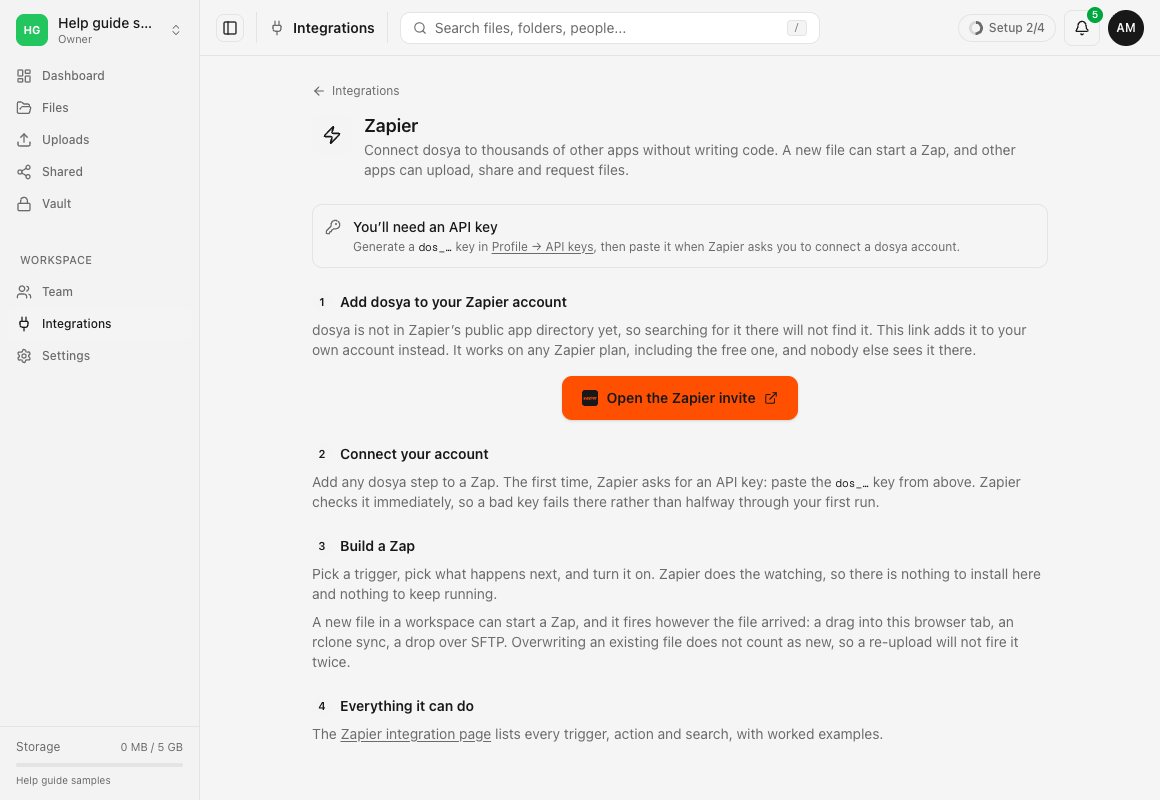
- Open Dosya’s setup page. In the web app, select Integrations → Zapier, or open Zapier setup after signing in.
- Use Open the Zapier invite. Follow the invite to add the integration to your Zapier account. Use the link shown on this setup page rather than an old copied invitation. The current setup uses an invite; your Zapier organization may require an administrator to allow private apps.
- Create a Zap. In Zapier, use its create-workflow action and choose Dosya for the trigger app. If Dosya is missing, confirm that you accepted the invite using the same Zapier account.
- Choose New File. This trigger watches for a newly added file in a workspace.
- Connect the Dosya account. When Zapier requests the dosya API key, paste the full key privately. Confirm the connection succeeds before configuring the trigger.
Steps: test New File and create a sharing link
- Select Workspace in the trigger. Choose the workspace where the new file will arrive. A key pinned to a workspace must use that same workspace.
- Upload a sample. In Dosya, upload the disposable file into that workspace. Use a fresh filename, such as zapier-first-test.txt, rather than replacing an existing file.
- Test the trigger. In Zapier’s Test tab, select Test trigger, inspect a returned file record and continue with that selected record. Check its filename, File ID and folder. For Zapier’s current editor controls, see its trigger setup instructions.
- Add the action. Choose Dosya and Create Share Link. Connect the same intended account/key and select the same workspace.
- Map the uploaded file. Set Share a to File. In File, use the trigger’s File ID rather than entering the filename or selecting a fixed sample file. Dynamic mapping makes later runs act on each new file.
- Set link controls. Enter an appropriate Expires in days, such as 7 for this test. Access code is optional recipient protection; it is not your Dosya account password. Check the sharing implications before testing.
- Test the action. Zapier’s action test creates a real share link. Inspect the returned Share URL, open it as a recipient and check that it refers to the intended sample. Remove an unwanted test link in Dosya’s Shared area.
- Publish when the tests match your intent. Review the workspace, mapped File ID and expiry first. After publishing, upload a second file with a new filename and check its run in Zapier history, including the action output.
Testing a trigger supplies sample data; testing an action can create the actual result. Zapier describes this distinction in Test Zap steps. A successful editor test is separate from verifying a run after publishing.
Expected result
The connection test accepts the dedicated key. Trigger testing returns the intended file’s metadata. The action test returns a link for that file, and a new upload after publishing produces a successful run with the correct mapped file and Share URL.
If you add another app later, map its fields from the correct preceding step. For example, a step that needs a share URL should use the Create Share Link output rather than a filename. Test any external destination with your own sample data and recipients.
Limitations
New File excludes uploads that replace an existing file with a new version. It does not turn old files into new events when you publish the Zap. Upload a new disposable file to check a live run.
The trigger is scoped to a workspace, rather than a folder field. If you need one folder, add a condition using Folder ID where your Zapier workflow supports it. Check the plan requirements for additional steps.
Full access is required for event subscriptions. Limit reach with a dedicated workspace and REST-only key where practical. Vault is a separate workflow; this example uses regular files and sharing. The screenshots show Dosya’s setup controls, not a captured live Zapier editor, and a published provider run was not exercised for this guide.
Troubleshooting
I cannot find Dosya in Zapier. Reopen the current invite from Integrations → Zapier, accept it with the intended account and check any organization app-approval policy.
The key is refused. Check its full copied value, Full access permission, REST API protocol, expiry and workspace reach. Do not use a folder-restricted key or the partial identifier from the key list.
Test trigger returns no useful sample. Upload a new file into the selected workspace, wait for the upload to complete, then test again. Check workspace permissions and choose the returned record that matches your sample.
A re-upload did not trigger the Zap. New File excludes new versions of an existing file. Use a different filename to create a new file for the test.
Every run shares the same sample file. Replace a fixed File value with the trigger’s File ID. Check the action input in run history, then test with another new file.
The action test worked but publishing did not. Check that the Zap is on, the key still works and a genuinely new file was uploaded after publishing. Inspect run history to distinguish a missing trigger from a failed action. Share the relevant error with support, excluding keys and private share links.
Frequently asked questions
Can I use a read-only key for New File?
No. The connection requires Full access to create its event subscription.
Does publishing process everything already in the workspace?
No. Trigger tests can return samples from existing files, but the live New File workflow starts with newly added files.
How do I stop the automation?
Turn off the Zap. Revoke its dedicated API key when you want to remove that integration’s credential, and revoke any share links that should no longer work.
Related guides
Was this helpful?
Loading helpfulness results…
Voting saves a necessary ballot cookie for up to 180 days so you can change your answer.
Questions and replies
Ask about the steps in this guide. Questions are reviewed before publication.
Keep account details, credentials and private files out of public questions. Use private support for those.
Loading questions…
Sign in to your Dosya account to ask a question.