Connect with SFTP using a restricted key
Create an SFTP-only Dosya API key, connect on port 2222 with your account email, and understand which restrictions block SFTP authentication.
Last reviewed
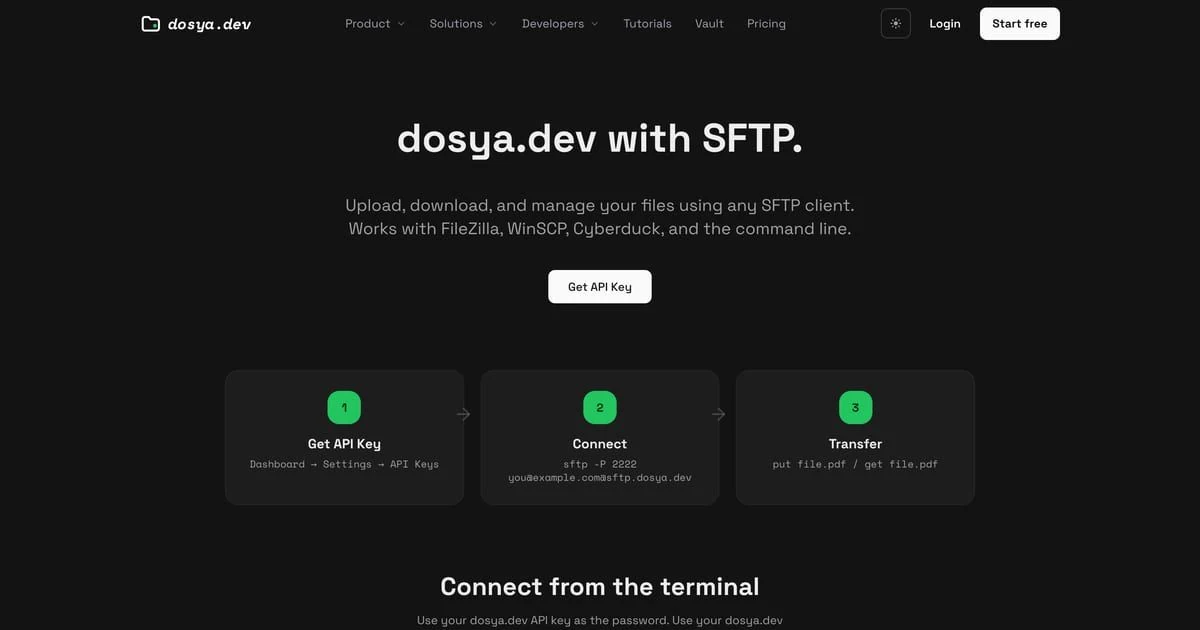
Dosya SFTP uses password authentication with an API key. It does not use an SSH private key: your Dosya account email is the username, and the complete dos_… API key is entered at the password prompt.

Create a compatible restriction set
In Profile → API keys, create a dedicated credential and open Restrictions and expiry:
- Under Where can it reach? → Protocols, choose Only the ones I pick, then check SFTP only. The form explains that every unselected protocol refuses the key.
- Use Workspace to pin the credential to one workspace when required. A workspace pin is supported on SFTP and prevents the key from reaching other workspaces.
- Do not choose a Folder anchor. Folder-anchored credentials work only on WebDAV and the S3 gateway and are deliberately refused by SFTP.
- Leave Allowed IP ranges empty. The form explicitly warns SFTP stops working on this key because the SFTP server connects to the API on your behalf and cannot present your client address.
- Active hours: an optional weekly window applies to the credential. Expect authentication or operations outside that window to be refused.
- Choose Read only for listing and downloading. Use Full access only for a client that must upload, create folders, rename, move, or delete, and remember that the workspace role can still deny those actions.
Your role in each visible workspace must allow access_sftp. The integration page displays Your role can’t use SFTP when the current workspace denies it. An owner or admin must change the role; another key cannot override that permission.
Steps
-
From a terminal, start the documented
sftpconnection:sftp -P 2222 your-email@example.com@sftp.dosya.dev -
Enter the
dos_…API key at the password prompt. Do not put it on the command line, where shell history and process output can expose it. -
At the
sftp>prompt, runlsto view the workspace roots allowed by the credential and your memberships. -
Change into the pinned or intended workspace, list a known path, and download a harmless test file with
get. -
If the key is full access and writes are required, upload a disposable small file with
put, verify it in Dosya Files, then remove the test through an approved path.
For a saved OpenSSH shortcut, use:
Host dosya
    HostName sftp.dosya.dev
    Port 2222
    User your-email@example.com
Then run sftp dosya and provide the API key interactively.
Troubleshooting
- An immediate password rejection can mean an invalid/revoked key, a username that does not match the key owner’s email, an excluded SFTP protocol, a folder anchor, an IP restriction, or an inactive time window.
- Five credential failures from one address within 1 minute trigger a 15-minute temporary IP ban. Correct the credential rather than repeating guesses.
- A successful login followed by a denied workspace path means that workspace is outside the key pin, outside your membership confinement, or lacks the SFTP role permission.
- A read-only key can connect and download but write operations fail. Granting Full access still does not bypass workspace upload/delete permissions or content locks.
- Dosya exposes the SFTP subsystem only. Shell and remote-exec channels are refused, so commands such as
ssh host commandare not a supported connectivity test. - SFTP caches successful logins for up to 60 seconds, and API authorization has separate caches. This is not a total revocation bound; after invalidation settles, verify refusal with a fresh connection and harmless operation. Existing operations also recheck workspace access at sensitive points.
Revoking or expiring this API key stops future access; it does not delete files already transferred. A delete performed through a permitted full-access session is a real cloud mutation and must be recovered through the applicable Dosya retention path, when available.
Expected result
The client authenticates on sftp.dosya.dev:2222, lists only workspaces allowed by the key pin and the member’s current access, and permits only operations allowed by both the API-key scope and workspace role.
Related guides
Was this helpful?
Loading helpfulness results…
Voting saves a necessary ballot cookie for up to 180 days so you can change your answer.
Questions and replies
Ask about the steps in this guide. Questions are reviewed before publication.
Keep account details, credentials and private files out of public questions. Use private support for those.
Loading questions…
Sign in to your Dosya account to ask a question.