Connect FileZilla to Dosya with SFTP
Configure FileZilla for Dosya SFTP on port 2222, use an API key as the password, verify the SSH host key, and safely open the allowed workspace.
Last reviewed
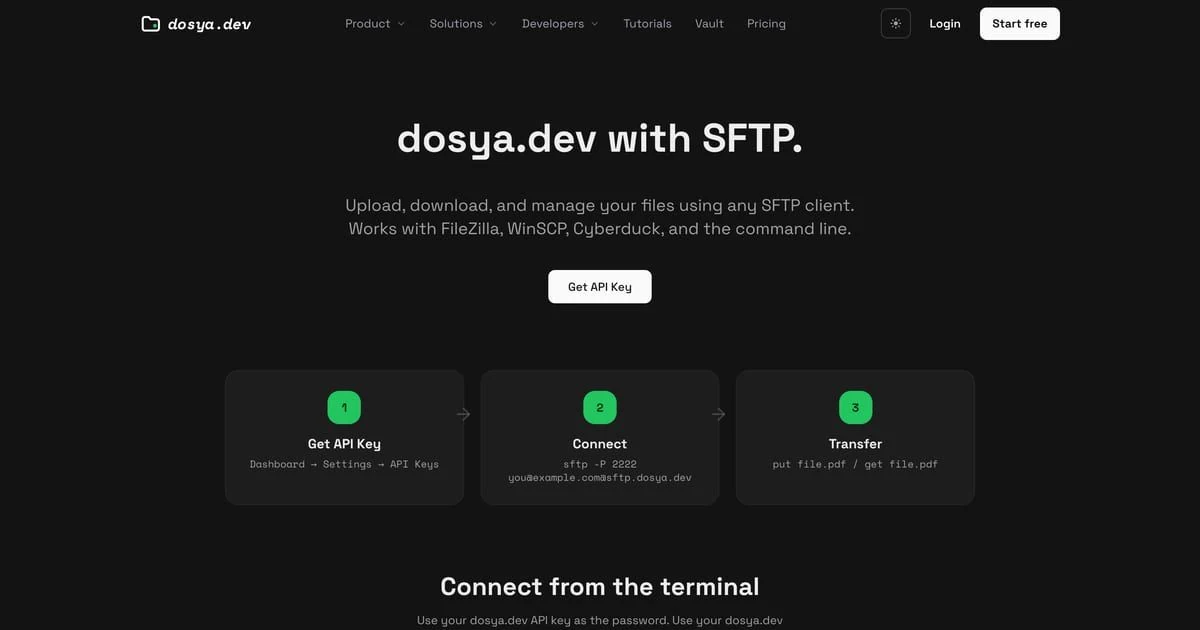
FileZilla must use SFTP - SSH File Transfer Protocol, not FTP or FTPS. Dosya listens at sftp.dosya.dev:2222; the username is the API-key owner’s exact account email, and the password field receives the complete dos_… API key. SSH public-key login and an interactive shell are not available.

Create a dedicated credential in Profile → API keys → New API key. Pick Read only for browsing and downloads or Full access when FileZilla must upload, rename, move, or delete. Under protocol restrictions, include SFTP; a workspace pin is supported, while folder anchors and allowed-IP restrictions make the key unusable through this gateway.
Steps
- In FileZilla, open File → Site Manager, choose New site, and set Protocol to SFTP - SSH File Transfer Protocol.
- Enter Host
sftp.dosya.devand Port2222. Use a password-based logon, put the exact key-owner email in User, and keep the API key out of the site name and comments. - Connect and inspect the SSH host-key prompt before sending the password. Compare hostname, port, key type, and fingerprint with a value obtained through a trusted Dosya support or administrator channel.
- Accept and save the host key only after that independent comparison succeeds, then enter the full API key as the password. This repository does not publish a certified production fingerprint.
- In the remote pane, open one workspace shown at
/and list a known folder. A role withoutaccess_sftpwill hide or refuse that workspace even when authentication itself succeeded. - Download a harmless known file, or upload a uniquely named non-empty sample when the key and role permit it. Verify the resulting name and byte size in Dosya Files before saving the site for regular use.
If FileZilla reports an authentication failure, confirm that the protocol is SFTP, not FTP; recheck email case and the complete key; then inspect expiry, active hours, protocol selection, workspace pin, and incompatible folder/IP conditions. Five rejected credentials from one address inside one minute cause a 15-minute temporary ban, so correct the profile before retrying.
A listing that opens but rejects writes usually indicates Read only, a role without upload permission, a content lock, or policy/quota refusal. The SFTP upload is committed at file CLOSE, so keep FileZilla open until the final queue result appears.
Expected result
FileZilla authenticates with the dedicated API key, the remote pane shows only workspaces allowed by current membership and SFTP role access, and the test transfer completes with matching bytes.
Related guides
Was this helpful?
Loading helpfulness results…
Voting saves a necessary ballot cookie for up to 180 days so you can change your answer.
Questions and replies
Ask about the steps in this guide. Questions are reviewed before publication.
Keep account details, credentials and private files out of public questions. Use private support for those.
Loading questions…
Sign in to your Dosya account to ask a question.