Start a remote download from a direct URL
Start a server-side remote download from a direct HTTPS file URL, choose its Dosya folder, and resolve permission, size, quota, or URL refusals.
Last reviewed
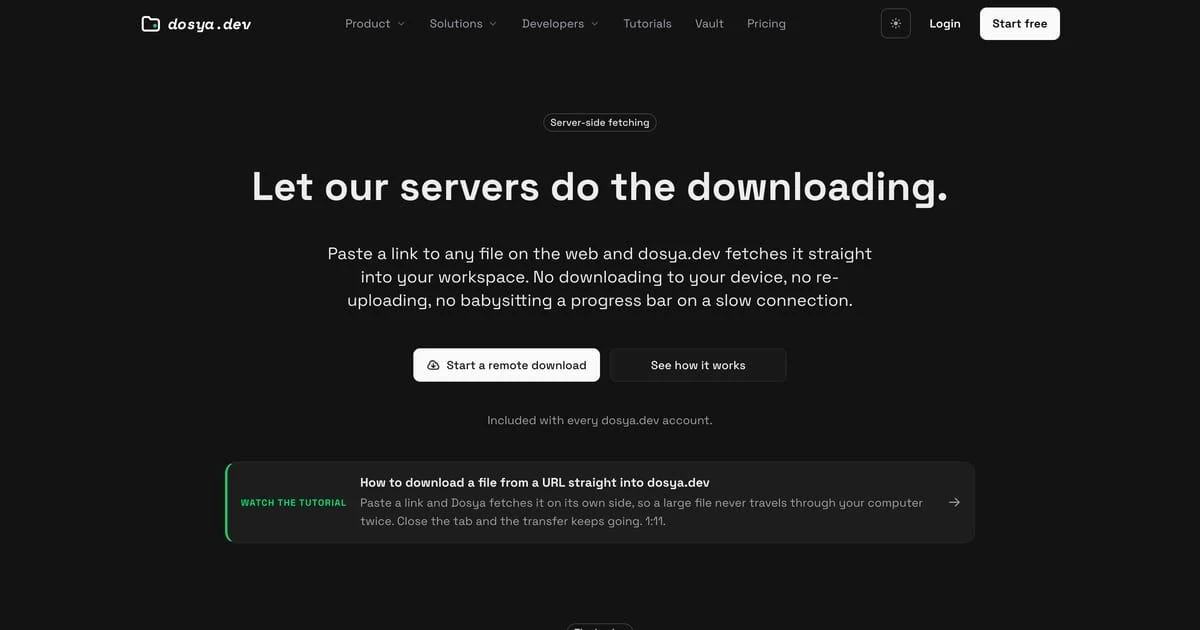
Remote download fetches a public HTTPS file on Dosya’s servers and registers it in the chosen workspace folder. Your browser connection is not used for the file transfer, and you may close the page after the job starts.

Requirements and limits
Your role needs permission to add files to the destination. Folder-confined members can fetch only into their permitted subtree. The workspace’s storage quota, per-file ceiling, allowed or blocked extensions, and locked-backup rules apply before or at completion.
The source must be a publicly resolvable https URL that returns file bytes and a positive size. Google Drive or Dropbox share pages are HTML, so they are rejected; obtain a direct download address instead. Dosya follows at most 5 redirects and rechecks every destination against its private-address guard.
At most 3 remote jobs may run concurrently in one workspace, and the workspace can start 20 jobs in a rolling 24-hour window. Dismissing an old row does not free its daily slot. Range-capable sources with a strong ETag can be as large as 1 TB; sources that cannot resume are limited to 10 GiB, and a smaller workspace policy may refuse either case.
Steps
- Switch to the destination workspace and open Integrations → Remote Downloads.
- Paste the direct URL into the field showing
https://example.com/big-file.zip. - Leave the folder button on Home for the workspace root, or select it to open Download into folder. Choose a live folder and press Select.
- Select Fetch file. Dosya first probes the URL, reported size, content type, range support, quota, and workspace policy.
- Wait for Download started. Its message says dosya is fetching the file for you - you can close this page. A new row appears with status queued.
Resolve a refused start
- Could not start download – You don’t have permission to add files requires a role or destination change.
- That looks like a web page, not a file – paste a direct link to the file itself means the source returned HTML.
- The server didn’t report a file size, so this link can’t be fetched means Dosya could not establish the required positive size.
- This address isn’t allowed protects private, loopback, or otherwise disallowed network destinations.
- This file is too large to fetch means the transfer strategy exceeded its 1 TB resumable or 10 GiB stream ceiling.
- Only 3 downloads can run at once - wait for one to finish is the concurrency cap. Daily limit of 20 remote downloads reached clears only as earlier starts leave the rolling day.
- Folder not found in this workspace means the selected destination is stale, trashed, or belongs elsewhere.
The stored filename comes from Content-Disposition when available, otherwise from the final URL, and is sanitized to one path segment up to 200 characters. A live name collision is preserved by suffixing the new file, such as report (2).pdf; the existing file is not overwritten.
Expected result
The start toast appears and the newest job row names the sanitized file with queued status, zero transferred bytes, and the chosen workspace destination recorded. No file appears in Files until the server reaches Done and registers the completed object.
Related guides
Was this helpful?
Loading helpfulness results…
Voting saves a necessary ballot cookie for up to 180 days so you can change your answer.
Questions and replies
Ask about the steps in this guide. Questions are reviewed before publication.
Keep account details, credentials and private files out of public questions. Use private support for those.
Loading questions…
Sign in to your Dosya account to ask a question.