Download a direct URL into your workspace
Give Dosya a direct HTTPS file URL, choose the destination folder, monitor the server-side transfer, and resolve common source or quota failures.
Last reviewed
Remote download lets Dosya fetch a file from a direct HTTPS URL into an ordinary workspace folder. The source transfer runs on Dosya’s servers, so the file does not pass through your local connection.
Before you start
- Use a direct HTTPS link that returns the file itself. A Google Drive, Dropbox or other share page is not a direct file link.
- Select the destination workspace and confirm you have upload access there.
- Check available storage and workspace file-size or file-type policies.
- Use only a source you are authorized to copy.
- These steps create an ordinary workspace file. They do not place the result in Vault.
Steps: start and monitor a remote download
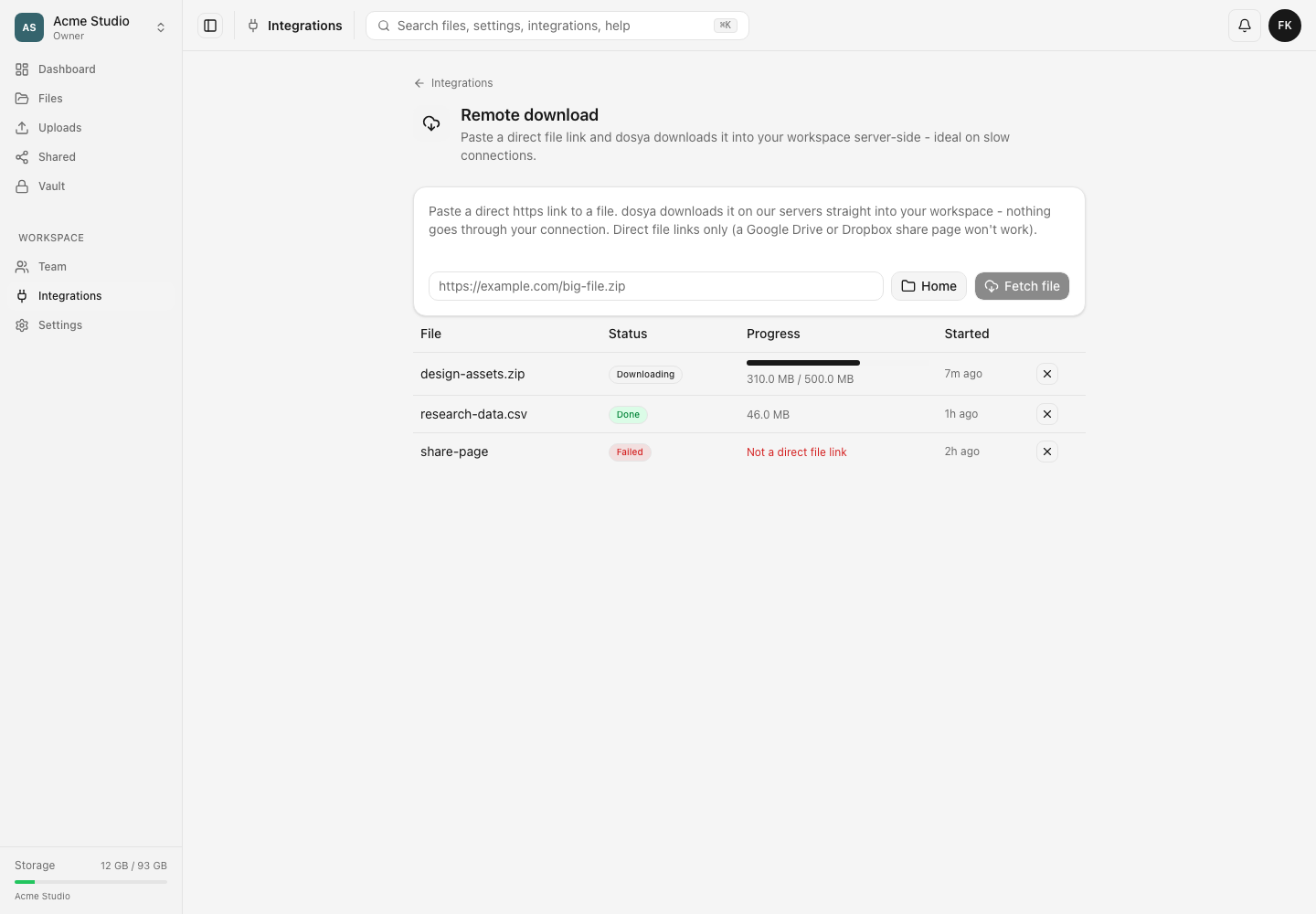
- Open Integrations → Remote download.
- Confirm the active workspace above the sidebar.
- Paste the complete direct HTTPS file URL.
- Select the folder button, choose the destination, and verify its name. Home is the workspace root.
- Select Fetch file.
- Watch the job move through Queued, Downloading and Finalizing until it shows Done. You may close this page after the job starts and return to review it.
- Open Files, go to the destination and confirm the downloaded name and size.
Expected result
The job reaches Done, and the completed file appears in the chosen ordinary workspace folder. The local device did not need to relay the source bytes.
Limits and source requirements
- Only direct HTTPS file links are accepted. Web pages that require a click, cookie, interactive login or provider share flow may fail.
- The source must report enough information for a safe download. A source with unknown size can be refused.
- Workspace storage, file-size, file-type, permission and locked-destination rules still apply.
- If the source changes during transfer, Dosya can stop rather than store an inconsistent result.
- Removing a completed job from the list is separate from deleting its stored file in Files.
Troubleshooting
Not a direct file link. Open the provider’s supported import integration, or obtain an authorized URL that returns the file body directly. Copying a browser share page is not enough.
Address not allowed. Use a normal public HTTPS file source. Private, local or otherwise restricted network destinations are refused.
Unknown file size or File too large. Use a source that reports its size and confirm the resulting file fits current account and workspace limits.
Not enough storage. Check workspace usage, deleted items and applicable caps. Free space or choose a workspace with enough allowance before retrying.
File changed on the source server. Wait for the source to stabilize, obtain a fresh direct link and start a new job.
Connection to the source failed or Source returned HTTP error. Check that the source is online and the URL remains valid without your signed-in browser session.
The destination is a locked backup. Choose a writable ordinary folder permitted by your role.
Related guides
Was this helpful?
Loading helpfulness results…
Voting saves a necessary ballot cookie for up to 180 days so you can change your answer.
Questions and replies
Ask about the steps in this guide. Questions are reviewed before publication.
Keep account details, credentials and private files out of public questions. Use private support for those.
Loading questions…
Sign in to your Dosya account to ask a question.