Unlock a protected file
Open a password-locked cloud file with its current secret, handle the five-attempt lockout, and understand the personal one-hour access grant.
Last reviewed
Opening a password-protected file creates temporary access for your account; it does not remove or weaken the file’s saved lock. The file must also be visible, inside your assigned folder scope and allowed by your workspace membership.

Steps
- Find the file in Files and click its row, name or viewer action. A file with Password protection opens the dialog titled File is locked instead of exposing the preview or details.
- Confirm the filename in Enter the password to access filename. This prevents submitting a valid secret to a similarly named file in another folder.
- Type the current credential into Enter password, then choose Unlock. A blank or whitespace-only API request is rejected as
Password is required. - After success, continue to the view you originally requested. Dosya issues a per-user, per-file token valid for 3,600 seconds and replaces any older token for that same account and file.
- Recheck sensitive operations before performing them. Temporary unlock satisfies the password gate, but download, edit, share, move and delete still apply their own role, lock-mode and ancestor-folder rules.
The web client remembers the issued token in the current Files-page session. A reload or a new browser session can show the prompt again even before the server-side hour ends because the client no longer has the token string. Expiry also causes the next protected request to require the password again. Another member never receives your grant.
An incorrect entry returns Incorrect password and clears the input. Before checking the stored file state, one Worker isolate admits at most five requests for the same file and IP over 900 seconds. That local limiter answers Too many requests with HTTP 429 and a Retry-After header, but its counter is not shared with other isolates.
Wrong passwords separately increment a persistent per-file counter across IP addresses and elapsed time. The fifth wrong password sets a 900-second lock while still returning Incorrect password; later requests that reach this check receive Too many attempts, try again later. A correct password, password replacement, or lock removal resets the stored counter.
This file is not locked with a password means its current mode changed before submission. File not found can also protect a hidden file or an item outside a folder-confined membership. Access denied indicates workspace membership is missing. A connectivity failure is shown as Can’t reach the server. Check your connection and try again. and keeps the typed value so you can retry after connectivity returns.
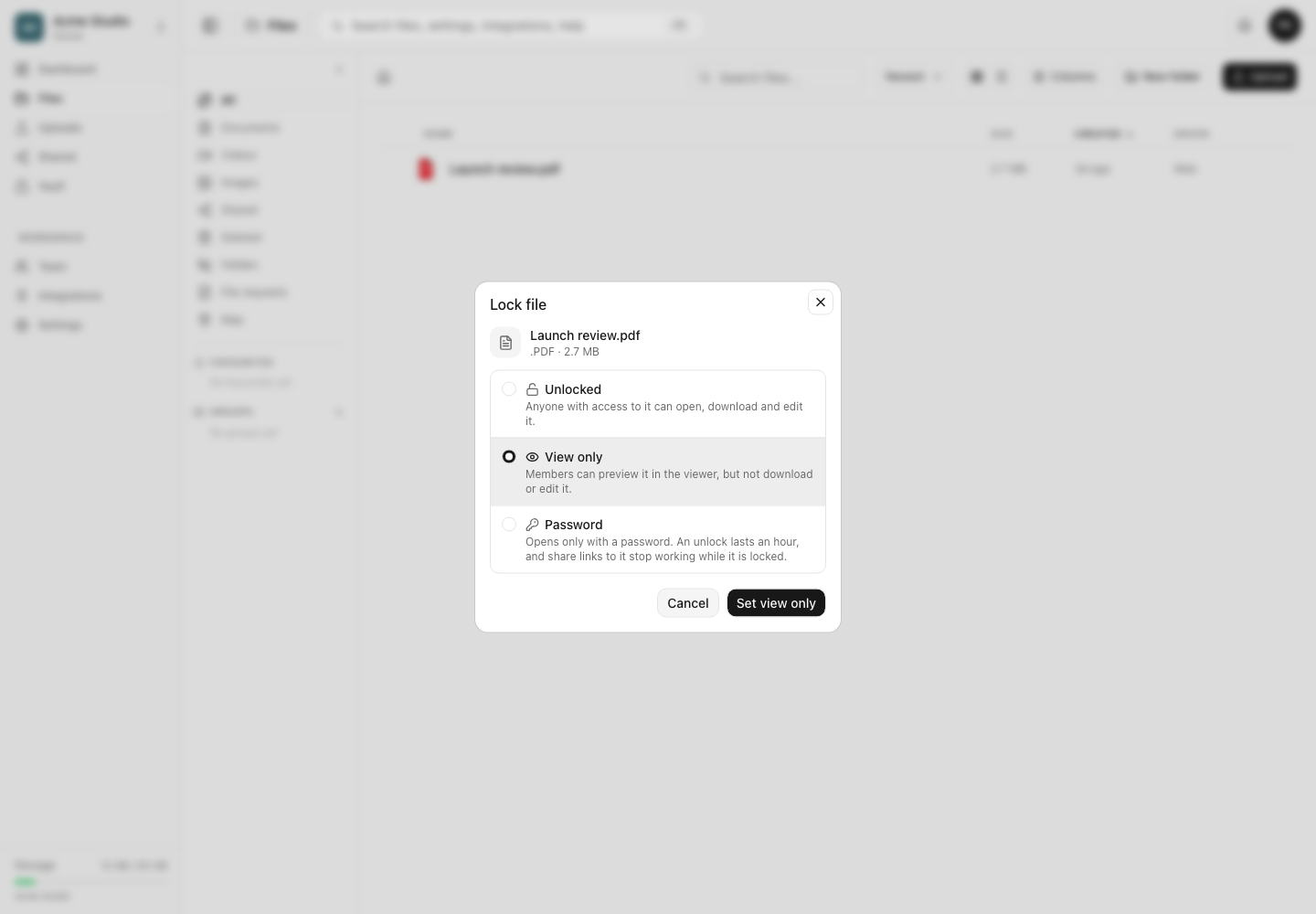
Do not confuse the row-menu label Unlock with this access prompt. For someone holding Lock files, that menu opens lock settings and can choose Remove lock without asking for the existing password. Removing the mode affects every member and causes share and sync gates to reevaluate; entering the password affects only the requesting member’s temporary session.
Expected result
The requested file view opens for your account, the underlying mode remains Password, and other members continue to see a lock. Access closes after one hour or when the client loses the token, whichever makes the protected request unauthenticated first.
Related guides
Was this helpful?
Loading helpfulness results…
Voting saves a necessary ballot cookie for up to 180 days so you can change your answer.
Questions and replies
Ask about the steps in this guide. Questions are reviewed before publication.
Keep account details, credentials and private files out of public questions. Use private support for those.
Loading questions…
Sign in to your Dosya account to ask a question.