Move a folder to Deleted items
Move a folder subtree to Deleted items, understand permission and lock checks, revoked links, retained storage, and permanent-delete boundaries.
Last reviewed
Deleting a live folder normally moves its authorized subtree to Deleted. Recovery lasts only until manual or automatic permanent purge. The daily trash sweep uses the owner’s effective plan: content becomes eligible after seven days on Free or 30 days on paid plans. Folder cleanup removes eligible empty leaves after their contents, so a tree can disappear over multiple runs.

Before you start
- A folder you created uses
delete_own_files; a folder created by another member needsdelete_any_file. Every live descendant must also pass the applicable ownership and lock rules. - Direct
view_onlyorfull_lock, an un-unlocked ancestor, a locked descendant file, or a protected WordPress backup can block deletion. - Folder-confined members can delete only within their assigned subtree.
- Deletion revokes active share links for the root, child folders, and descendant files. Restoring the tree does not reactivate those links.
Steps
- Open the folder menu and choose Delete.
- Read Delete folder? and verify the displayed root name. For a bulk selection, read Delete selected items? and the warning that everything inside selected folders is included.
- Press Delete once. Avoid repeating the API action outside the UI: a second plain DELETE against an already-trashed root begins permanent purge.
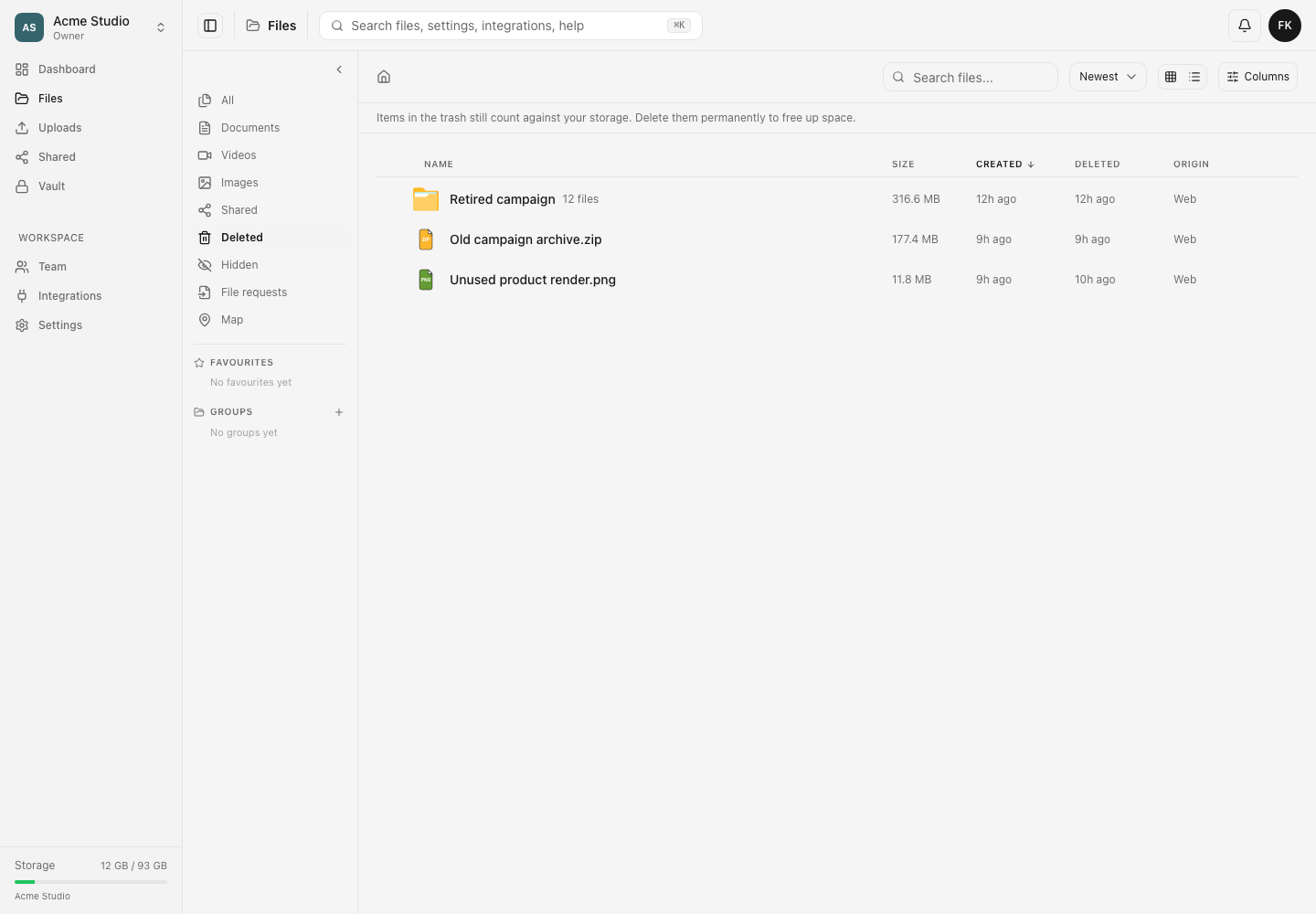
- Wait for Deleted, then open Deleted from the Files navigation.
- Locate the folder root by its original display name. Descendants are attached to this root and may not appear as independent entries in the flat Deleted view.
- Choose Restore before the applicable retention window ends if the subtree is needed. Otherwise leave it for plan-based automatic cleanup, or use the separately labelled Delete permanently after confirming it is no longer needed.
Expected result
The root and its authorized descendants disappear from live browsing and sync snapshots. Their parent relationships, bytes, and storage charge remain recorded for restore. Existing share links return as revoked rather than continuing to expose deleted content.
Troubleshooting
- “This folder is locked and cannot be deleted.” Remove or change the folder’s direct lock before trying again.
- “This folder is inside a locked folder. Unlock the folder to delete it.” Unlock the ancestor chain with the same account.
- “This folder contains a locked file and cannot be deleted.” Find that descendant and resolve its lock; Dosya will not silently leave it behind.
- “This folder contains items you don’t have permission to delete.” A descendant belongs to another member and your role lacks
delete_any_file. Ask an authorized member to delete the tree. - The root is absent from Deleted. Refresh the current workspace and verify that the first request succeeded. A hidden or unauthorized root can be skipped during a batch.
- Storage did not decrease. This is expected for recoverable trash. Only completed permanent purge releases the stored bytes.
Related guides
Was this helpful?
Loading helpfulness results…
Voting saves a necessary ballot cookie for up to 180 days so you can change your answer.
Questions and replies
Ask about the steps in this guide. Questions are reviewed before publication.
Keep account details, credentials and private files out of public questions. Use private support for those.
Loading questions…
Sign in to your Dosya account to ask a question.