Permanently deleting files and freeing storage
Review items in Deleted, permanently remove only the intended files or folders, and understand when their stored bytes stop counting against workspace storage.
Last reviewed
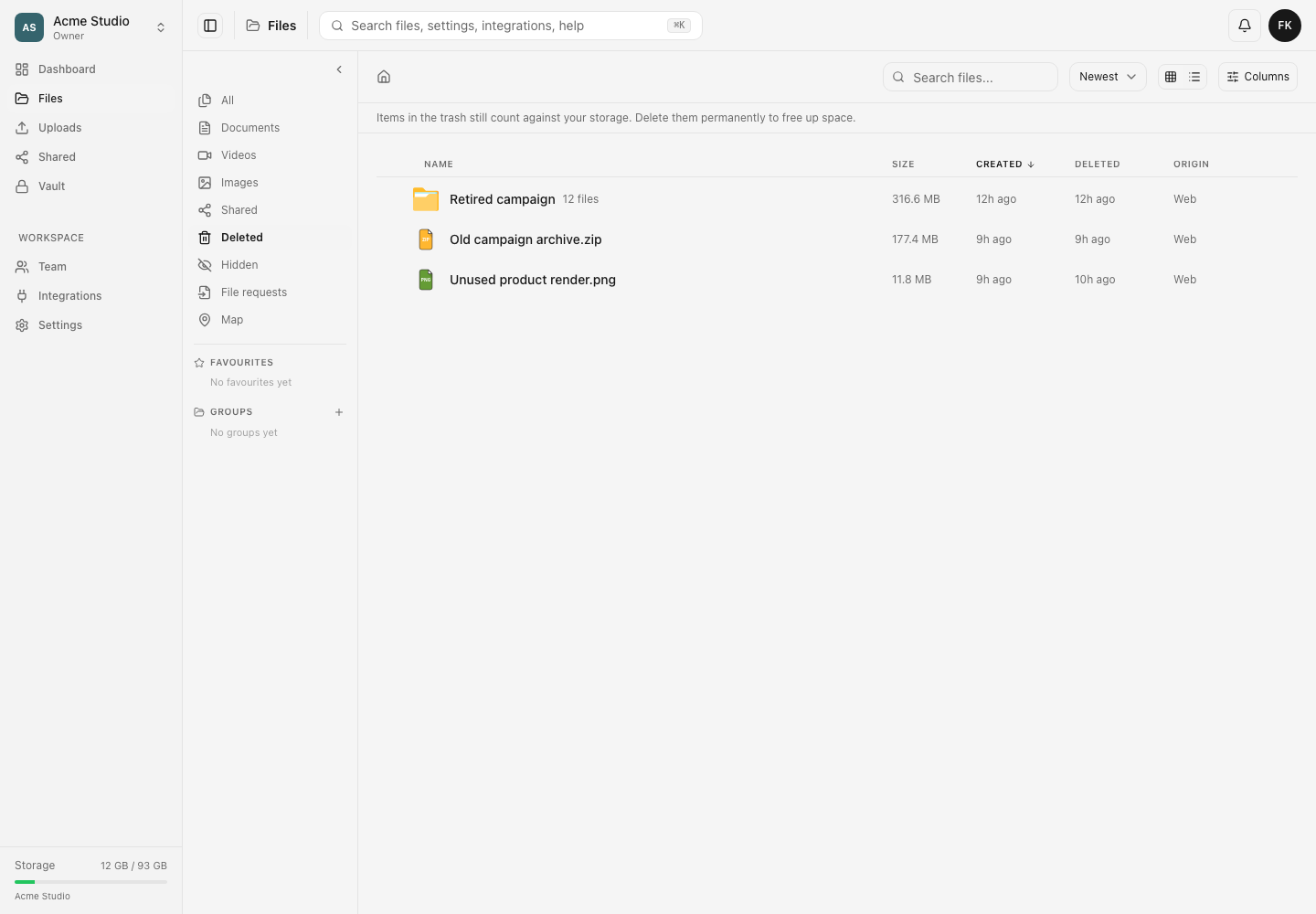
The first Delete moves a file or folder into Deleted so it can still be restored. It continues to count against workspace storage there. Delete permanently removes the selected trash item, its stored file versions and associated preview data; this action cannot be undone.
Before you start
- Use disposable items while learning this workflow.
- Confirm the active workspace. Each workspace has its own Deleted view and storage total.
- Restore anything you may need before you start. Version history is not a recovery path after the file itself has been permanently deleted.
- Make sure your role can delete the item. Delete own files applies to items you uploaded or folders you created; Delete any file covers other members’ items.
- For a folder, review its name and file count carefully. Permanent deletion includes the selected trash-root folder and everything still inside it.
- Consider downloading an independent copy when legal, retention or handoff requirements apply.
Steps: inspect Deleted before removing anything
- Open Files in the correct workspace.
- Choose Deleted in the Files sidebar.
- Read the storage notice above the list: items in the trash still count against storage.
- Compare the item name, size, created date, deleted date and origin.
- If an item is uncertain, open its menu and choose Restore instead of deleting it permanently.
Steps: permanently delete one file or folder
- Open the three-dot menu for the intended item, or right-click its row.
- Choose Delete permanently.
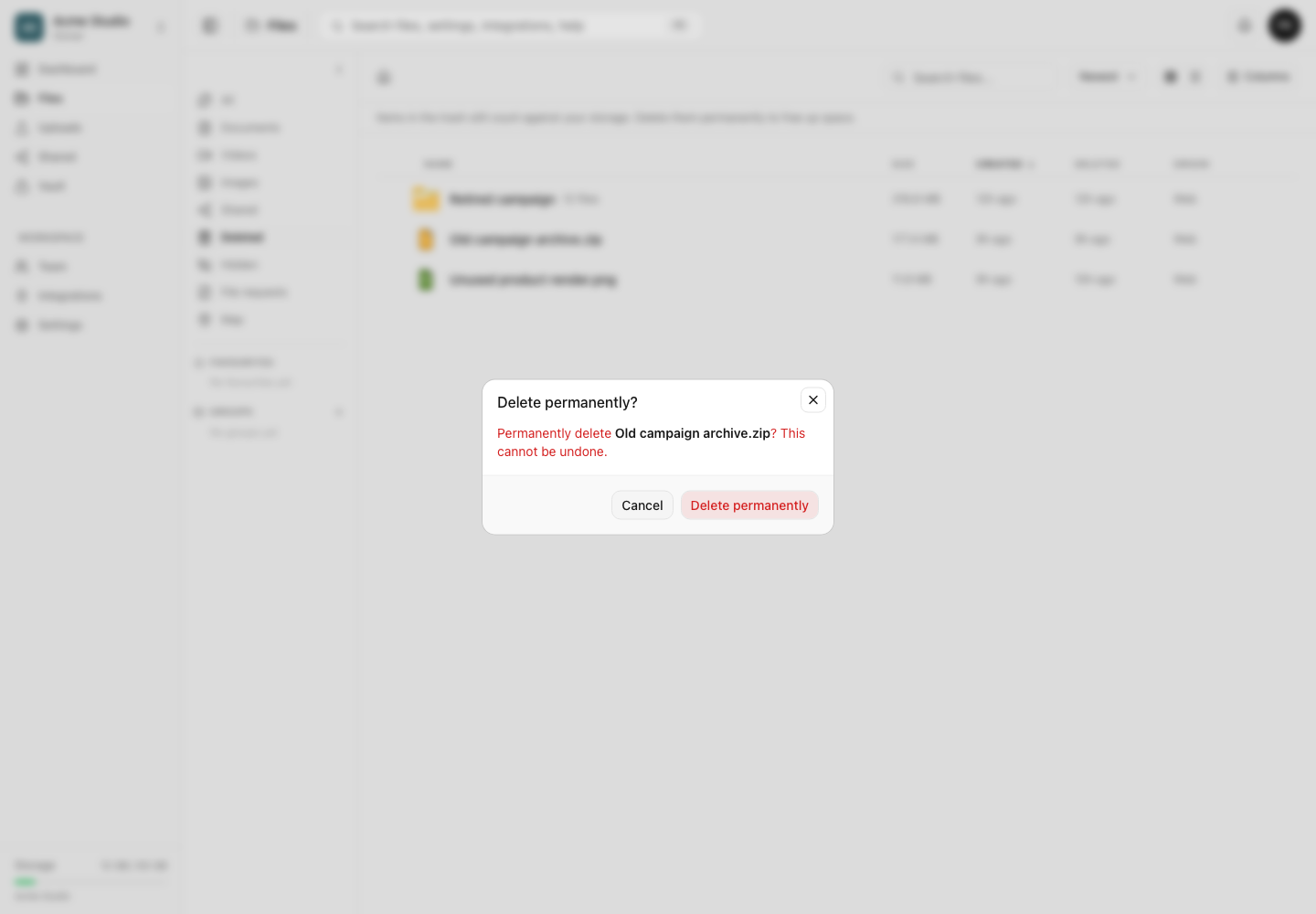
- Read the confirmation. A folder confirmation also names how many files are inside when that count is available.
- Confirm that the name matches the item you intend to remove.
- Choose Delete permanently.
- Wait for the success message and let the Deleted list refresh. Do not send the request again while the first deletion is still working.
Steps: permanently delete several selected items
- In Deleted, select the checkboxes beside the required files and folders.
- Review the selection count in the bulk bar.
- Choose Delete permanently.
- Read the confirmation counts for files and folders. Everything inside a selected folder is included.
- Confirm the deletion and keep the page open while it works.
- Read the final result. If Dosya reports failed, cancelled or still-emptying items, treat only the reported completed items as permanently removed.
Expected result
A successfully purged file or completed folder disappears from Deleted. Its current bytes and stored versions no longer count against the workspace’s measured storage. Refresh the workspace storage summary if another open surface still shows a cached total.
A very large folder can be emptied over several bounded passes. Dosya shows progress and keeps an unfinished folder in Deleted so the remaining work can be continued safely.
Permanent-deletion limits and permission behavior
- Permanent deletion has no undo. Support cannot promise recovery after the purge succeeds.
- A routine Delete does not free quota; it only moves the item to Deleted. Storage is credited when the permanent purge removes the stored file rows and versions.
- A file lock, folder lock, hidden-item rule, confined-folder role or ownership permission can prevent a purge.
- Only a trash-root folder can be permanently deleted directly. A descendant that was deleted with its parent must be handled through that parent trash root.
- A folder purge checks the contained files and folders before irreversible work. A locked descendant or an item the member cannot delete can stop the operation.
- Large folder purges are deliberately processed in passes. Cancelling stops future passes; it does not restore files already removed by completed passes.
- A bulk action can finish partially. Use the completion message and refreshed list as the record of what remains.
Troubleshooting
Deleted is missing from the sidebar. Your role may hold neither Delete own files nor Delete any file. Ask a workspace owner to review the role.
Delete permanently is missing for one item. With only Delete own files, the item must be one you uploaded or a folder you created. Locks and trash-root rules can also restrict the action.
The folder says it is still emptying. Keep it in Deleted and continue the purge later. Very large folders are bounded so one request does not run indefinitely.
The operation stopped after removing some files. Read the progress count and error. Those completed removals are already permanent. Resolve the stated lock, permission or service problem before retrying the remaining folder.
Storage still looks unchanged. Confirm the item disappeared from Deleted, then refresh the workspace switcher or storage page. A soft-deleted item still consumes storage, and an unfinished folder still contains bytes that have not been purged.
I deleted the wrong item permanently. Stop any remaining bulk or folder operation if it is still running, preserve other copies, and contact support with the workspace, item name and approximate time. Do not expect recovery after a successful permanent purge.
Frequently asked questions
Does Delete free storage immediately?
No. The normal Delete action moves the item to Deleted and keeps its bytes counted. A successful Delete permanently operation credits the bytes it purges.
Can permanent deletion be undone?
No. Restore the item before confirming when there is any uncertainty.
What happens to previous versions?
Permanent file deletion removes the file’s stored versions along with the current file. Version history is available only while the file still exists.
Related guides
Was this helpful?
Loading helpfulness results…
Voting saves a necessary ballot cookie for up to 180 days so you can change your answer.
Questions and replies
Ask about the steps in this guide. Questions are reviewed before publication.
Keep account details, credentials and private files out of public questions. Use private support for those.
Loading questions…
Sign in to your Dosya account to ask a question.