Preflight a batch move
Check a page-scoped selection, destination, permissions, locks, and name collisions before moving files or folders, then verify every outcome.
Last reviewed
A batch move acts on the rows selected in the current Files view. Preflight the exact page and destination because changing page, folder, filter, search, library kind, or workspace clears the selection.

Permissions and blockers. Moving a file requires upload_files; moving a folder requires rename_folders. A confined member cannot move content outside the assigned subtree. Full file locks, locked ancestor folders, hidden destinations, locked targets, and locked WordPress backups can refuse the operation.
Steps
- In Files, open the source folder and page that contains the items. Remove any search or filter that hides a row you intend to move.
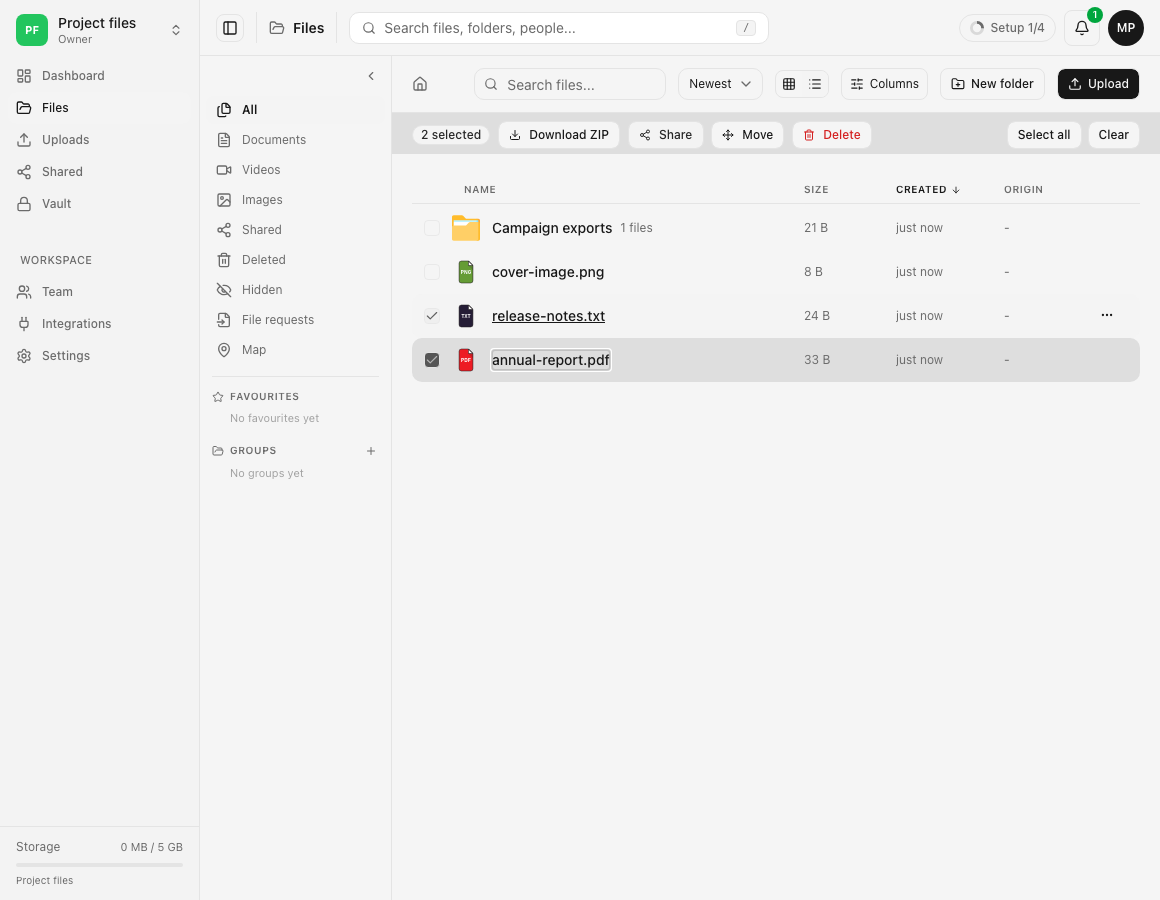
- Select each file or folder with its checkbox, Ctrl-click, or Command-click. Read the N selected badge; Select all covers only the rows loaded on this page and skips a fully locked file unless it has been unlocked.
- Check the destination before starting. A file or folder with the same name causes a
409refusal, and moving an item to its current folder is rejected as already there. - Choose Move, then use Search folders…, the folder tree, or Root (top level). Folder search waits 250 ms before requesting matches. The picker never changes workspaces.
- Select the intended destination and choose Move. Dosya moves selected items concurrently; a Live Photo still also carries its paired video even when that video row was not selected.
- Read the final toast. Moved reports the successful selected-item count. Move finished reports how many moved and how many were skipped; reopen both source and destination before retrying a skipped row.
Resolve a refusal before retrying. The APIs can return This file is locked and cannot be moved, Target folder is locked, A file with this name already exists in the target folder, Folder is already here, or Cannot move a folder into its own subfolder. Rename or relocate the collision, unlock the relevant source or destination, or choose a location inside your permitted subtree.
Expected result
Every successful item appears once in the chosen folder and leaves the source. Any skipped item remains in place, so you can correct its specific lock, permission, cycle, or name-collision cause without moving the successful rows again.
Related guides
Was this helpful?
Loading helpfulness results…
Voting saves a necessary ballot cookie for up to 180 days so you can change your answer.
Questions and replies
Ask about the steps in this guide. Questions are reviewed before publication.
Keep account details, credentials and private files out of public questions. Use private support for those.
Loading questions…
Sign in to your Dosya account to ask a question.