Rename a folder without losing contents
Rename a Dosya folder without moving or re-uploading its contents, using exact name limits and resolving sibling-name or permission conflicts.
Last reviewed
Renaming changes one folder label under its existing parent. The folder ID, descendants, stored file bytes, and workspace usage remain the same.

Before you start
- The current role needs
rename_folders. Web, mobile, and desktop hide Rename when that role grant is absent. - A folder name is one path segment from 1 through 100 trimmed characters.
/,\, control characters,., and..are invalid. - Check the current parent for a live sibling with the proposed name. The server refuses collisions instead of merging folders.
- A folder inside a locked WordPress backup, or one containing a protected backup relationship, cannot be renamed until that backup lock permits it.
Steps
- Open the folder’s context or actions menu and choose Rename.
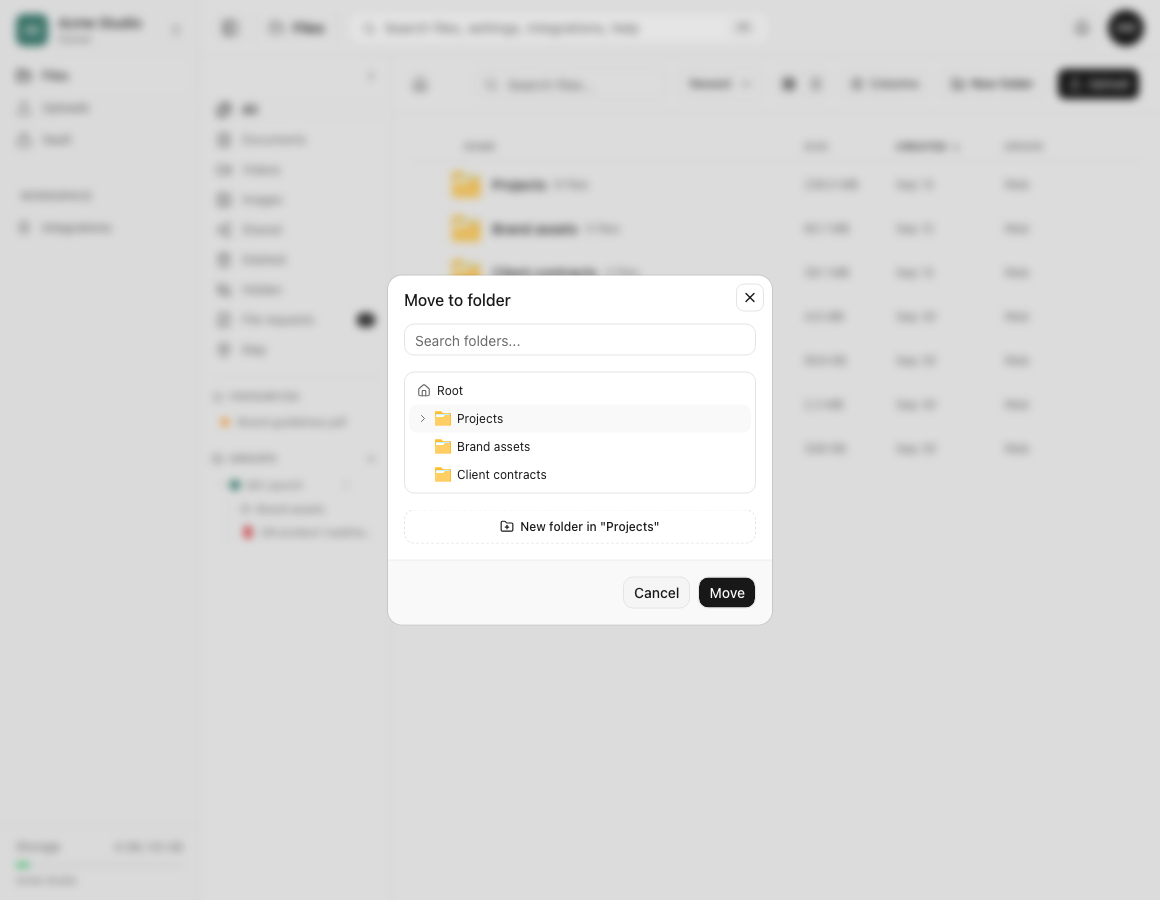
- In the Rename dialog, replace the folder name. Do not enter a nested path; use Move to… for a parent change.
- Press Rename or Enter.
- Wait for Renamed or The folder has been renamed.
- Refresh the current parent and open the renamed folder.
- Inspect its breadcrumb and one nested file to confirm the child tree remains available.
Expected result
The same folder ID appears under the same parent with the new name. Child folders and files are not rewritten. ID-based sharing continues to reference the same folder, while WebDAV, S3, desktop sync, or local bookmarks that use the old path must refresh to the new path.
Troubleshooting
- “Name is required.” Enter at least one non-space character.
- “Name too long (max 100).” Shorten the folder name; the limit counts characters after trimming.
- “Name contains invalid characters.” Remove separators, control characters, or a whole-name
.or..value. - “A folder with this name already exists in this folder.” Choose a unique sibling name. The rejected request leaves the original name and contents unchanged.
- “You don’t have permission to rename folders.” Ask a workspace administrator for
rename_folders. - The old name remains on another device. Refresh the directory or wait for that client’s next sync snapshot. Do not create a second folder while a stale listing is visible.
Related guides
Was this helpful?
Loading helpfulness results…
Voting saves a necessary ballot cookie for up to 180 days so you can change your answer.
Questions and replies
Ask about the steps in this guide. Questions are reviewed before publication.
Keep account details, credentials and private files out of public questions. Use private support for those.
Loading questions…
Sign in to your Dosya account to ask a question.