Download a file Dosya cannot preview
Verify and download an unsupported file from Dosya cloud storage, then open the original safely in a trusted mobile or desktop application.
Last reviewed
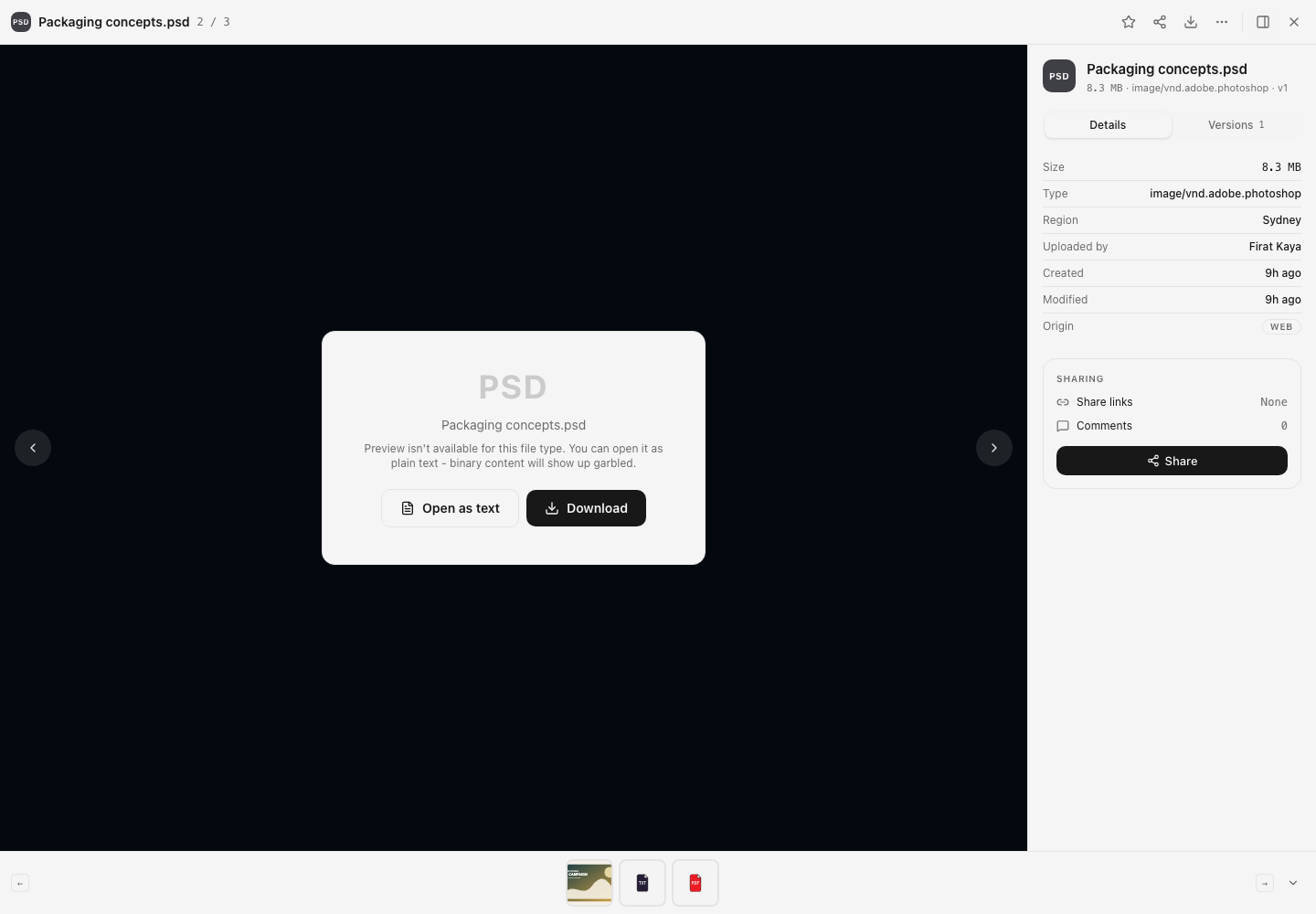
Dosya can store file types that it cannot display inline. No preview for this type means the viewer has no compatible renderer; it does not mean the cloud-stored original is damaged. Check the file details, download the original, and open it only with an application you trust.

Before you start
Verify the file before downloading
- Open the file in Dosya.
- Check the filename, extension, MIME type, size, uploader, and workspace in the details panel.
- Confirm you expected the file and recognize its source. Do not rename an unknown extension merely to make another application accept it.
- If the viewer says Could not load, use Try again once. That message can indicate a network or preview-fetch failure. If it says No preview for this type, retrying will not add format support.
Steps: download the original
Select Download in the viewer. Your browser saves the original bytes using its normal download location. If the file is a text-like format, Dosya may also offer Open as text; this is useful for inspection but can show binary data for formats such as PSD, so it is not a replacement for the original file.
Save from the mobile app
In the mobile viewer, choose Save to phone when it appears:
- Photos and videos are saved to the phone’s media library after you approve access.
- On Android, other files up to 64 MB use the system folder picker so you can choose Downloads, an SD card, or another available location.
- On iPhone, other files open the system share sheet; choose Save to Files or another trusted destination.
- On Android, files over 64 MB use the share sheet instead of direct folder writing because direct writing would require buffering the whole file in memory.
Wait for Saved to your gallery, Saved to your phone, or Choose where to save it before closing the viewer.
Troubleshooting
When Download or Save is unavailable
A role needs download permission to save the original. A file or parent folder in view only mode can allow preview while blocking download. A fully locked file requires its password before bytes are available. Ask the owner to change the access rule if you have a legitimate need for the original; repeated retries do not bypass these controls.
Open the downloaded file safely
Use an application that explicitly supports the extension. Keep the operating system and viewer updated, scan files from unfamiliar sources, and avoid enabling macros or embedded scripts unless you have verified the sender. After opening, compare the displayed filename and size with Dosya’s details to confirm you selected the intended download.
Expected result
The original file is saved to the selected device location and opens in a trusted application that supports its format. The cloud copy remains unchanged.
Limits and important details
Preview support and download permission are separate. View-only and full-lock rules may prevent saving even when some file details or previews remain visible.
Related guides
Was this helpful?
Loading helpfulness results…
Voting saves a necessary ballot cookie for up to 180 days so you can change your answer.
Questions and replies
Ask about the steps in this guide. Questions are reviewed before publication.
Keep account details, credentials and private files out of public questions. Use private support for those.
Loading questions…
Sign in to your Dosya account to ask a question.