Delete and restore a cloud file on mobile
Move a file to Trash in the Dosya mobile app, restore it safely, and understand when permanent deletion removes it from cloud storage.
Last reviewed
Deleting a file in Dosya first moves it to the active workspace’s Trash. You can restore it from the mobile app while it remains there. The separate permanent-delete action removes the file from cloud storage and cannot be undone.

Before you start
Confirm the active workspace, the exact filename, and that you have permission to delete and restore files. Use a disposable item for a first test.
Steps: move a file to Trash
- Open the Files tab and verify the workspace shown in the workspace header.
- Browse to the file and check its name, size, and folder.
- Open the file’s actions menu and choose Delete.
- Confirm the action if prompted. Dosya reports Moved to Trash after the request succeeds.
- Return to the file list and confirm the file is no longer in its original folder.
For a Live Photo, the app may ask whether to keep the paired video or delete both parts. Read that choice carefully because the still image and motion video can be separate stored files.
Restore the file on mobile
- Open Settings, then open Trash.
- Confirm you are still in the workspace where the file was deleted. Trash is scoped to the active workspace.
- Locate the item by filename, size, and date.
- Tap the accent-colored Restore arrow beside the file. The destructive trash icon beside it is the permanent-delete control.
- Wait for the Restored message, then return to Files and refresh the original folder.
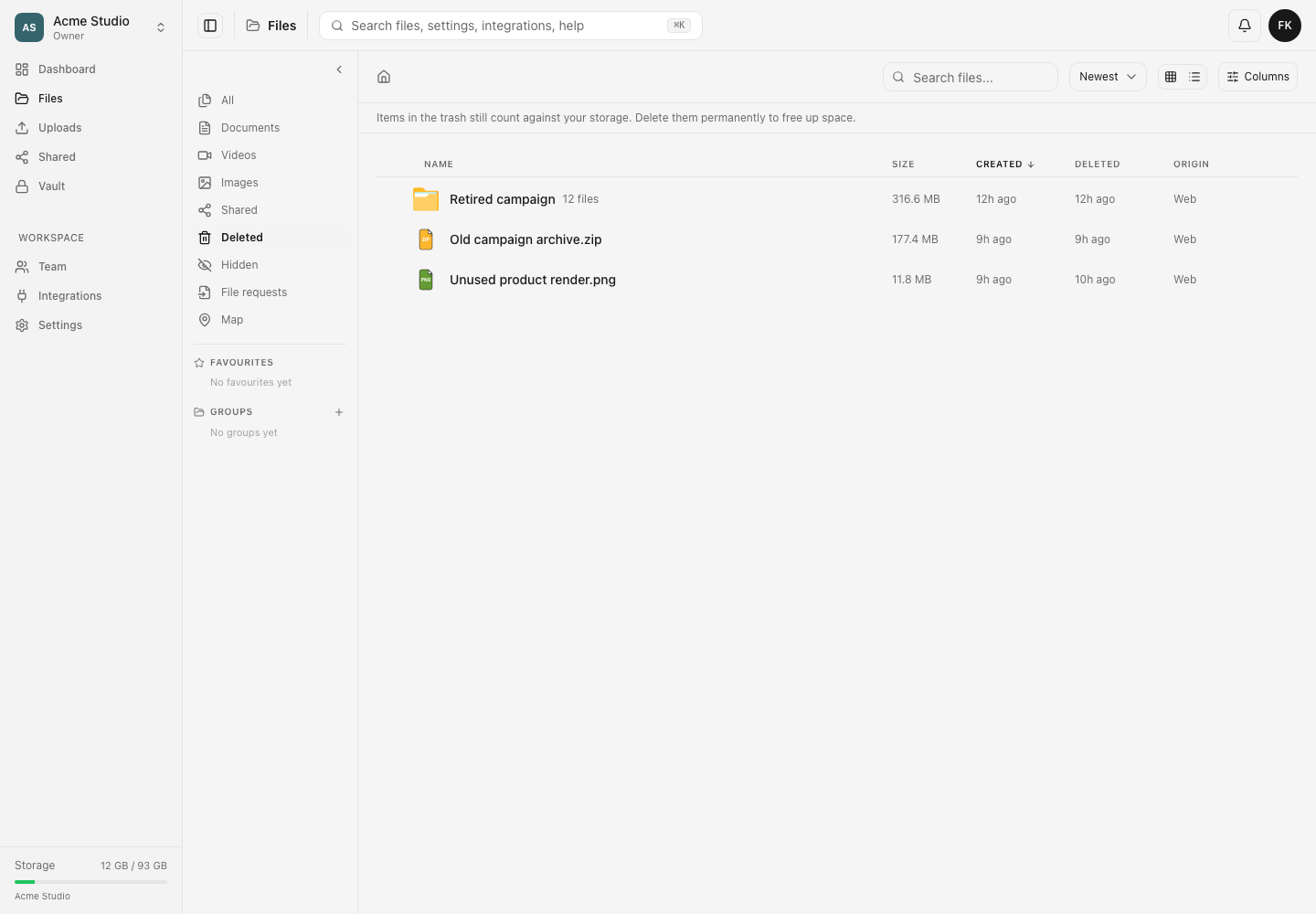
The restored file normally returns to its original location. If the original parent folder no longer exists, the server may restore content to the workspace root instead. Search for the exact filename if it does not reappear where expected.
Permanently delete a file
On the mobile Trash screen, tap the red trash icon beside one file to open Delete permanently?. The dialog states that the file will be removed from storage and the action cannot be undone. The Empty action at the top removes every item currently listed in that workspace’s Trash after a separate confirmation.
Permanent deletion can free workspace storage. Restoring does not consume a second copy of the file and does not add its bytes to the storage counter again; it changes the stored item’s state back to active.
Expected result
The restored file reappears as an active item in the original folder or, when that folder no longer exists, in the workspace root.
Troubleshooting
The file is not in Trash. Check the active workspace and confirm that the delete request succeeded. If someone already deleted the item permanently, it cannot be restored from Dosya.
Restore is refused. Your workspace role may not allow file deletion and restoration, or a workspace backup lock may currently block changes. Ask a workspace owner to confirm your permissions and retry after the lock is released.
The file restored but is hard to find. Search the workspace by exact filename and check the workspace root as well as the original folder.
Limits and important details
Trash is workspace-specific. Permanent deletion cannot be reversed, and items in Trash continue to use workspace storage until they are permanently deleted.
Related guides
Was this helpful?
Loading helpfulness results…
Voting saves a necessary ballot cookie for up to 180 days so you can change your answer.
Questions and replies
Ask about the steps in this guide. Questions are reviewed before publication.
Keep account details, credentials and private files out of public questions. Use private support for those.
Loading questions…
Sign in to your Dosya account to ask a question.