Set a folder password safely
Set a folder password with the exact eight-character rule, understand the one-hour viewer unlock, and test descendant, share, sync, and retry behavior.
Last reviewed
A password lock closes a folder and its descendants until an authorized viewer enters the secret. Treat the password as a shared access credential and distribute it outside Dosya.

Rules to know
You need the Lock files workspace capability to set or replace a folder password. The password must contain at least eight characters after leading and trailing whitespace is removed; spaces inside the password count. The web form says Use at least 8 characters. and the API can return Password must be at least 8 characters.
Steps
- Open the intended folder and verify its full path. Check that no upload, move, share delivery, or sync job currently depends on the subtree.
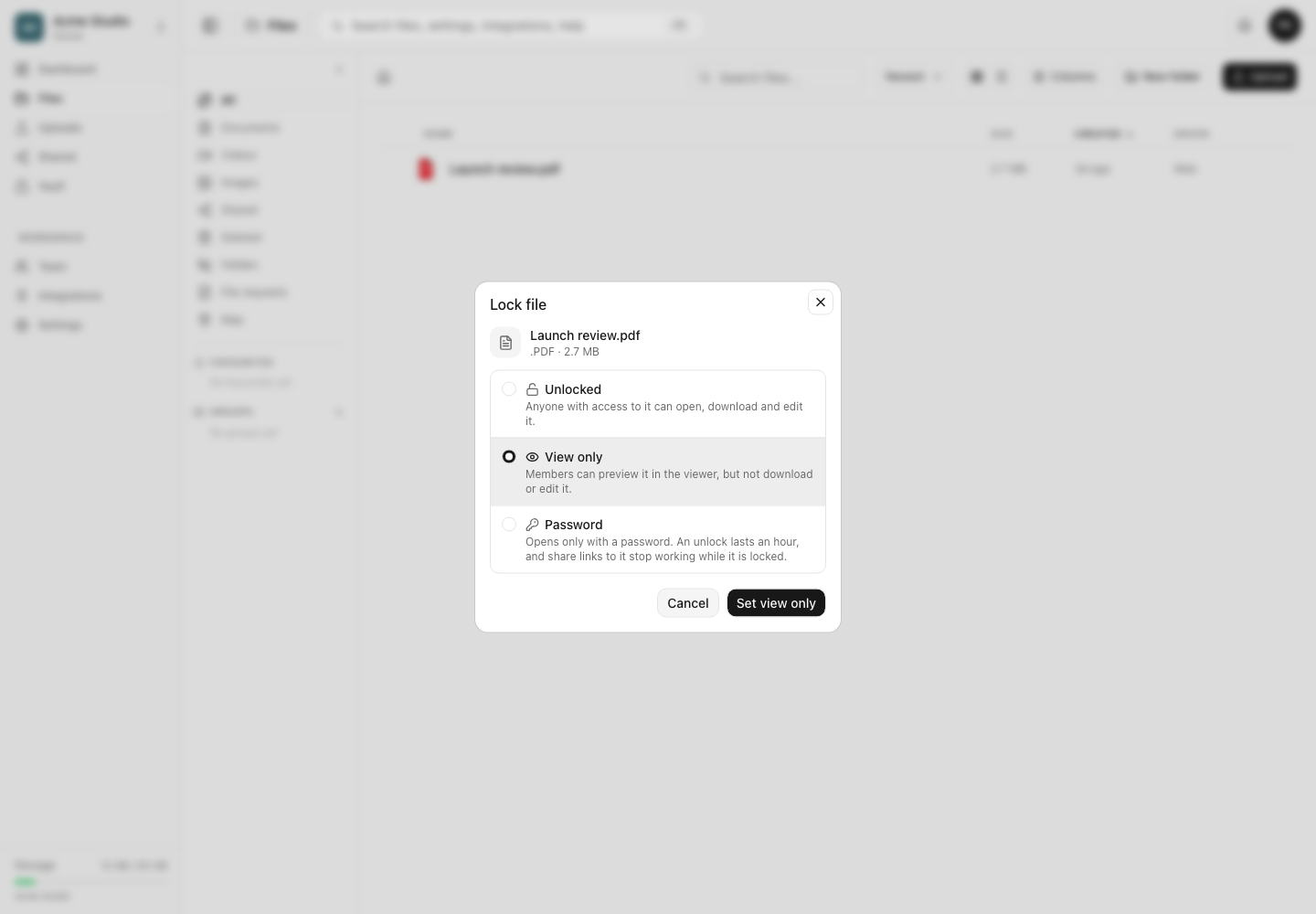
- Open the lock dialog, select Password, and enter a unique secret of eight or more trimmed characters. Store it in the approved password manager rather than a comment, filename, screenshot, or share message.
- Apply the lock. A new lock reports Locked with a password; replacing an existing password reports Password updated. The new password controls future unlock attempts immediately.
- Refresh and open the folder as a normal member. Enter the new password and confirm the folder opens. That successful viewer unlock is tied to the user and lasts 3,600 seconds.
- Test one descendant file and one permitted write after unlocking. Your personal folder grant can satisfy that ancestor’s browsing and new-content gate; the item’s own lock, other ancestors and operation-specific permissions still apply. A member without a valid grant remains blocked from browsing and writing inside that locked subtree. Test shares and sync separately: existing share links do not inherit your personal grant, and locked subtrees remain excluded from sync.
Failed-password limits
Five wrong passwords persistently lock further attempts for 15 minutes. The fifth wrong entry still returns Incorrect password; later attempts return Too many attempts, try again later. A separate per-isolate limit also allows five requests for the same folder and IP during 900 seconds, then responds Too many requests with a Retry-After header. Wait for the stated interval rather than repeatedly testing.
Changing the password does not delete files, but it can interrupt every route into the subtree. Keep a recovery owner available. A permitted manager can select Unlocked without knowing the old password, so role assignment remains part of the security boundary.
Expected result
The folder and descendants require the new password, a correct entry grants that viewer one hour of browser access, and unauthorized shares, writes, downloads, and sync traversal remain blocked.
Related guides
Was this helpful?
Loading helpfulness results…
Voting saves a necessary ballot cookie for up to 180 days so you can change your answer.
Questions and replies
Ask about the steps in this guide. Questions are reviewed before publication.
Keep account details, credentials and private files out of public questions. Use private support for those.
Loading questions…
Sign in to your Dosya account to ask a question.