Move a protected file between folders
Move a protected file only after checking its own lock, ancestor locks, destination state, assigned-root boundary, permissions, and name conflicts.
Last reviewed
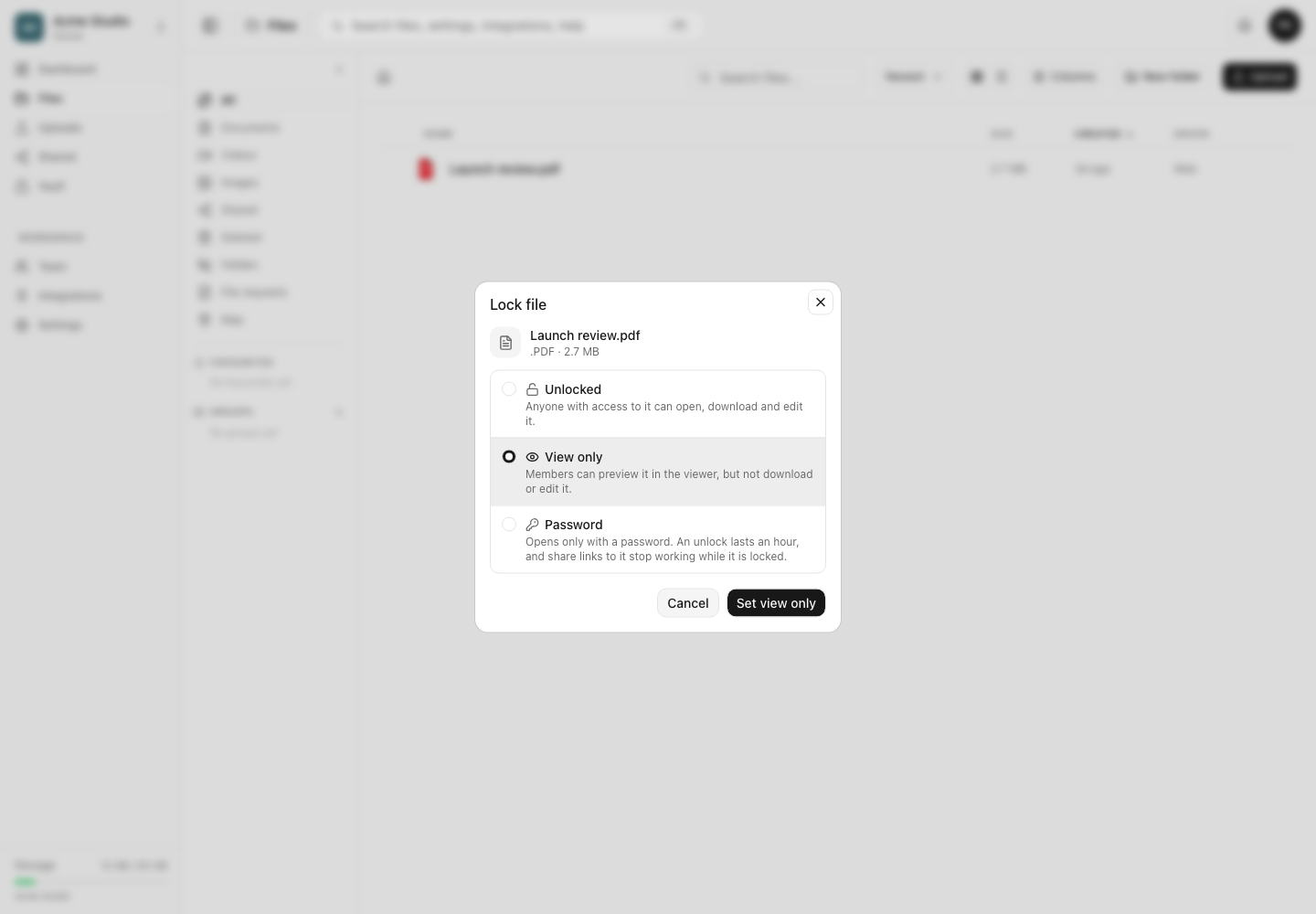
Moving a file changes its parent folder without copying its bytes or creating a new version. Protection is evaluated at both the source and destination, so test the result as the affected member.

Before moving the file
The member needs the workspace capability used for moving files. A confined member must be allowed to reach both the current and destination folders. The file cannot carry its own lock, its source ancestry cannot remain fully locked for that viewer, and the destination cannot be fully locked. If you also rename during the move, rename permission is required.
Steps
- In Files, note the file name, current folder, lock state, and the destination path. Confirm no file with the same name already exists at the destination.
- If the source is password locked, unlock the relevant ancestor in the current browser session. The viewer unlock lasts one hour; it does not remove the folder’s protection for anyone else.
- Open the file action menu, choose the move action, select an allowed destination, and confirm. If the web client reports Move failed and The file could not be moved., inspect the API-specific cause listed below.
- Refresh both folders. Verify that the file disappeared from the source and appears once at the destination with the same size and version.
- Sign in as the intended member and retest listing, preview, download, and upload behavior under the destination’s inherited rules.
Exact refusal reasons
The server can return This file is locked and cannot be moved, This file is inside a locked folder. Unlock the folder to move it., Target folder is locked, File is already in this folder, or A file with this name already exists in the target folder. Access boundaries can instead produce This file is outside the folder you’re confined to, You cannot move a file outside the folder you’re confined to, You don’t have permission to move files, or Target folder not found.
Do not remove a destination lock merely to make a move succeed unless expanding write access is intended. A successful move updates the parent relationship and activity record; it does not leave a recoverable copy in the old folder. Move the file back if the result is wrong.
Expected result
The file exists only in the chosen destination, keeps its bytes and version history, and immediately follows the destination’s inherited lock, hidden-item, role, and assigned-root rules.
Related guides
Was this helpful?
Loading helpfulness results…
Voting saves a necessary ballot cookie for up to 180 days so you can change your answer.
Questions and replies
Ask about the steps in this guide. Questions are reviewed before publication.
Keep account details, credentials and private files out of public questions. Use private support for those.
Loading questions…
Sign in to your Dosya account to ask a question.