Choose between a lock and a role restriction
Choose a folder password, view-only lock, workspace role, or assigned root by matching the control to who needs access and what they may do.
Last reviewed
A folder lock, a workspace role, and an assigned root solve different access problems. Decide which boundary you need before changing a live folder.

Choose the correct boundary
- View only is a folder lock mode. Authorized members may browse and preview the folder tree, but downloads are blocked. It does not ask for a password.
- Password fully locks the folder tree. Members cannot browse its contents, add items inside it, or use existing share links until the folder is unlocked. A successful viewer unlock lasts one hour for that user.
- A workspace role grants capabilities such as uploading, downloading, moving, hiding, or locking files across the workspace. A role does not itself unlock a password-protected folder.
- An assigned root folder confines a member to one subtree. It controls which part of the workspace the member can reach, while locks inside that subtree still apply.
These controls can be combined. For example, a contributor can be confined to Client A, denied download permission by role, and still encounter a password lock on Client A/Legal.
Steps
- Identify the people affected and the smallest folder subtree involved. Do not test with a workspace owner because elevated permissions can hide the member experience.
- If everyone who can reach the folder should preview but not download it, open the folder menu, choose the lock action, select View only, and apply it.
- If the subtree must be closed until a secret is entered, select Password, enter at least eight characters after leading and trailing spaces are removed, and save. Internal spaces count toward the minimum.
- If the rule concerns capabilities or a permanent member boundary, change the member’s workspace role or assigned root in workspace settings instead. Only administrators who can manage members and roles should make that change.
- Sign in as a representative member. Test listing the folder, previewing a file, downloading it, uploading into the folder, and opening any existing share link that matters.
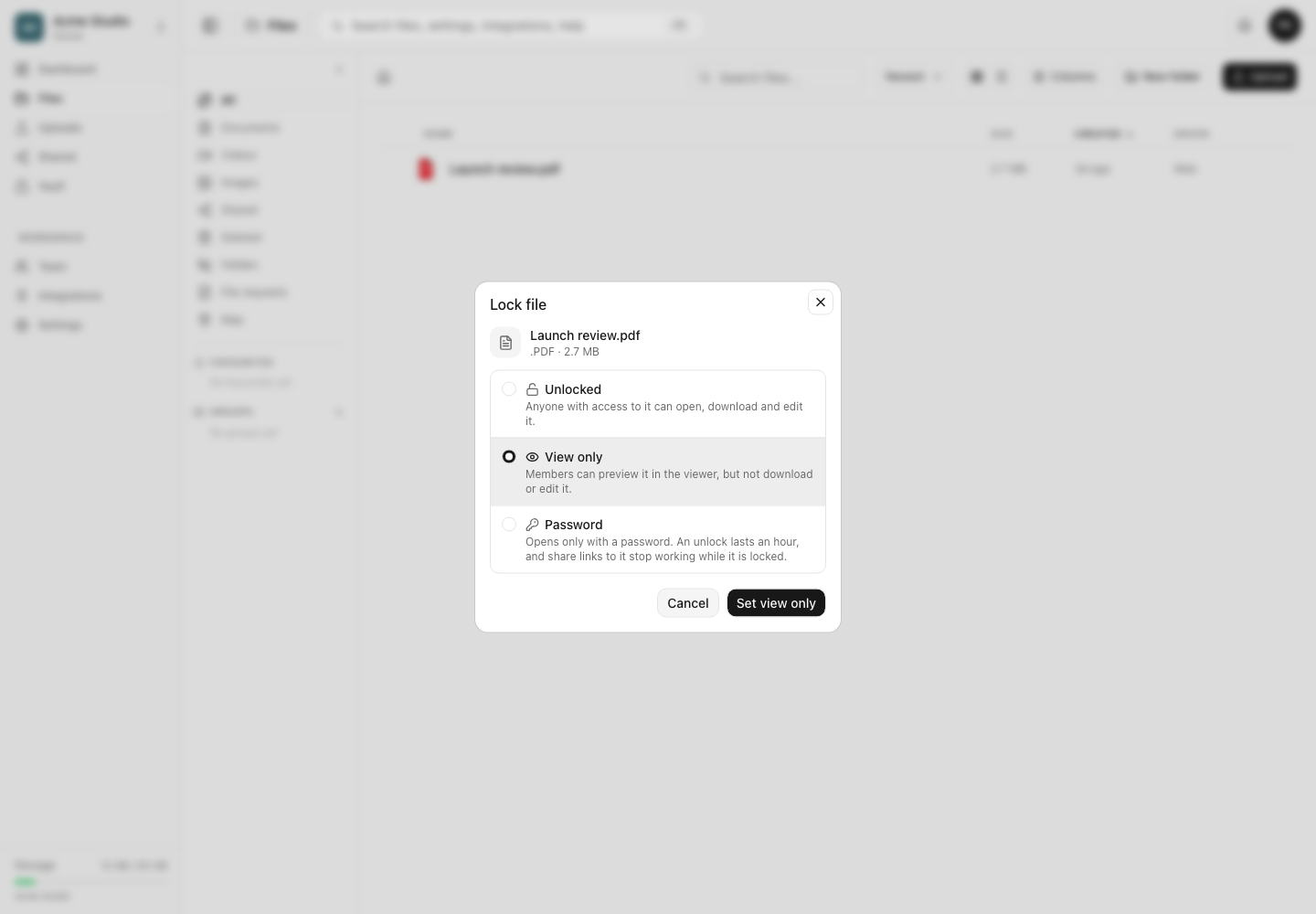
Important interactions
A child marked Unlocked does not override a locked ancestor. Every applicable protected ancestor in the path continues to control the action; unlocking or removing a nearer lock does not bypass a remaining parent restriction. Removing a lock also does not remove hidden-item rules, role permissions, or an assigned-root boundary. Share access does not reuse the one-hour viewer unlock token, and full-lock or view-only subtrees are excluded from sync.
Changing access can expose or block an entire subtree immediately. Record the original setting and test with non-sensitive files before applying the decision to a production folder.
Expected result
The selected control matches the intended scope: a lock protects one subtree, a role defines workspace actions, and an assigned root limits the member’s reachable subtree. The test member sees the same boundary on refresh and after signing in again.
Related guides
Was this helpful?
Loading helpfulness results…
Voting saves a necessary ballot cookie for up to 180 days so you can change your answer.
Questions and replies
Ask about the steps in this guide. Questions are reviewed before publication.
Keep account details, credentials and private files out of public questions. Use private support for those.
Loading questions…
Sign in to your Dosya account to ask a question.