Select all but the newest duplicate
Use Select all but newest as a starting point, review the creation-order choice in every matching group, and avoid trashing the only useful copy.
Last reviewed
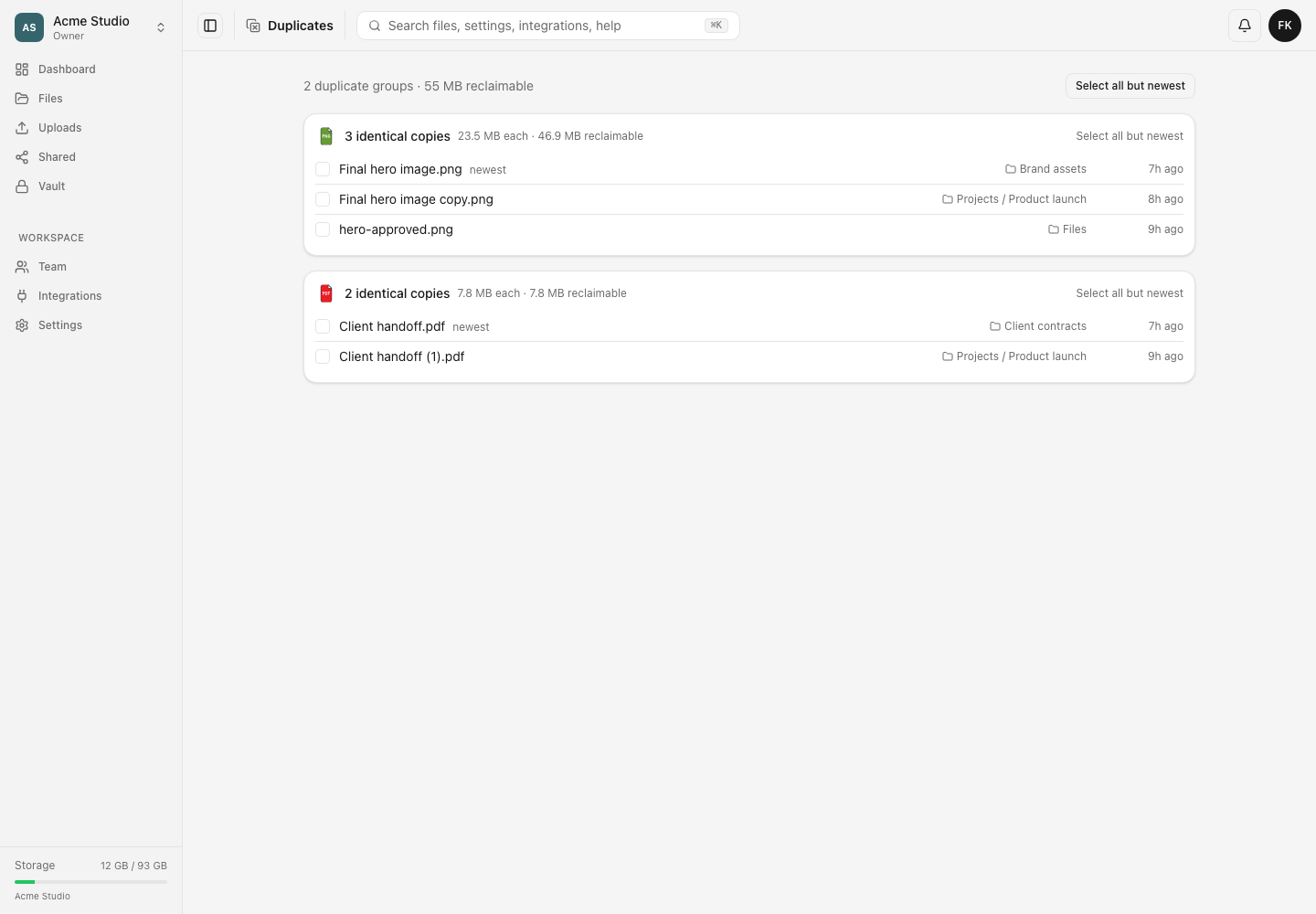
Select all but newest checks older entries in duplicate groups and leaves the first creation-ordered entry unchecked. It is a convenience for selection, not proof that the unchecked file is the correct keeper.

How “newest” is decided. Files in a group are ordered by created_at descending, then by file ID when times match. Dosya does not compare folder importance, comments, shares, filename clarity, or human preference when assigning the badge.
Steps
- Open Duplicates and review the workspace total and visible groups. The view shows no more than the 100 largest reclaimable groups at once.
- Choose the page-level Select all but newest, or use the same control on one group when you want a smaller scope.
- Inspect every checked row. The
newestentry should remain unchecked; older copies should be selected. Uncheck any older file that is still the canonical working copy. - Open containing folders when names or dates do not establish business use. Selection itself does not alter a file.
- Read the aggregate button Move N to trash and reclaimable amount. If Dosya warns In N groups you selected EVERY copy - nothing of those files will remain outside the trash, stop and restore at least one intended keeper to the unchecked set.
- Continue only when you intend to use the separate trash confirmation. Clear discards the current checkbox selection.
If you confirm cleanup. The dialog says Move N files to trash? and This frees X. Files go to the trash and can be restored from there. Requests are submitted in chunks of 500. Earlier chunks can remain trashed if a later chunk fails, so verify the result rather than assuming the whole operation was atomic.
Recovery. Selected files are soft-deleted and can be restored while trash retention permits. Their former folder context matters when deciding whether a restored file belongs back in active work.
Expected result
The shortcut leaves the creation-ordered newest copy unchecked in each scoped group and selects the older matches. You retain final control over every checkbox before any file enters trash.
Related guides
Was this helpful?
Loading helpfulness results…
Voting saves a necessary ballot cookie for up to 180 days so you can change your answer.
Questions and replies
Ask about the steps in this guide. Questions are reviewed before publication.
Keep account details, credentials and private files out of public questions. Use private support for those.
Loading questions…
Sign in to your Dosya account to ask a question.