Reviewing exact duplicate files before removing copies
Compare byte-identical file groups, keep the intended copy, move selected copies to Deleted and permanently purge them only after review.
Last reviewed
Dosya’s Duplicates page groups files whose stored bytes have the same cryptographic fingerprint. Names and folders can differ. Similar-looking photos, resized exports and separately edited documents are not treated as duplicates unless their bytes are exactly identical.
Moving selected copies to trash is recoverable, but those bytes still count against storage until you permanently delete them from Deleted. Review the keeper in each group before taking either action.
Before you start
- Confirm the active workspace. Duplicate results do not combine workspaces.
- Use the application header search, enter
Duplicates, and choose Duplicates to open the page. - Wait for any still being scanned count to finish before treating the results as complete.
- Check whether any copy has a more useful name, folder, share link, comments or workflow history. Identical content does not make the surrounding records interchangeable.
- Make sure your role can access Files and delete the copies you select.
- Use Move to trash first. Permanently delete only after you verify the retained copy.
Steps: compare duplicate groups
- Open Duplicates in the correct workspace.
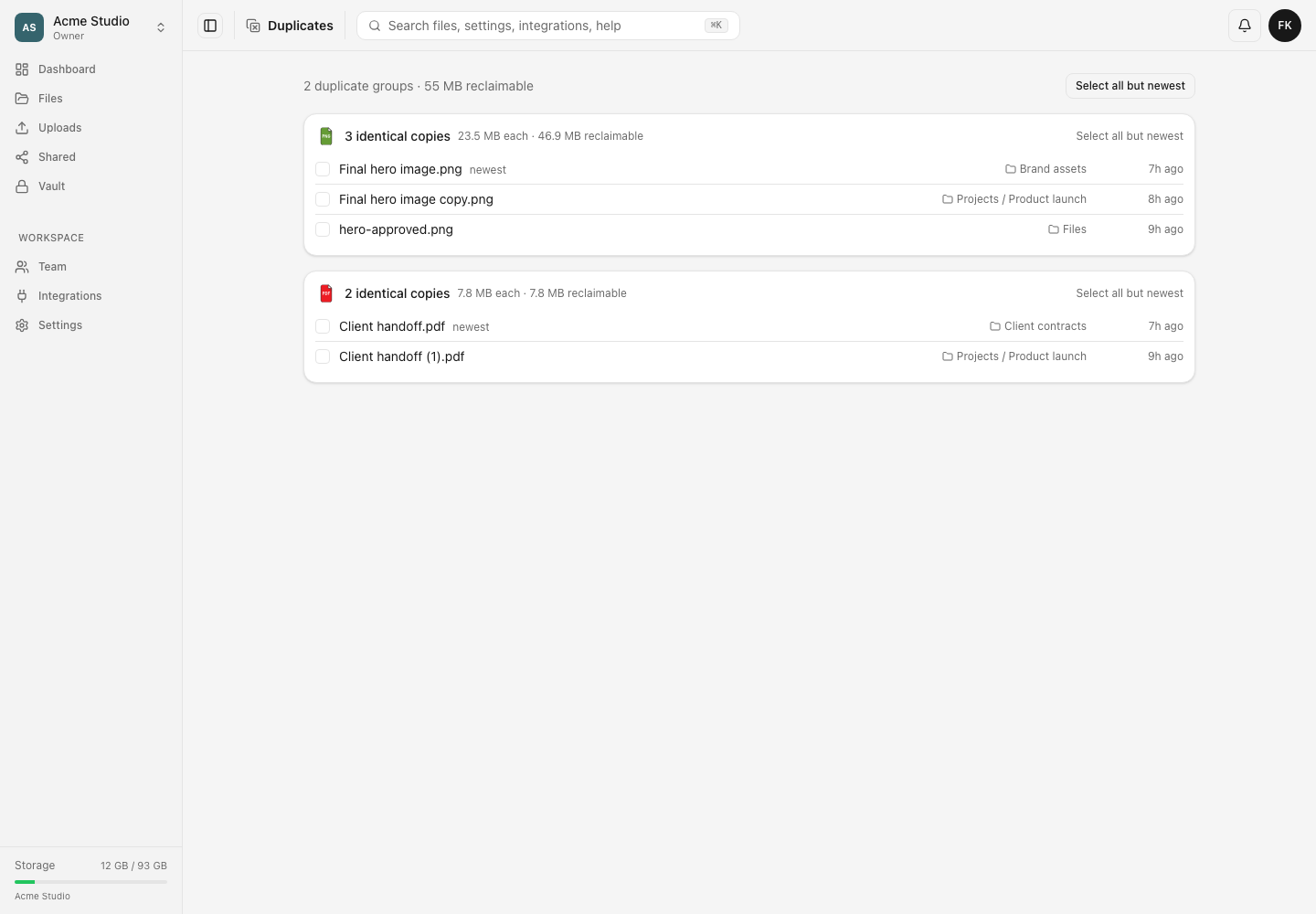
- Read the number of duplicate groups and the total reclaimable bytes at the top.
- Review each card. It shows the number of identical copies, the size of each copy and the bytes represented by all copies beyond one keeper.
- Compare each filename, containing folder and creation time.
- Use the folder path beside a copy to open its containing folder when you need more context.
- Identify the copy you want to retain. The first row is labelled newest, based on when that copy was created in Dosya.
Steps: select copies safely
- For a single group, choose Select all but newest inside that card when the newest Dosya copy is the one you want to keep.
- To apply that rule to every visible group, choose Select all but newest at the top of the page.
- Adjust individual checkboxes when another copy has the preferred name or location. Leave at least one intended keeper unselected in every group.
- Review the selected count and the highlighted rows before continuing.
- If every copy in a group is selected, stop and clear at least one checkbox. The confirmation warns about this condition, but it does not choose a keeper for you.
Steps: move selected copies to Deleted
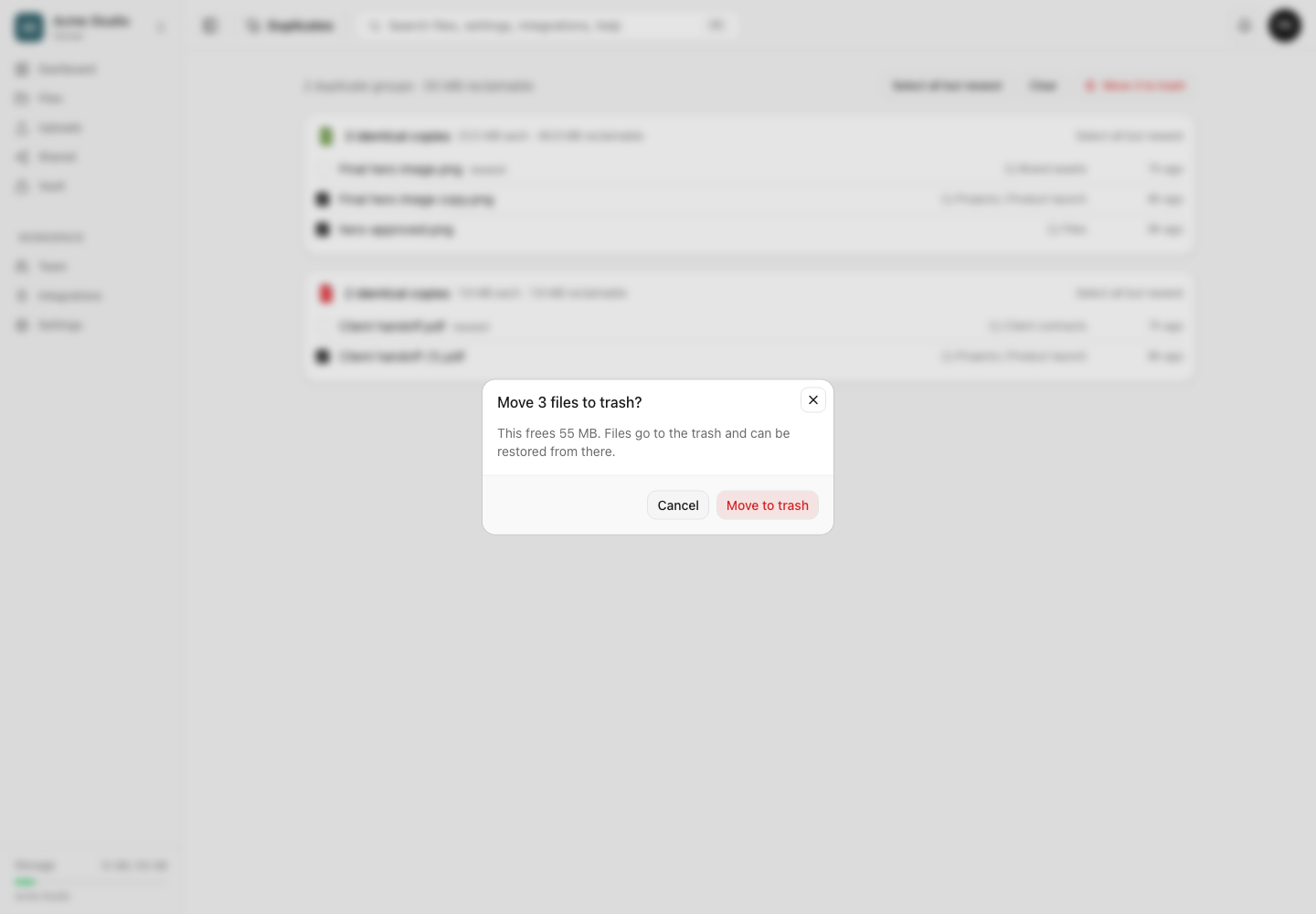
- Choose Move n to trash.
- Read the confirmation count and selected-byte estimate.
- Choose Move to trash.
- Wait for the completion message, then allow the Duplicates page to refresh.
- Open the retained copy from its folder and confirm it still works.
- Open Files → Deleted and verify that only the intended copies moved there.
- Restore any mistaken selection. When the review is complete, permanently delete the unwanted copies to actually free workspace storage.
Expected result
The selected copies move to Deleted, while the unselected keeper remains in its original folder. The Duplicates page refreshes and removes any group that no longer has at least two visible live copies.
Workspace storage is reclaimed only after the unwanted copies are deleted permanently from Deleted. Until then, the trash provides a recovery window.
Duplicate-scan limits and permission behavior
- Groups are based on the stored content fingerprint, not the filename, extension, image appearance or metadata similarity.
- Duplicate scanning is opt-in per workspace and runs in the background. An unfinished scan can temporarily omit groups.
- The current background scanner does not fingerprint a file larger than 256 MiB. Files without a completed fingerprint do not appear in duplicate groups, so an empty page is not proof that every possible copy was compared.
- The page shows up to the 100 largest groups while keeping the total group and reclaimable-byte counts across all results. After cleanup, additional groups can move into view.
- Hidden-item rules and folder confinement apply before groups are formed. You see only copies your role can access.
- Newest refers to the most recently created copy record in Dosya. Because the bytes are identical, it is a convenient default keeper, not a judgment about the best filename, folder or surrounding activity.
- The selected-byte estimate counts the full size of each selected copy. Moving it to Deleted does not reduce the storage meter yet.
- Batch deletion is sent in bounded chunks. A failure can leave part of a large selection moved and part still live; use the refreshed page to decide what remains.
Troubleshooting
Duplicates shows Scanning your files. Leave the workspace scan running and return later. The page refreshes while pending candidates remain.
No duplicates appear even though filenames match. Matching names are not enough. The bytes may differ, scanning may be disabled or unfinished, the files may exceed the current background-scan cap, or visibility rules may exclude a copy.
Similar photos are in different groups or no group. Resizing, recompressing, cropping, editing metadata or exporting again changes the bytes. The current duplicate finder is for exact copies, not visual similarity.
I selected every copy. Clear at least one checkbox before confirming. If you already moved them, restore the intended keeper from Deleted before any permanent deletion.
The reclaimable number did not change the storage meter. Moving to trash preserves the files and their storage use. Permanently delete the reviewed unwanted copies from Deleted to free the bytes.
Some selected copies remain on the page. Read the completion message and refresh. Resolve ownership, lock or permission failures, then retry only the remaining copies.
Frequently asked questions
Are similar-looking photos considered duplicates?
Only when their stored bytes are identical. Visually similar images with different exports, metadata or edits are not grouped as exact copies.
Which copy remains after Select all but newest?
The first, newest Dosya copy in each group remains unselected. You can change the checkboxes when another name or folder should be kept.
Does Move to trash free the displayed bytes immediately?
No. It creates a recoverable trash state. Permanently delete the unwanted copies from Deleted after checking the keeper.
Related guides
Was this helpful?
Loading helpfulness results…
Voting saves a necessary ballot cookie for up to 180 days so you can change your answer.
Questions and replies
Ask about the steps in this guide. Questions are reviewed before publication.
Keep account details, credentials and private files out of public questions. Use private support for those.
Loading questions…
Sign in to your Dosya account to ask a question.