Save selected text from a webpage
Save selected webpage text as a generated text file with title and source context, then verify the one-million-character-limited result in Dosya.
Last reviewed
Selection capture stores plain text plus its page title and source URL. It does not preserve HTML, images, colors, or the page’s visual formatting.

Steps
- Highlight the exact non-sensitive webpage text to preserve. A whitespace-only selection cannot be saved.
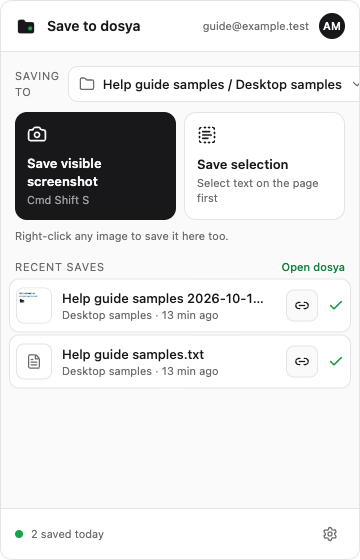
- Open Save to dosya, confirm Saving to, and choose Save selection; its helper reads Select text on the page first.
- Alternatively, right-click the highlighted text and choose Save selection to dosya. The global shortcut also saves the selection when it is nonempty.
- If the extension responds Select some text first, select visible text again on a supported page and retry once.
- Wait for the generated
<page title>.txtrow to complete. Selection content is truncated at 1,000,000 characters. - Open the file and verify the exact format:
Title: <document title>,Source: <page URL>, one blank line, then the captured text.
Expected result
Dosya contains one .txt file in the chosen destination with the page title, page URL, and selected text. Its content remains plain text and respects the one-million-character cap.
If the global shortcut finds no selection, it captures a visible screenshot instead. Use the named Save selection action when the intended output must be unambiguous.
Related guides
Was this helpful?
Loading helpfulness results…
Voting saves a necessary ballot cookie for up to 180 days so you can change your answer.
Questions and replies
Ask about the steps in this guide. Questions are reviewed before publication.
Keep account details, credentials and private files out of public questions. Use private support for those.
Loading questions…
Sign in to your Dosya account to ask a question.