Verify desktop recovery after a restart
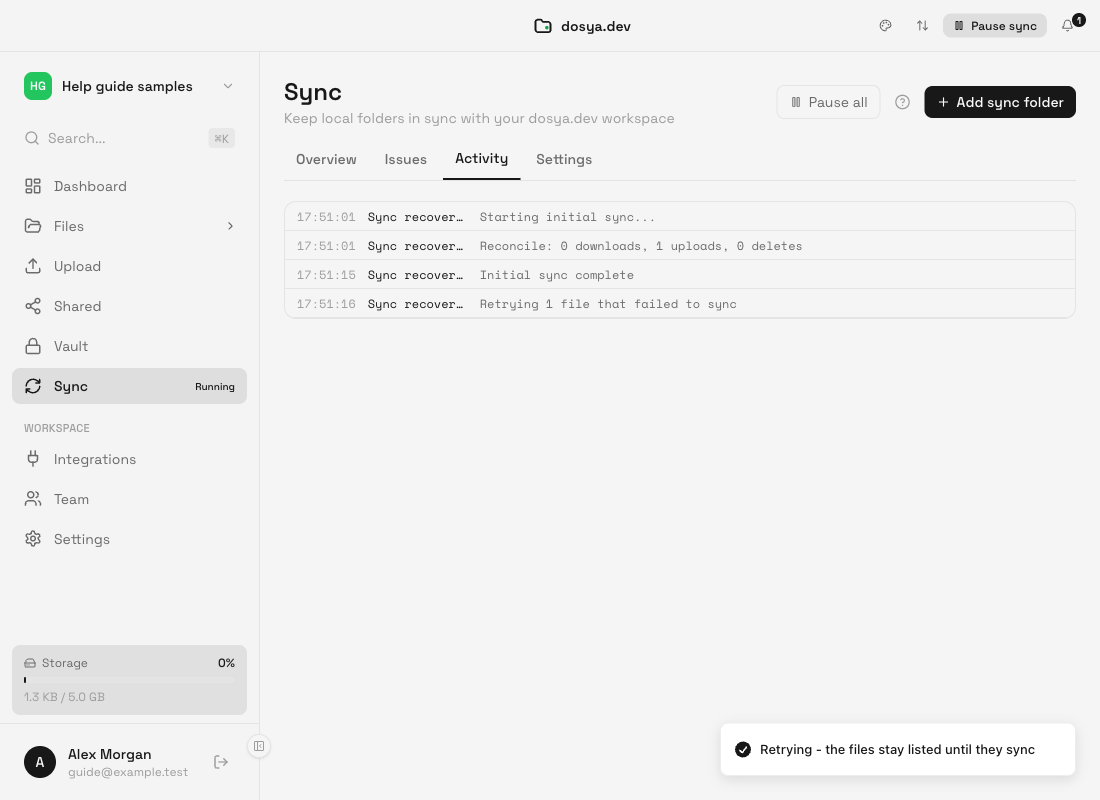
After restarting Dosya, let its persisted queue resume, inspect Activity and Issues, then verify one cloud result or capture the repeated error.
Last reviewed
Dosya stores unfinished sync operations in SQLite. After a restart, operations that were marked running return to pending and can resume; wait for that queue before manually retrying a file.

Before you start
Record the affected pair, path, status, timestamp, and nonsecret error. Avoid editing the same local file during restart, because a manual duplicate change can obscure whether the persisted operation recovered.
Steps
- In Sync, capture the current Activity entry and any row under N files not synced before closing Dosya.
- Restart the application once, reopen Sync, and look for Resuming N operations… before taking another action.
- Allow the desktop sync queue and multipart status checks to run; do not create a duplicate upload for the same path.
- If rows remain, read every will retry or won’t retry state, fix their causes, then use the pair’s single Retry control to retry all listed errors.
- Use Sync now when the pair needs a fresh scan rather than a retry of one recorded failure.
- Verify the cloud path, version, and file size, or capture the identical repeated error with its new timestamp.
Completed operation records are retained for seven days; failed and pending work is not removed by that completed-record sweep. Multipart uploads can query remote status and continue missing parts instead of blindly starting the entire file again.
If the renderer cannot reach the engine, it shows Couldn’t read sync status and The app couldn’t reach its sync engine - try restarting dosya., with Try again. The engine restarts immediately after its first crash, waits one second after a second crash within 60 seconds, and parks after a third; 60 healthy seconds reset that ladder.
Expected result
The persisted operation finishes and the cloud receipt matches the intended file, or the same specific error returns with enough evidence for diagnosis. A missing issue without a matching cloud result is not proof of success.
If the engine has parked after repeated crashes, restart the application and preserve the captured evidence for a problem report rather than cycling Retry continuously.
Related guides
Was this helpful?
Loading helpfulness results…
Voting saves a necessary ballot cookie for up to 180 days so you can change your answer.
Questions and replies
Ask about the steps in this guide. Questions are reviewed before publication.
Keep account details, credentials and private files out of public questions. Use private support for those.
Loading questions…
Sign in to your Dosya account to ask a question.