Diagnosing desktop sync with Issues and Activity
Find folder errors, notices and failed files, use Activity to understand progress, then retry after correcting the cause and verify the destination.
Last reviewed
Open Sync, check the affected folder in Overview, then use Issues for folder errors and notices and Activity for recent operations. For individual failed files, select the N files not synced badge in Overview. Correct the cause before selecting Retry, and confirm the intended files reached their destination afterward.
Before you start
- Select the workspace containing the affected pairing. Note its cloud folder, local path and Mode in Overview.
- Keep the desktop app open and the computer awake while checking a transfer. Reconnect any external drive used by the pairing.
- Keep a separate copy of important work before making a recovery decision that could replace or remove a file.
- Check the sync mode’s direction. A local change will not upload through Pull from Cloud or Save to Device; a cloud change will not download through Push to Cloud or Protect & Upload.
- Record the error text before clearing a list or restarting. Filenames and paths may be personal; omit credentials and private material from any report.
Steps: identify what needs attention
- Find the pairing in Overview. Select Sync in the sidebar. Match the cloud folder and local path, then check Mode and Status. Paused needs a resume action, Offline indicates a connection problem, and Waiting can indicate a temporary rate limit. Synced describes the folder’s current cycle; also check for a failed-file badge.
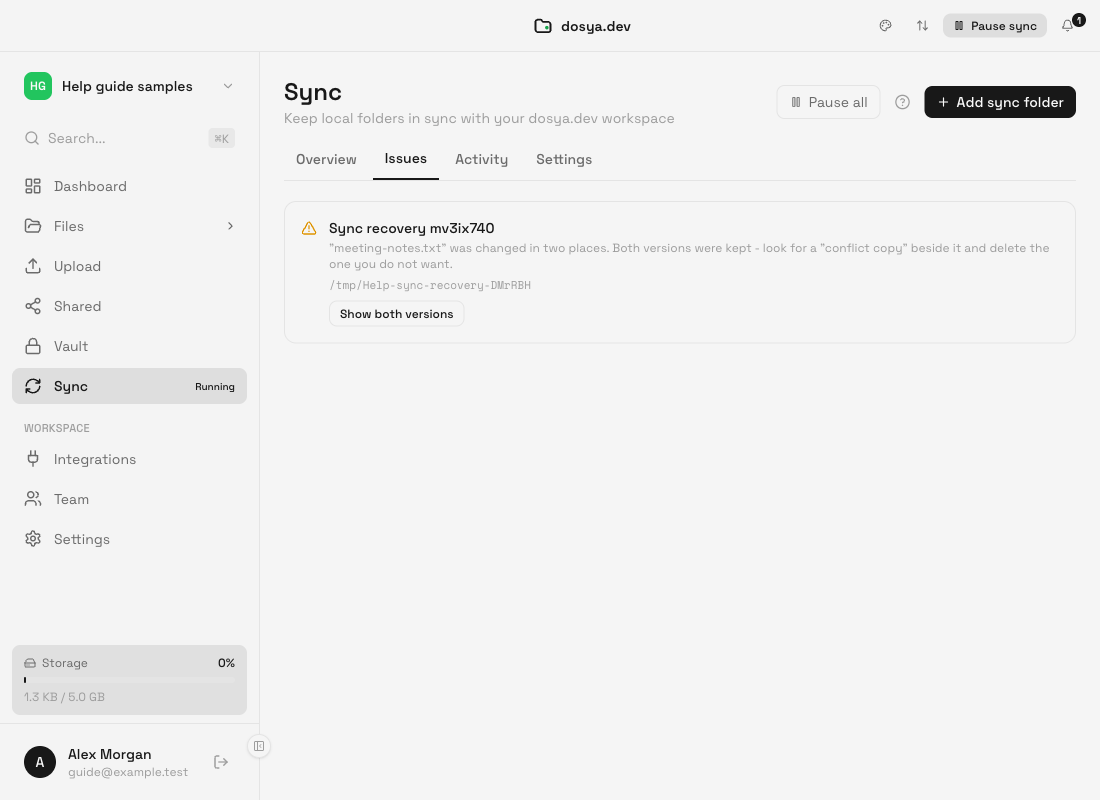
- Open Issues. Select the Issues tab. A folder error shows its message, path, Retry and Report. A macOS permission prompt offers Reselect folder: select the intended local folder again in the operating system’s picker. Notices explain conditions such as delayed watching, skipped files or a conflict copy. Read the notice before deciding what to do; a notice does not necessarily mean the entire folder stopped syncing.
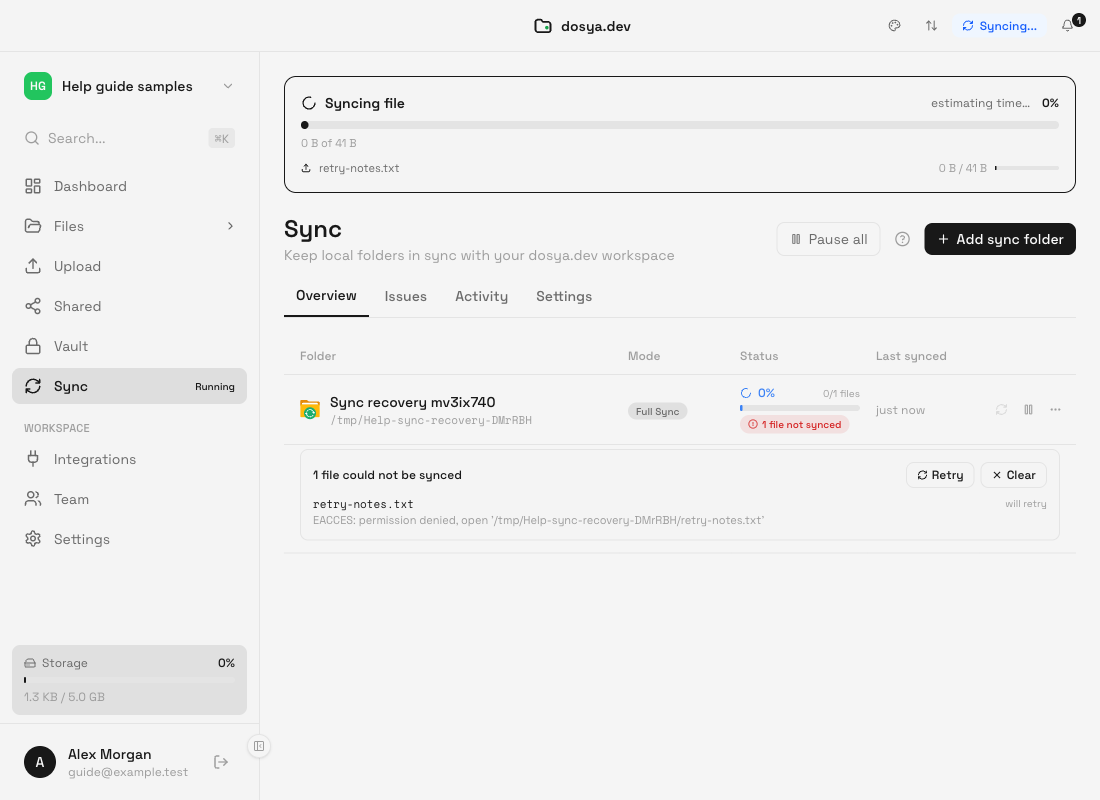
- Check individual failed files in Overview. Return to Overview and select N files not synced beneath the folder’s status, if shown. The expanded list gives each path, reason and either will retry or won’t retry. Won’t retry means automatic attempts have stopped; it does not prevent a manual retry after you fix the cause.
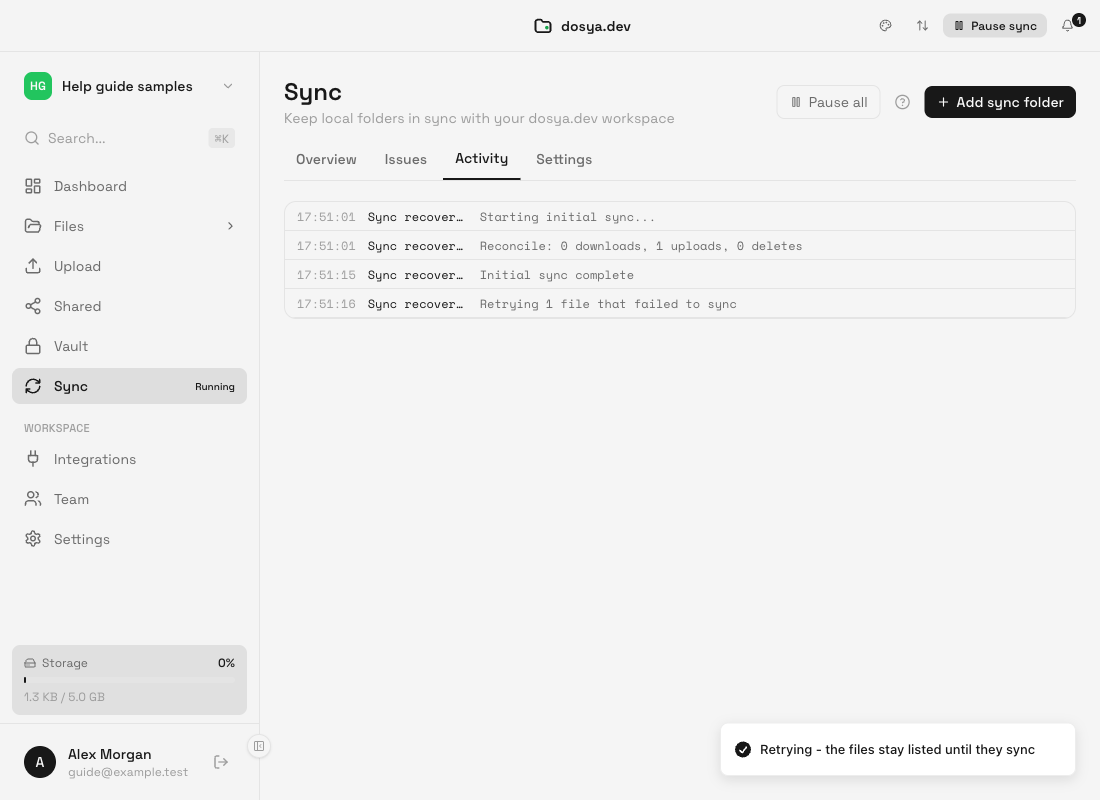
- Check Activity for progress and context. Select Activity. Read the operation messages for the affected folder. During a cycle, a live header shows the current phase and elapsed time. Preparation can take time before a transfer percentage appears. Activity can include pairings from other workspaces, so use the folder name to identify the relevant entries.
Steps: correct the cause and retry
- Fix the reason shown. Restore the connection or drive, close an application holding a file busy, or correct local access permissions. For a cloud storage or workspace permission error, resolve the applicable limit or ask the workspace administrator for the required access. For a download, also check available space on this computer.
- Resume a deliberately paused pairing. In Overview, use the row’s Resume control. A workspace’s Resume all button resumes its paused pairings. If the overview banner says Sync is paused for all folders, its Resume all action releases the global pause. A folder awaiting macOS permission still needs Reselect folder.
- Use the appropriate Retry. For a folder error, select Retry on its Issues card. For failed files, expand N files not synced in Overview and select that list’s Retry. This retries all failed files for the pairing, including entries marked won’t retry. They stay listed until successful transfers clear their errors.
- Allow the cycle to finish. Use the row’s Sync now control if a fresh cycle is needed after correcting a cause. It requests work; it does not grant permissions or resolve a conflict. Avoid repeatedly pressing it while a cycle is already running. Check Activity for the result.
- Verify the destination. Follow the pairing’s direction to the correct cloud or local folder. Confirm the intended filenames and open your own destination copies to check that they are the versions you expected. For important files, compare with the separate copies you retained.
Expected result
The affected files arrive at their intended destination and their failed-file entries disappear. The folder returns to its normal state after the cycle, with no relevant unresolved error or conflict. A remaining informational notice may still explain a limitation of the pairing.
Check the destination as well as the interface. Sync complete, Synced, a recent Last synced label or a successful toast does not by itself establish that every file transferred. An excluded file is outside the pairing’s transfer set.
Actions to use carefully
Clear in the failed-file list dismisses the recorded errors. It does not repair the cause or prove a successful transfer. The files can be attempted again on a later cycle. Prefer Retry after fixing the cause when you want to confirm recovery.
The row’s three-dot menu contains Open folder and Remove. Remove stops the pairing and clears its saved relationship and sync state; existing local and cloud files remain. Removing and adding a pairing again starts a fresh comparison. Use it only when you deliberately need to rebuild the relationship, after recording the destination, mode and exclusions and preserving important copies.
If Overview asks about files that disappeared locally, reconnect or locate the intended drive or folder first. Keep the cloud copies declines the held cloud deletion. Delete from the cloud too authorizes that deletion and moves the affected files to cloud trash. Do not use the delete action to dismiss an unexplained prompt.
Limitations
Issues is not a complete list of individual failed files. Its badge also does not count every notice or permission prompt. Check Overview’s failed-file badge even if Issues says No issues.
Activity shows recent sync messages, rather than a complete permanent history. The current status snapshot carries the latest 50 entries across pairings. A failed-file list shows up to 200 recent errors for a pairing; its total can be larger. Retry covers the pairing’s failed files, including those outside the displayed list.
The chosen mode, exclusions and permissions still govern transfers after retrying. This guide covers regular folder sync; Vault uses a separate workflow. A Mac App Store folder-access prompt is specific to the sandboxed macOS build.
Troubleshooting
The folder is Offline. Restore connectivity and leave the app open. Sync checks for recovery and resumes when the connection is available. If Activity identifies maintenance, wait for the service to become available. Recreating the pairing does not restore a connection.
The row says Waiting. A rate limit can temporarily pause requests. Let the waiting period expire; the engine schedules its own resume. Repeated retries do not remove the limit.
Issues says No issues, but a file is missing. Check Overview’s failed-file badge, the active workspace, mode and local path. Check whether an exclusion applies. Then inspect the expected destination.
Retry succeeds as an action, but the error returns. Re-read the reason: the underlying cause may still apply. A manual retry resets automatic retry eligibility; it does not change storage limits or permissions.
Activity seems busy for a different folder. It can show multiple workspaces. Match the folder name to the pairing you are diagnosing and confirm the selected workspace in Overview.
The app cannot display sync status. Overview offers Try again when it cannot reach the sync engine. Use that action, then restart the desktop app if the status remains unavailable. Record any visible error first.
I still cannot identify the cause. Select Report on the folder error or open Help → Report a Problem…. Describe the expected direction, affected folder, error and what you already tried. Review the screenshot and diagnostics options before Send report. The optional recent log includes filenames; it is off by default. A screenshot is taken when you send, so show only what you intend to share.
Frequently asked questions
Why can a Synced folder still show files not synced?
The row’s status and the per-file error list describe different things. A cycle can finish while some files remain failed. Expand the badge and verify those files individually.
Does Retry include files marked won’t retry?
Yes. The failed-file list’s Retry resets the pairing’s failed files for another attempt, including those marked won’t retry. Fix the cause first.
Does Clear delete the failed files?
No. It clears the error list. The files remain where they are, and a later cycle can try them again.
Should I change sync mode to make a missing file appear?
First check whether the current mode matches your intended direction. Changing the relationship can introduce different update and deletion behavior. Diagnose errors and exclusions before deciding to create a different pairing.
Related guides
Was this helpful?
Loading helpfulness results…
Voting saves a necessary ballot cookie for up to 180 days so you can change your answer.
Questions and replies
Ask about the steps in this guide. Questions are reviewed before publication.
Keep account details, credentials and private files out of public questions. Use private support for those.
Loading questions…
Sign in to your Dosya account to ask a question.